
Flying Equations
Fly through equations, scientific diagrams, molecules, element cards, and audio-reactive curves in three spatial compositions with nine performance presets.
Flying Equations is a scientific flight field in the Particles category. Typeset formulas, geometric constructions, graphs, molecules, chemistry icons, periodic-element cards, DNA strands, oscillating curves, and particle diagrams move through a deep cinematic space. Illustrations draw themselves in before holding complete, while naturally repeating curves redraw in independent loops. Flying Equations requires WebGPU; see Browser Support for current platform details.
Open Flying Equations
Launch the visualizer with its matching left-nav entry selected.
Three spatial compositions
Fly Through carries formulas and diagrams through a deep corridor. Board organizes them into a layered presentation with slow parallax. Swarm surrounds the camera with a broad spherical field and opens from inside it.
The background quick choices include black, white, broadcast key green, and broadcast key blue. The keying looks flatten the background and remove glow from the matte edges. The Key Green preset is built for the meme workflow: flat broadcast green (#00b140), glow off, white ink, so the matte keys cleanly in any editor. With the Idea Burst core and a key background, position the emitter over a person in your composite and the equations stream out of their head. Flying Equations has no offline RENDER — go fullscreen (Ctrl+F) and screen-record it.
Interesting facts
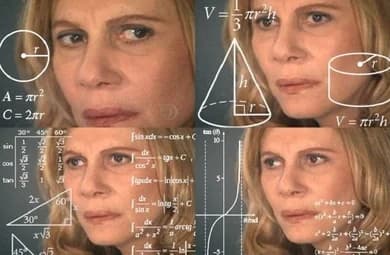
Floating equations are one of television's most recognizable visual shorthands for thinking. The Math Lady meme (also called Confused Lady or the confused math meme) comes from Brazilian actress Renata Sorrah playing Nazaré Tedesco in the telenovela Senhora do Destino (2004): four shots of her puzzled face were overlaid with glowing trigonometry and geometry diagrams, and the format spread worldwide. She is regularly mistaken for Julia Roberts — many people find the meme by searching for a confused Julia Roberts math GIF.
In The Hangover (2009), Alan's casino scene shows card-counting equations and probability notation materializing around his head as he plays blackjack — a direct cinematic ancestor of the equations-out-of-the-head look. The Idea Burst core with a chroma key background recreates exactly that framing for live compositing.
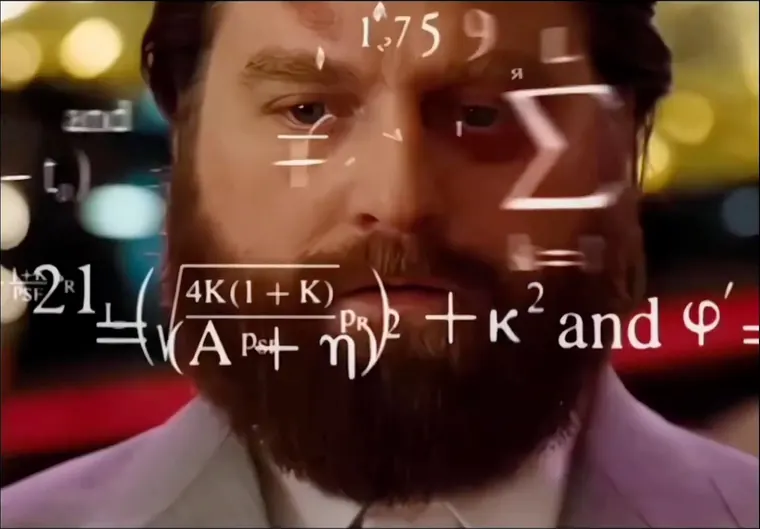
For the full history of both memes — and a step-by-step guide to recreating the effect with this visualizer, CapCut, Final Cut Pro, or After Effects — read How to Make the Floating Math Equations Meme on the BeamTracer blog.
Quick start
- Start the demo track, choose a local audio file, or enable a live input.
- Try a preset or style first, then open the section for the part of the image you want to change.
- Open Audio to tune waveform movement, frequency-band strength, smoothing, echoes, and the overall response.
- Use Reset to Defaults whenever you want to return to the original look.
Presets and styles
Everything · Derivation · Lecture · Immersion · Whiteboard · Key Green · Key Blue · Cinema · Signal
Audio modulation
Flying Equations has a built-in audio response and does not offer Assign modulation on individual sliders. Bass, mid, and high strength shape the movement of waveform-based figures, complete rings, and molecular structures; Waveform Cascade and Echoes spread that motion through time.
Settings reference
Core
| Setting | Available values | What it changes |
|---|---|---|
| Core | LATEX FLIGHT, IDEA BURST | Chooses the visual content engine: LaTeX Flight flies the field through depth, and Idea Burst radiates it from a positionable emitter. |
| Motion | FLY THROUGH, BOARD, SWARM | Chooses Fly Through, Board, or Swarm spatial staging. |
| Emitter X | -1–1 | Moves the point the equations burst out from left or right of center; available when Core is set to Idea Burst. |
| Emitter Y | -1–1 | Moves the point the equations burst out from above or below center; available when Core is set to Idea Burst. |
| Content Set | LINEAR ALGEBRA, CALCULUS, PHYSICS, GEOMETRY, CHEMISTRY, STATISTICS, SIGNAL, EVERYTHING | Chooses the subject used for formulas and related illustrations. |
| Illustrations | On / Off | Turns illustrations on or off. |
| Draw Speed | 0.1–2 | Sets how quickly illustrations draw themselves before holding complete or beginning their next loop. |
| Frame Rate | DISPLAY, 24 FPS, 25 FPS, 30 FPS, 48 FPS, 60 FPS | Chooses the frame rate mode or style. |
| Density | 20–900 | Controls how concentrated the visible elements appear. |
| Speed | 0–120 | Sets how quickly speed changes or moves. |
| Spread | 4–120 | Controls how far elements separate from the center or from one another. |
| Field Depth | 40–600 | Sets the visible field depth. |
| Tumble | 0–1 | Sets how much each equation spins on its own axis as it drifts; at 0 every equation stays facing forward and fully readable. |
Typography
| Setting | Available values | What it changes |
|---|---|---|
| Size | 0.2–8 | Sets the visible size. |
| Size Variance | 0–1 | Sets the visible size variance. |
| Extrude | 0–0.4 | Gives the lettering physical thickness; at 0 the text is drawn flat, and higher values make it look like solid 3D type. |
| Curve Quality | 2–12 | Trades visual detail against performance. |
| Line Weight | 0.005–0.12 | Sets the stroke thickness of drawn line work such as molecule bonds, chart curves, and figure outlines. |
| Type On | On / Off | Reveals each expression with a scramble-and-lock animation. |
| Type On Speed | 0.05–4 | Sets how quickly characters lock into the final expression. |
| Scramble Rate | 1Hz–60Hz | Sets how quickly unresolved characters cycle while the expression is drawing in. |
| Reveal Hold | 0–0.9 | Sets how long reveal hold remains visible. |
Optics
| Setting | Available values | What it changes |
|---|---|---|
| Depth of Field | On / Off | Turns depth of field on or off. |
| Focus Distance | 1–200 | Sets the spacing between visible elements. |
| Aperture | 0–1 | Sets how strongly objects away from the Focus Distance blur; higher values give a shallower, blurrier background and foreground; available when Depth Of Field is on. |
| Bokeh Scale | 0–6 | Sets the visual bokeh scale. |
| Bloom | 0–2.5 | Sets the visible strength of bloom. |
| Bloom Threshold | 0–1 | Sets the level that must be crossed before bloom appears. |
| Distance Fade | 0–0.06 | Sets the spacing between visible elements. |
Colors
| Setting | Available values | What it changes |
|---|---|---|
| Quick | Color | Sets the quick. |
| Custom | Color | Sets the custom. |
| Ink | AUTO, LIGHT, DARK, CUSTOM | Chooses the ink mode or style. |
| Ink Color | Color | Sets the ink color. |
| Accent | Color | Sets the accent. |
| Accent Mix | 0–1 | Blends selected equations and illustration strokes from the main ink toward the accent color. |
| Glow | 0–1 | Sets the visible strength of glow. |
| Bass Color | Color | Sets the bass color. |
| Mid Color | Color | Sets the mid color. |
| High Color | Color | Sets the high color. |
Audio
| Setting | Available values | What it changes |
|---|---|---|
| Audio Reactive | On / Off | Turns audio reactive on or off. |
| Master Gain | 0–3 | Sets how strongly the input signal affects master. |
| Bass Intensity | 0–3 | Sets the visible bass intensity. |
| Mid Intensity | 0–3 | Sets the visible mid intensity. |
| High Intensity | 0–3 | Sets the visible high intensity. |
| Smoothing | 0–0.98 | Balances immediate audio response against steadier motion. |
Waveform
| Setting | Available values | What it changes |
|---|---|---|
| Waveform Displacement | 0–1 | Controls how far the shape moves away from its base surface. |
| Waveform Cascade | 0–1 | Offsets waveform movement across different elements so the signal travels through the field. |
| Echoes | 0–8 | Sets how many recent waveform shapes remain in the motion trail. |
| Echo Decay | 0.5–0.99 | Sets how quickly retained waveform shapes fade from the movement. |
Depth Tint
| Setting | Available values | What it changes |
|---|---|---|
| Depth Tint | OFF, COLOR, BRIGHTNESS | Chooses the depth tint mode or style. |
| Tint Strength | 0–1 | Sets the visible tint strength. |
Spawn Modulation
| Setting | Available values | What it changes |
|---|---|---|
| Spawn Modulation | OFF, COLOR, BRIGHT, GLOW | Chooses the spawn modulation mode or style. |
| Modulation Strength | 0–1 | Sets the visible modulation strength. |
| Field Noise | 0–1 | Sets how irregular or unpredictable the field noise appears. |
| Board Push | On / Off | Turns board push on or off. |
| Push Amount | 0–1 | Sets how far audio pushes the equations away from the board. |
Camera
| Setting | Available values | What it changes |
|---|---|---|
| Camera Angle | INSIDE, CORE, WIDE, TOP, ISO, FLY-THROUGH | Chooses the camera angle mode or style. |
| Auto Camera | On / Off | Advances through the available eased camera views using the current BPM. |
| Beats Per View | 1–32 beats | Holds each view for this many beats before beginning the next camera move. |
| Remaining | Live readout | Counts down the current hold and previews the next camera view. |
| Motion Path | ORBIT, FIGURE 8, HELIX, SLALOM, SURGE, TUMBLE, DRIFT | Chooses the motion path mode or style. |
| Path Speed | 0–2 | Sets how quickly path changes or moves. |
| Camera Transition | 0.25s–5s | Sets how many seconds the camera takes to glide to a new camera view when you switch. |
| Pause Camera | On / Off | Turns pause camera on or off. |
| Mouse Orbit | On / Off | Turns mouse orbit on or off. |
| Orbit Damping | 0.01–0.4 | Balances immediate audio response against steadier motion. |
Some controls appear only after you enable a related mode or style. The settings panel always reflects the options available for the current selection.
Tips for a better audio visualization
- Raise Waveform Displacement until curves and molecular bonds visibly move, then balance Bass, Mid, and High so the field stays readable.
- Add one or two Echoes for a traveling oscilloscope trail; heavier echo stacks work best with lower glow and bloom.