
Customize
Per-visualizer settings in both modes — the Visualizer Settings sidebar, the Performer Customize panel, and modulatable sliders.
Every visualizer ships with sensible defaults, but its full parameter set is exposed so you can dial in exactly the behavior you want. The controls live in two places depending on the mode — both drive the same underlying settings.
Visualizer Mode: The Settings Sidebar
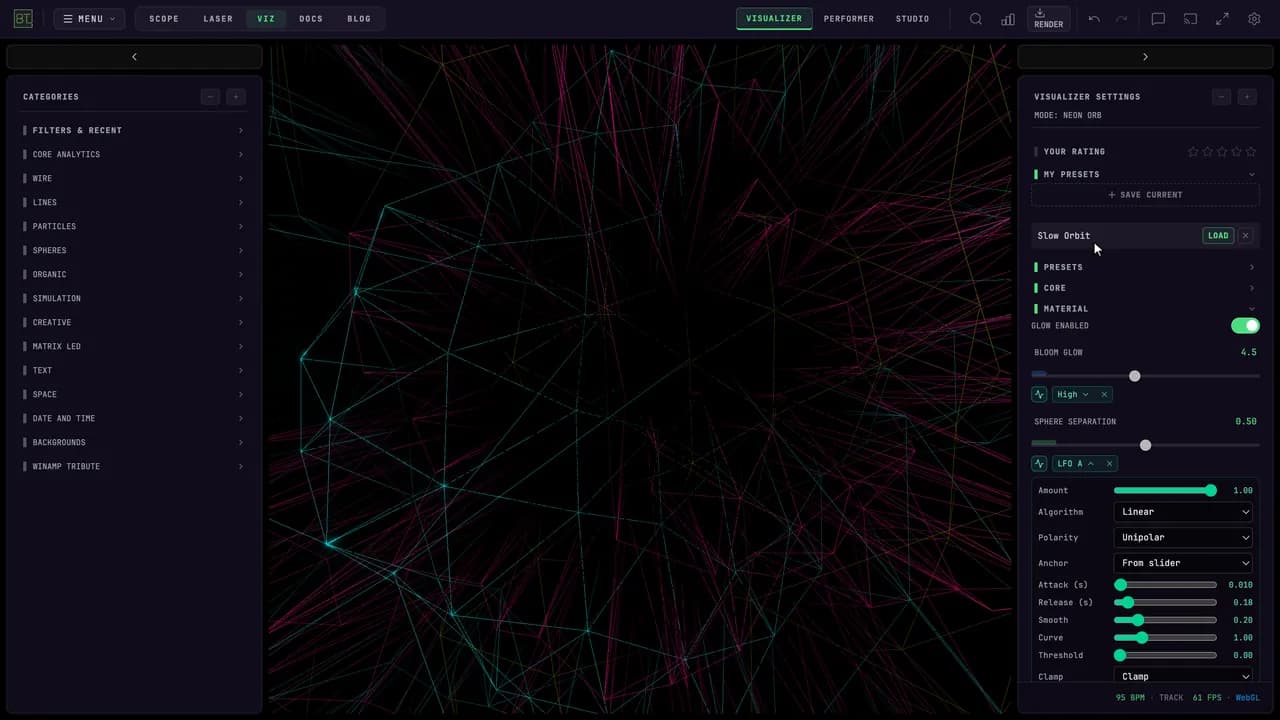
The right sidebar (toggle with the arrow button or Ctrl+]) is headed VISUALIZER SETTINGS and always shows the active visualizer's controls. From top to bottom:
- Star rating — rate the visualizer 1–5 stars; ratings feed the sidebar filters (details)
- MY PRESETS — per-visualizer saved configurations with + SAVE CURRENT, load, rename, and delete (Presets)
- Settings sections — the visualizer's own parameters, grouped into collapsible sections
- Reset to Defaults — returns the visualizer to its shipped settings
The active mode appears below VISUALIZER SETTINGS. The sidebar footer shows the current BPM, tempo source, frame rate, and rendering engine.
How do I put a Studio layout over a visualizer?
- In Studio, place the widgets you want (UI STATS widgets, analysis graphs, images or text) and save the project.
- In Visualizer mode, open the settings sidebar and pick the project under LAYOUT at the top. Its widgets appear over the visualizer and move with the music.
- Press EDIT LAYOUT to drag a widget to a new spot or drag a corner to resize it, then DONE EDITING LAYOUT.
- Choose OFF to remove the layout. A layout shows the same way in RECORD and in a rendered video.
Use a layout without a full-frame backdrop if the visualizer should show through.
Performer Mode: The Customize Panel
Click the arrow toggle in the top-right of the Performer canvas to slide the CUSTOMIZE panel in from the right edge (you can also reach it via a preset's edit action). The panel header shows the name of the current preset, so you always know what you're editing.
It contains the same per-visualizer settings panels as Visualizer mode, plus QUICK ACTIONS at the top — most importantly SAVE AS PRESET, which stores the whole configuration as a custom preset in the preset grid.
How do I describe a look?
Open DESCRIBE A LOOK at the top of the visualizer's settings, type what you want in DESCRIPTION ("slow violet glow, the bass pushes everything outward"), and choose MAKE THIS LOOK. The AI sets the settings shown in the panel to match, and the panel names the look it applied. Settings hidden behind a switch that is off stay as they are, so turn on a section first if you want the look to use it. Save a look you like with My Presets. On the Free plan each look uses one AI Frame Analysis try; Pro and above make looks without limit. Your description and the panel's settings are sent to the AI once.
Settings Are Per-Visualizer
Both surfaces are specific to the active visualizer. A particle visualizer exposes spawn rate and trail length, a terrain visualizer exposes deformation and wireframe density, an oscilloscope exposes line weight and glow. Switching visualizers swaps in that visualizer's own controls.
Apply One Scene Look Across Visualizers
Open Settings → Display → Scene Look when you want the same finishing treatment to follow you as you switch visualizers. It is off by default. Turn it on to choose:
- a solid, linear, radial, starfield, plasma, or floating-dust background
- a named palette or three custom colors
- a blend mode and noise, paper, grid, dots, diagonal, or hex texture
- separate background, palette, texture, and motion strengths
The background sits behind the visualizer, while the palette and texture sit above it. To reveal more of the background, use the active visualizer's Background Opacity control or Transparent Background switch when available. The same Scene Look is included when you render a video from Audio Visualizers, and Reset Scene Look returns it to its off state.
Kinds of Settings
Controls are grouped into collapsible sections by accent color. The common control types are:
| Control | What It Does |
|---|---|
| Sliders | Numeric parameters — speed, scale, intensity, count, glow, and similar |
| Toggles | On/off switches for individual effects and modes |
| Button grids | Pick one option from a small set — variants, blend modes, shapes |
| Color palettes | Choose a preset color scheme from swatches |
| Color pickers | Set an exact color for a specific element |
| Selects | Dropdowns for longer option lists |
Most visualizers expose color, speed, and effect controls in some form, but the exact mix is defined per visualizer.
Modulatable Sliders
Many sliders can be driven by a live source rather than left at a fixed value. Select the activity icon named Assign modulation below a supported slider to open Modulate with, then choose from the named source groups. Choose — None to leave the slider unmodulated.
After you assign a source, its name appears below the slider. Select the name to edit the route, or use Clear modulation to remove it. The slider track shows the live signal reaching the control. See Audio Modulation for the full source catalog and route options.
Saving Your Work
When the visualizer looks the way you want, save it: + SAVE CURRENT in the Visualizer-mode sidebar, or SAVE AS PRESET in the Performer Customize panel. Reset to Defaults is always available to return to the shipped settings.
Saved presets capture every control in the panel — colors, slider values, toggles, and modulation assignments. See Presets for managing, exporting, and reordering them.