
Video Export
Render an Audio Visualizer to a frame-accurate MP4 or WebM with its loaded music.
In Visualizer or Performer mode, click RENDER in the header to render the current visualizer and loaded track directly to video. An uploaded video under VISUAL SOURCE can also be rendered through the FX Rack, including its tracked hand window and masks. The render follows the uploaded clip from beginning to end, and that clip is still limited to 5 minutes. The preview can keep playing independently.
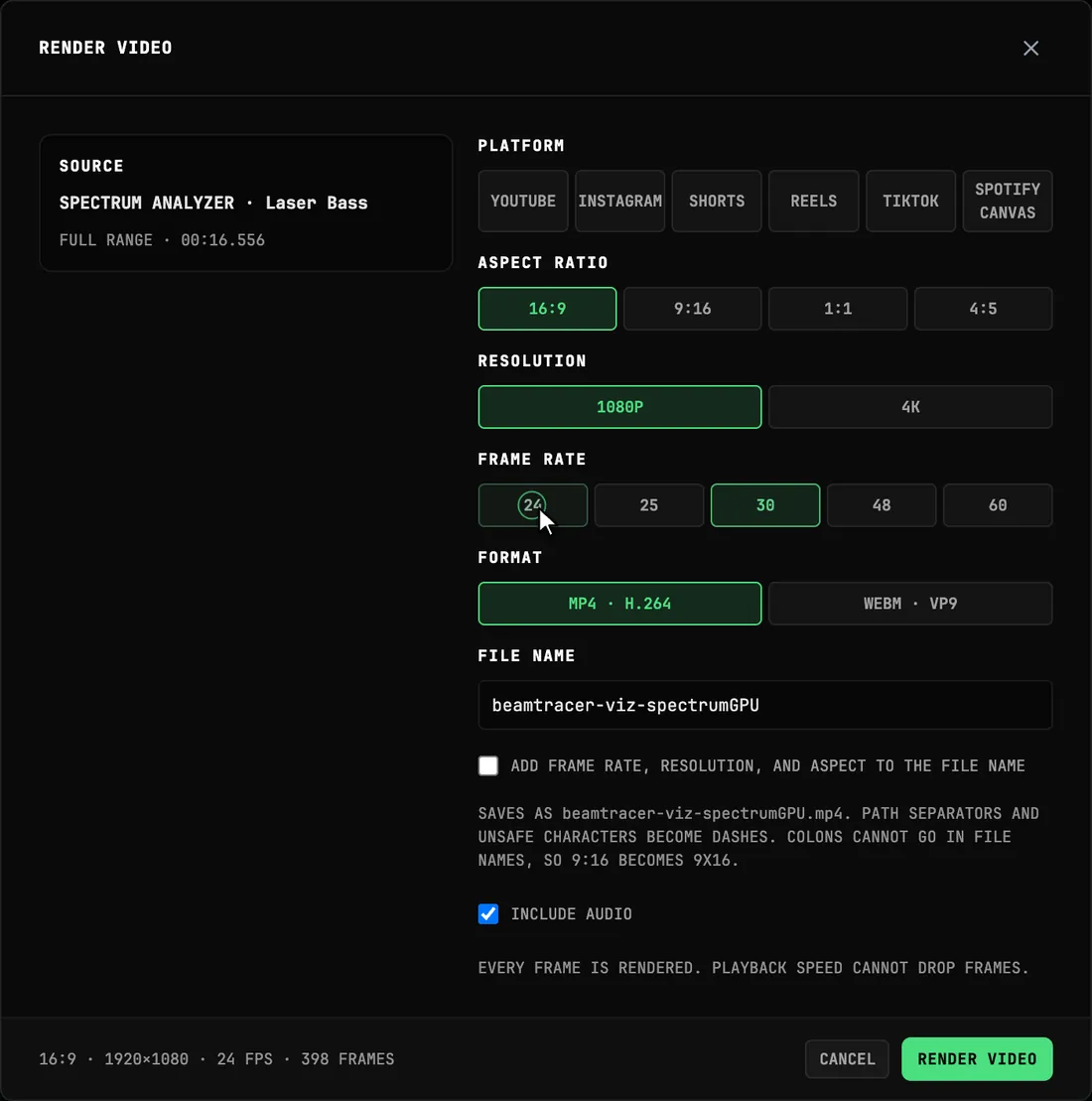
Source and full range
The left side identifies the current visualizer and track under SOURCE, followed by the exact FULL RANGE duration. With TEST RANGE off, the job begins at timestamp zero and covers that complete range.
Free accounts also see the watermark notice and current 4K-trial state here. If the selected source cannot be rendered offline, this area explains what must change before RENDER VIDEO becomes available.
How do I render only part of an audio track?
Load an audio file in Visualizer or Performer, then open RENDER → TEST RANGE and turn on RENDER A SHORT RANGE. Set START (SECONDS) and LENGTH (SECONDS) inside the track. The source summary shows the selected start, end and duration; the footer shows the resulting frame count.
Choose your output settings, click RENDER VIDEO, then SAVE VIDEO. The saved clip contains the chosen portion of the music and its visual motion. Turn RENDER A SHORT RANGE off to return to the full track. This control also works with an uploaded video. Live inputs and streams still require a recording instead.
Render settings
| Setting | Choices | What it controls |
|---|---|---|
| Platform | Platform presets | Sets an appropriate layout for the destination |
| Aspect Ratio | Wide, square, or portrait layouts | Shape of the finished video |
| File Name | Your chosen name | Name used when saving the finished video |
| Resolution | 1080P (1920×1080) or 4K (3840×2160) | Finished frame dimensions and 4K entitlement/trial state |
| Frame Rate | 24, 25, 30, 48, or 60 FPS | Exact number of visual frames generated for each second |
| Format | MP4 · H.264 or WEBM · VP9 | Download container and video codec |
| Include Audio | On or off | Adds the loaded track to the finished video; unavailable when no replayable audio exists |
The footer updates before rendering to show the selected resolution, frame rate, and exact frame count. CANCEL closes the dialog; RENDER VIDEO starts the job.
In Viz, PAUSE PICTURE in the footer holds the live picture on its current frame, because the pause shortcut (Ctrl+Shift+P) can't reach the page while the dialog is open. It stays available while the video renders, and the picture stays paused afterward until you choose RESUME PICTURE.
How do I export Model Pulse for print?
With Model Pulse selected in Visualizer or Performer, open RENDER → PRINT. Choose the paper, artwork frame and a frame time in the loaded track, then press RENDER PRINT and SAVE PRINT.
| Setting | Choices and result |
|---|---|
| FORMAT | SVG · CRISP HUD keeps HUD text, widgets and connector paths as editable vectors above the effects. The model, particles, water, zoomed pictures and effects remain an embedded image. PNG · SCREEN MATCH keeps the complete screen treatment, with text and lines rasterized at the chosen density. |
| PAPER / ORIENTATION | A4, A3, Letter or an 8-inch square; portrait or landscape for rectangular sheets. |
| ARTWORK FRAME | 16:9, 9:16, 1:1 or 4:5. Artwork fits inside the margins without cropping; unused page space is black. |
| PRINT DENSITY | 150 or 300 DPI. Larger output uses the same high-resolution access or trial as 4K video. |
| MARGIN (MM) | 0–25 mm, starting at 10 mm. Print the downloaded file at actual size. |
| FRAME TIME (SECONDS) | A moment inside the loaded track, up to 300 seconds. Animation, audio response and the selected camera mode determine the frame. |
The initial sheet is A4 landscape with SVG selected. Start with SVG for crisp linework, or PNG when the effects themselves should also alter the HUD. If an effect or blend cannot be kept in SVG, the message asks you to choose PNG. The export size limit is 4,096 pixels per edge and 12 million pixels; for A3 choose 150 DPI. The footer shows the actual output dimensions before rendering.
SVG text remains editable and uses fallback fonts when its preferred font is unavailable, so letter shapes can vary between editors. PNG includes its print-density information. Neither format turns the particle model into vector geometry.
Print uses the selected camera mode at the chosen time. Temporary mouse camera adjustments and live HIT presses are not replayed. A launched Studio composition is unavailable in this print option. Use CANCEL PRINT to stop a job; the usual export allowance and watermark rules apply.
Progress and cancellation
The job uses the visualizer and settings snapshot present when rendering begins. Changes made in the live app afterward do not alter that export.
The progress view shows the percentage, FRAME N OF TOTAL, and each stage:
- PREPARING SNAPSHOT
- ENCODING AUDIO
- RENDERING FRAMES
- FINALIZING FILE
Use CANCEL EXPORT to stop. Every output frame is evaluated at its exact track timestamp, so a render can run faster or slower than playback without dropping visual frames or changing the finished duration.
The WHILE YOUR VIDEO RENDERS tips stay visible beside progress. Keep the tab open and your computer awake; keyboard focus is not required, but background tabs may slow down or pause. Speed depends on your computer, output settings, and project complexity. The frame counter can stay still during audio encoding and file finalization. Wait for VIDEO READY, then choose SAVE VIDEO. Reloading or closing the tab stops the render.
Saving or trying again
When the video is complete, the dialog reports:
- output width and height;
- frame rate and exact duration;
- whether audio is included;
- MP4 or WebM format;
- total frame count and file size.
Choose SAVE VIDEO to download it or EXPORT AGAIN to return to the settings. If a job fails, the dialog shows the error and provides RETURN TO SETTINGS.
Loaded tracks vs live inputs
Offline rendering requires a loaded demo track, audio file or uploaded video. Microphones, shared-tab audio and live streams cannot be replayed from the beginning, so the dialog asks you to load a file instead. In Performer mode, the rendered video includes the shader on the Shader Library layer, placed and blended as it plays.
For a live set, press RECORD in Performer mode (below), or use OBS or your operating system's screen recorder. See Streaming with OBS, Twitch & YouTube for capture and audio-routing workflows.
How do I render an uploaded video with a hand-window effect?
In Performer mode, load the file using VISUAL SOURCE → VIDEO · IMAGE, then choose your FX look. Click RENDER, choose the output settings, click RENDER VIDEO, and use SAVE VIDEO when it finishes. The saved file includes tracking from the uploaded video, including HAND FRAME and hand-shaped MASK effects.
The clip is rendered at its fixed VISUAL SOURCE SPEED. Remove SPEED modulation first. VIDEO SOUND starts on for uploaded videos; keep SPEED at 1 to preserve their original sound. To replace it, play a separate audio track, which takes priority. A shorter soundtrack leaves silence at the end of the video. The uploaded video is still limited to 5 minutes either way, and a shorter test range does not raise that limit. Live camera feeds, screen sharing and the shader layer use RECORD instead.
It follows the same plans as every render: on the free plan it uses one of the month's free exports and carries the watermark, paid plans render without either, and 4K needs Bundle or Studio (lower plans get one trial 4K export).
Record a live take in Performer
In Performer mode, RECORD sits beside RENDER in the header. Press it to start, play your set, and press STOP (it shows the running time) to save the video. A take records exactly what the Performer shows, including your live camera, tracked gestures, HIT presses and the shader layer, with the music you hear. Uploaded videos can also use RENDER for a frame-by-frame export.
- The video is MP4 (H.264 with AAC audio) at the stage's shape, 1080 lines tall, at up to 60 frames a second. A take stops on its own after 30 minutes.
- Leaving Performer mode stops the take and saves it.
- On the free plan a recording uses one of the month's free exports and carries the watermark; paid plans record without either.
How long can an export with audio be?
A free account can render one export with audio, up to 240 minutes, at the same quality as Pro. The dialog calls it your free full-length export. Sign in so it follows your account. After that, free exports with audio are at most 5 minutes. An export of 5 minutes or less does not use the free one. A render that does not produce a file does not use it. Pro, Bundle, and Studio have no plan limit on length. Every export with audio, on every plan, still stops at 240 minutes. Leaving Include Audio off is outside this length rule.
An uploaded video in Audio Visualizers is still limited to 5 minutes, including a render that uses the video’s soundtrack. A shorter test range does not raise that limit. A loaded audio track, rather than that uploaded video, is what the full-length export applies to.
Performer RECORD still uses one of the month’s free video exports. It does not use the free full-length export. A take stops on its own after 30 minutes. Paid plans record without the monthly limit or the watermark.
What does a long export need? Export needs WebCodecs. Chrome or Edge is recommended; Safari and Firefox support varies. Keep the tab open and the computer awake. A background tab may slow the render or pause it. A long export needs a lot of memory. Use a desktop rather than a phone, tablet, or low-memory laptop. In Studio, the full audio mix is built in memory, about 700 MB for a 30-minute mix. Rendering takes real time and is slower without a decent GPU. See Studio export.
Plans
1080p is available on every plan. The free tier covers 10 finished exports per calendar month (Visualizers and Studio share one pool), resetting on the 1st — building and previewing are never counted. Free exports include a BeamTracer watermark; paid plans remove it and lift the monthly limit. A free account can render one full-length export with audio, up to 240 minutes, then free exports with audio are at most 5 minutes. Pro, Bundle, and Studio have no plan limit on length, and every export with audio still stops at 240 minutes. An uploaded video is still limited to 5 minutes. A Performer RECORD take still counts as one monthly export and does not use the full-length export. 4K is included with Bundle and Studio, and lower plans receive one trial 4K export. Failed or canceled jobs return the slot and do not use the trial. See Pricing.