
Audio Modulation
Drive any modulatable slider from the full live catalog — bands, loudness, spectral shape, rhythm, stereo, generators, MIDI CC, and camera tracking — with amount and route options.
Beat pulse appears only for visualizers that support it.
In BeamTracer Audio Visualizers, open Assign modulation beneath a slider and choose a source in Modulate with. The slider can follow the soundtrack, a separately uploaded analysis track, a generator, or a curve you draw. Expand the source pill to shape the response and watch the resulting Applied value.
Assign on a slider (settings panel)
- Open the visualizer’s settings (right panel in Visualizer mode, or Customize in Performer).
- Find a control that supports modulation — under the slider, click the activity button (Assign modulation).
- The Modulate with panel opens with live level bars for every source group. The top of the panel hints See more detail in the Audio Analysis Engine with the
Ashortcut — click the hint or pressAto open the full bench. - Pick a source (or — None to clear).
- When a source is active, a green pill shows its name; open the pill to edit route options (amount, algorithm, envelope-style shaping when offered). Clear with the X on the pill.
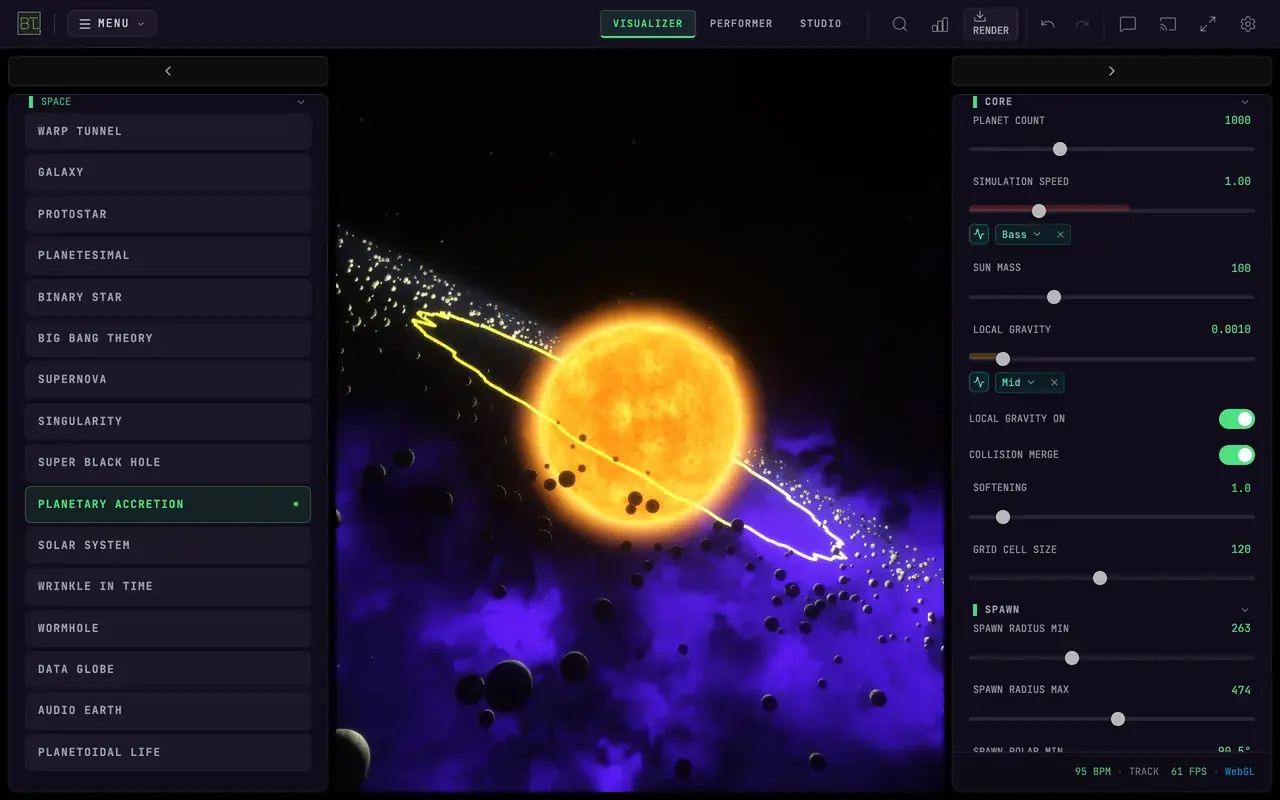
The slider’s track still shows a live fill so you can see energy while you scrub the base value.
Start with one assignment and listen for a phrase before stacking five routes. Bass on size + flux on flash + beat on spawn is usually enough for a first map.
What you can assign
The catalog is identical to the Audio Analysis Engine Modulation tab and meter-assign flow. Groups:
| Group | Examples |
|---|---|
| Level | RMS level, Volume, Peak, Punch, Energy, short-term / integrated loudness |
| Frequency bands | Sub, Bass, Mid, High, Presence, Air, Ultra |
| Spectral shape | Spectral centroid, Spectral flux, Rolloff 85/95, Flatness, Spectral balance |
| Rhythm | Beat pulse, Tempo, Beat phase, Beat confidence, Accent, Drop, Novelty, Bass onset, Snare onset, Hat onset |
| Stereo field | Balance, Width, Phase correlation, Mid/side, Left/Right RMS |
| Timbre | Spectral skew, Kurtosis, Melody |
| Generators | LFO A/B, Noise, Hold, Ramp (configured in Analysis Engine → Modulation) |
| MIDI CC | Common controllers (mod wheel, volume, expression, sustain, …) and the last note's Note velocity and Note pitch, after MIDI is granted |
| Camera tracking | Hand / Face in view, Hand X/Y, Fingertip X/Y, Pointing, Pinch, Hand open, Hand near, Hand depth, Mouth X/Y, Mouth open, Head turn, Face near, Body speed, Object count, from the Performer's camera or video |
Stereo field, timbre, Rolloff 85/95, Flatness, Beat phase, Beat confidence, Accent, Drop and Novelty need the Audio Analysis Engine measuring. Where it isn't, such as in Studio before an analysis layer is on the canvas, those sources show as unavailable and a slider routed to one holds still. Unavailable is different from a quiet reading of zero.
Full tables with plain-language “what it measures” for every row live on the Audio Analysis Engine page — that is the single reference if you are wondering what a source does.
Choosing sources that fit
- Bass / Sub — kicks, 808s; map to scale, pulse, force, glow.
- Mid / Mids / Presence — vocals, snares, leads; map to rotation, morph, motion.
- High / Treble / Air — hats and sparkle; map to detail, particle spawn, shimmer.
- Volume / RMS / Energy — whole-mix breathing rather than one band.
- Spectral centroid — brightness / tone color, not just level.
- Spectral flux / Novelty / Percussive energy — change and hits rather than sustained loudness.
- Beat pulse — tight rhythmic triggers.
- Drop / Accent — structural moments.
- LFO / Ramp / Noise — motion when the track is quiet or you want time-based motion.
- MIDI CC — hands-on performance without rewriting audio routes.
- Camera tracking — your hands, face or body as the controller, in Performer (how).
Not sure which source moves with your material? Open the Audio Analysis Engine (A or /viz?debug=audio) and watch meters + history for a phrase, then assign from a meter or from Modulate with.
Route options (amount & shaping)
When a source is assigned, expand the green pill to edit route parameters (when the control supports them):
| Idea | What you adjust |
|---|---|
| Amount | How strongly the source moves the control away from the slider’s base value |
| Algorithm / curve | How the 0–1 source is mapped (linear vs shaped response). Toggle flips the control between its two ends each time the source rises past Threshold (a kick turns MIRROR FOLD on, the next one off), and Count steps it through Steps levels, one per rise, then starts over. Speed (integrate) treats the source as a speed rather than a position: the control sweeps through its range and wraps, faster when the music is loud and coasting to a stop when it is quiet, at Rate sweeps a second at full level, so a spin can follow the energy of a track |
| Attack (s) / Release (s) / Smooth | How quickly the response rises, falls, and rounds changes |
| Polarity / anchor / clamp | Inverted turns the motion upside down. Anchor sets where the motion lands: From slider pushes up from the slider, From range min/max sweeps the whole range, Up to slider rises from the bottom to the slider. With From slider the push can overshoot the range, and Clamp stops it at the end, Wraps it round, or Folds it back |
Fields appear only when they do something: Curve for Exponential and Logarithmic (and as Rate for Speed), Threshold for the triggered algorithms (Transient pulse, Gate, Beat trigger, Sample and hold, Toggle, Count), Steps for Stepped and Count, and Clamp for From slider.
The route’s Input, Envelope, Smooth, and Output meters show the incoming source and each response stage. Output includes Amount and Polarity; the slider’s Applied meter shows the resulting control value. The history caption reports the current Attack, Release, and Smooth settings. The Curve graph labels Input and Response from 0 to 1. See live response feedback and Gate thresholds.
Assign from the Analysis Engine
Two extra paths, same catalog:
- Analysis tab — click a meter with assign → pick the target control.
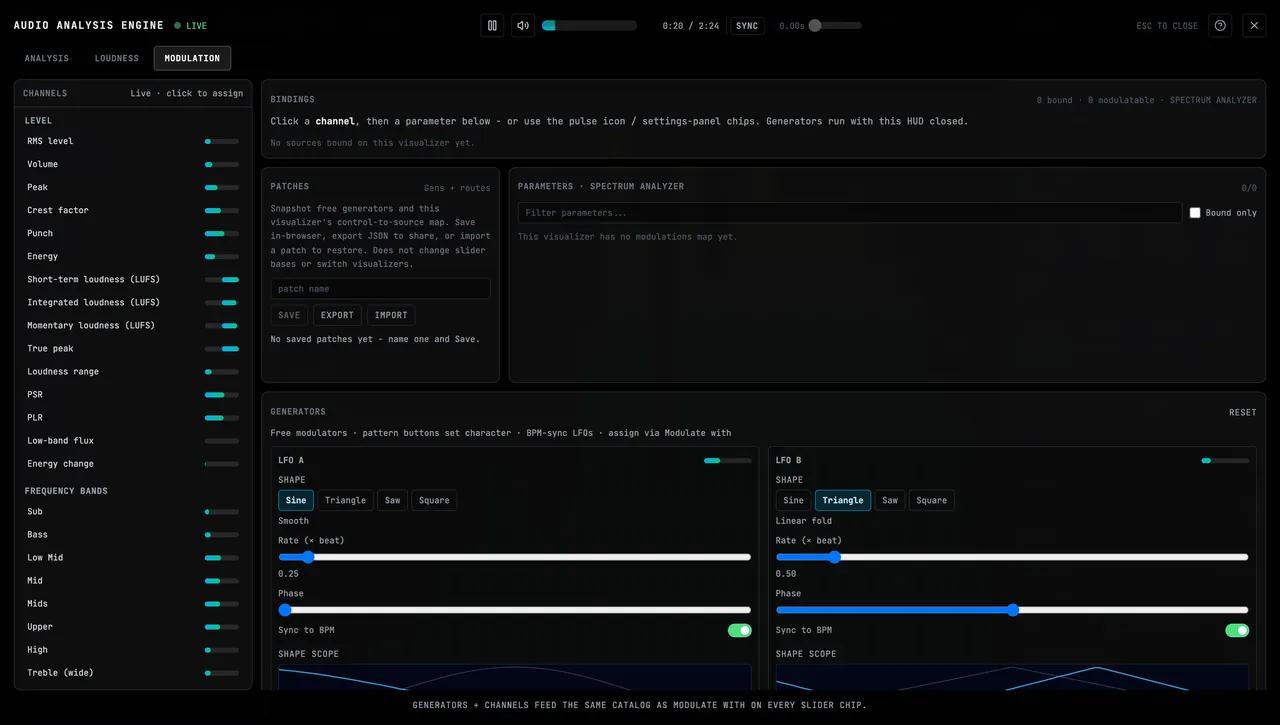
- Modulation tab — channel rail + parameters board + generators + named patches.
How do I control a slider with a separate audio track?
In the Audio Analysis Engine's Modulation tab, UPLOAD STEM adds a separate analysis track without changing the main soundtrack. Select the track in Analysis track, then choose one of its readings for a slider.
- ALIGNMENT (s) moves the analysis track relative to the main track; a positive value starts the analysis track later.
- REPLACE, RECONNECT, and REMOVE manage the selected track. Saved references need the original file reconnected after a reload.
- Wait for analysis loading to finish before playback. A disconnected file or unavailable analysis is distinct from a quiet reading.
You can keep up to twelve track references. Full mono or stereo 16-bit PCM WAV files can be up to 96 MiB and five minutes each. Other supported audio formats are limited to two tracks of up to 16 MiB each. This uploads a track you already have; it does not separate a recording into stems.
How do I draw a slider's movement over time?
Choose Drawn automation in the slider's source picker to author a time/value curve. Tap the graph to add a point, drag to move it, or edit Point time and Point source value. The curve feeds the same route shaping and Applied readout as other sources.
Choose Time units in seconds or beats, Interpolation as linear or step, and At the end as hold or loop. Start and Duration place the curve on the timeline. The source value runs from zero to one; the route's Anchor and Amount determine the final slider value. Arrow keys adjust a selected point, and Escape cancels a point edit.
How do I make a control move in time with the beat?
Choose Drawn automation in the slider's source picker, then press a Wave button: Sine, Triangle, Saw, Square or Random. The wave fills one cycle over Duration, and Time units switches to beats and At the end to loop, so the control rises and falls with the tempo.
Four beats is one bar. A Duration of 1 moves the control once per beat, 4 once per bar, and 16 once every four bars; 0.25 moves it four times per beat. Start shifts where the cycle begins, so two controls with the same wave can move out of step. Random draws new steps each time you press it, and the same steps repeat on every loop. After filling, you can drag any point to reshape the wave. Rendered videos follow the same wave.
Each control keeps its own wave. To move several controls with one shared wave, assign LFO A or LFO B instead and set its shape and rate in the Audio Analysis Engine's Modulation tab.
How do I make generators follow the media timeline?
Set Generator clock to Media-time when generator motion should follow playback position. Free-running retains continuous clock behavior. Random seed sets repeatable random choices; matching seed alone does not replace a Trigger Hold's required source history.
Beat pattern has Step numerator, Step denominator, Step weights, Pulse width, and Offset (beats). Enter weights from zero to one and choose Apply weights; a zero weight skips that step. Numeric edits commit with Enter or on leaving the field, while Escape cancels an edit.
For Trigger Hold, choose Audio trigger source and Trigger threshold. Wait for Trigger history ready after loading or reconnecting the selected file. Trigger Hold uses that source's threshold crossings to choose held random values; it is separate from a route's Sample and hold algorithm. Brown noise and live external controls are not repeatable file-render sources.
What do the selective pitch-class sources measure?
The C–B selective energy sources report energy near a chosen pitch class, across octaves. Assign one to react to that part of the sound rather than the whole spectrum. These readings are pitch-class energy, not detected note names, chords, or a transcription of the recording.
Presets and patches
- Visualizer presets store modulation assignments with the rest of the settings (Presets).
- Modulation patches (Analysis Engine → Modulation) save/load/export generators and complete routes, including amount, shaping, envelope settings, and enabled state. Loading a patch restores matching controls on the current visualizer; it does not change slider bases or switch visualizers. Older source-only patches can still be imported.
How do I undo a generator change?
In Audio Analysis Engine → Modulation, commit Random seed with Enter or by leaving the field. For Step weights, choose Apply weights. Close the Engine to use the header's Undo and Redo buttons, or use Ctrl+Z and Ctrl+Shift+Z while focus is outside a text field. The generator fields show the restored values. Recalling a modulation patch is one undoable action.
While a text field has focus, Undo edits that field's text. Leave the field before using the app's history controls.
Defaults
Many visualizers ship with sensible default routes (e.g. bass-heavy on size, highs on sparkle). Reassign anytime; the active pill always shows the current source name.
Related guides
Audio Analysis Engine
Full-screen meters, generators, sync delay, and the complete source catalog
Audio controls
Sources and global processing that feed every route
Customize
Where the modulatable sliders live
LFO A and LFO B keep their selected rate and tempo when you render a video, including visualizer layers in Studio.