
Detached Controls
Move the Performer's controls — or the Pulse Visualizer meters — into a small always-on-top window, so the visuals can run fullscreen while you keep driving the show, or the meters can float over another app.
Performer mode can detach its live controls into a compact, always-on-top picture-in-picture window. The visuals stay in the main browser window — fullscreen it on a projector or second display — while the detached window keeps preset pads, the scene sequencer transport, and your audio status within reach on the laptop screen.
Opening it
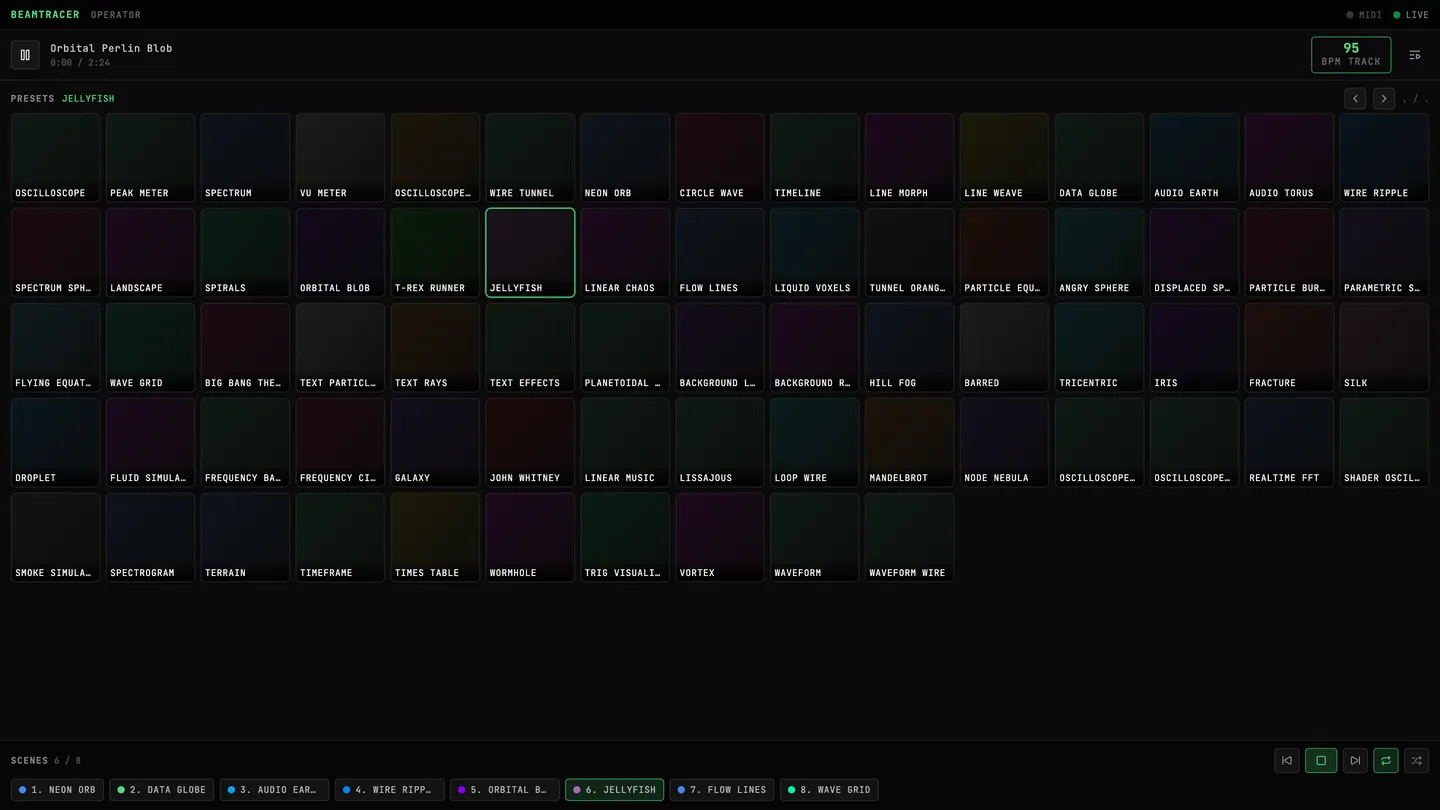
- Switch to PERFORMER in the top bar
- In the bottom control bar, click the Detach controls button (the picture-in-picture icon on the right)
- A small window opens on top of everything; drag and resize it wherever you like
- Press F in the main window (or use the fullscreen button) to send the visuals fullscreen
Closing the detached window at any time — its own close button, the button in the control bar, or leaving the Performer — returns you to the normal in-window controls with nothing lost.
Detached controls need Chrome or Edge — the always-on-top window is a Chromium capability. On other browsers the button explains this instead of failing silently. See Browser Support.
What's in the window
- Preset pads — every Performer preset with its real visual tile, in the same order as the preset grid. Tap a pad to switch the visuals instantly; the active pad stays highlighted. With Animated Previews on (PERFORMER SETTINGS → DISPLAY), the pads loop just like the docked grid.
- Previous / next preset — arrow buttons plus the
,and.keys (keyboard shortcuts). - Scene sequencer transport — play/stop, previous/next scene, loop, and shuffle for the scene list you built in the Scene Sequencer, plus one-tap chips to jump to any scene. Drag any preset pad onto the scenes row to append it as a new scene.
- The full Scene Sequencer — the SCENE SEQUENCER button next to the BPM readout opens the complete panel right inside the window: per-scene transitions, durations in beats or seconds, reorder and remove, the live countdown, QUICK playlists, ADD SCENE, and RESET — everything the main window's panel does.
- Audio summary — live/no-audio status, the current track with play/pause, the BPM readout with its source, and your MIDI connection state.
Everything in the detached window and the main window stays in perfect agreement — they are two views of the same show, not a copy.
A second window: the Scene Sequencer on its own
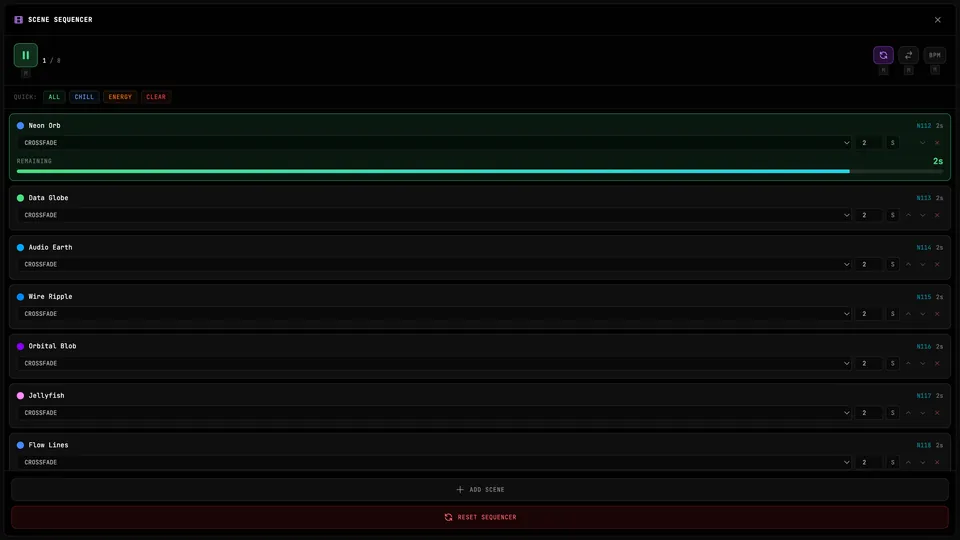
The Scene Sequencer can also detach into its own separate window: open the panel in the main window and click its DETACH SEQUENCER button (next to the close button). The full panel moves into a compact window of its own — and it works alongside the detached operator controls, so you can keep preset pads in one window and the scene list in another at the same time. Both windows drive the same show; a scene added, reordered, or triggered in one appears everywhere instantly.
Only one of the two windows can be the always-on-top kind at a time — whichever you detach second opens as a regular small browser window instead. Everything works identically either way; resize both windows freely and the panels adapt. Closing either window (or the main tab) never loses anything.
The projector workflow
The simplest path is the Output stage's Projector window: click the Cast icon in the header, choose Projector window, and a chrome-less mirror of the stage opens — directly on your second display once you accept Chrome's one-time window-management prompt. Your full controls stay in the main window on your laptop. See Streaming with OBS, Twitch & YouTube.
Prefer the whole app on the projector instead? The detached-controls variant still works:
- Start your audio and open the detached controls
- Drag the main browser window to the projector or second display and press F for fullscreen
- Keep the detached window on your laptop screen — it stays on top of whatever else you're doing
MIDI keeps working throughout: mapped knobs and pads, APC Mini MK2 pads and Program Change respond whether the main window or the detached window has focus, including while the visuals are fullscreen on the other display. See MIDI Setup.
Streaming instead of projecting? The same fullscreen-plus-detached-controls setup gives OBS a clean window to capture while you keep control — see Streaming with OBS, Twitch & YouTube.
Pop out the Pulse Visualizer
The Pulse Visualizer (the meter dock — press V in the Visualizer) can pop out into the same kind of always-on-top window. Click the picture-in-picture icon in the dock's header and the whole dock — oscilloscope, VU meter, spectrogram, and any other widgets you've added — moves into a compact window with nothing else around it. Float it over your DAW or recording setup; the meters keep following whatever audio source is connected in the main window, even while you work in another app. A slim "popped out" row stays in the app with a Pop back in link, and closing the window at any point returns the dock exactly as it was.
While the popped-out window sits over another app, its title bar and widget headers fade away after a moment without the mouse — pure meters, nothing else. Move the mouse over the window and the controls return.
Any visualizer can join the dock — with the preset you choose. The dock's + menu has the full visualizer catalog under its meter widgets: search, pick a visualizer, then pick one of its style presets (or DEFAULT to follow your main settings; your own saved presets are listed too). The visualizer renders live as a dock column, reacting to the same audio as everything else — docked, floating, or popped out. A pinned preset styles only that column: the same visualizer on the main canvas keeps its own look. Column dividers drag to resize, and each column's X removes it.
Like detached controls, the pop-out needs Chrome or Edge; the button explains this on other browsers.