
Audio Visualizers
196 real-time audio visualizers with WebGPU, MIDI control, audio-band modulation, and a scene sequencer for live performance.
BeamTracer's Audio Visualizers is a browser-based visual instrument — 196 real-time audio visualizers organized in 15 categories, with live audio-band modulation, MIDI control, and a scene sequencer.
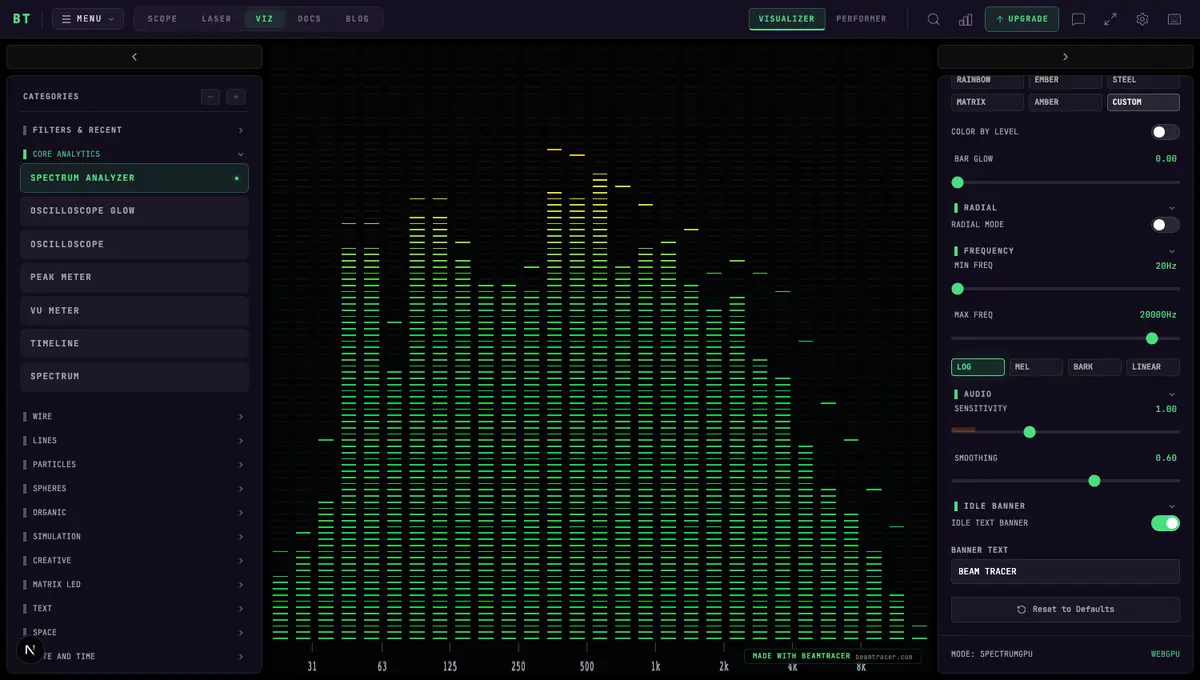
Who It's For
- VJs running live visual sets with MIDI controller integration
- Streamers adding real-time audio visuals to their streams
- DJs and producers visualizing their own tracks and mixes
- Anyone who wants beautiful, music-reactive visuals in the browser
Key Features
- 196 visualizers across 15 categories — particles, terrain, lines, spheres, LED matrix effects, text, simulations, and more
- WebGL2 + WebGPU — both rendering engines, hardware-accelerated
- Any audio source — demo tracks, your own files (drag-and-drop), or live microphone/line-in
- Named-source audio modulation — drive supported parameters from the Modulate with source catalog
- Performer mode — preset grid with mood filters, tap tempo, and transitions (cut, crossfade, morph)
- Scene Sequencer — automatic scene cycling in beats or seconds, with one-click quick playlists
- MIDI & OSC — MIDI Learn for every visualizer control, Program Change preset switching, deep APC Mini MK2 integration with LED feedback, MIDI clock, and a connection to the same OSC bridge OSC-1 and the laser tools use
- Visualizer bar & dock — run mini visualizers alongside the main canvas, with pop-out to a second monitor
How do I use Viz on a phone?
The visualizer fills the space above the player. Tap Visualizers to choose a visualizer or Settings to adjust its look; only one panel opens at a time. Close the panel with its × button to return to the full preview. Audio opens your audio settings and Render opens video export. The Visualizer, Performer, and Studio choices remain above the preview.
Three Modes
Visualizer Mode
Browse the full library, customize every parameter, and save per-visualizer presets. The default mode.
Performer Mode
Preset grid, tap tempo, scene sequencer, MIDI and OSC control. For live sets.
Studio
Create branded music videos and workout overlays with titles, lyrics, timers, and artwork for YouTube, Reels, TikTok, and Spotify Canvas — frame-accurate, in the browser.
Related
- Free audio visualizers for live shows, YouTube and TikTok — how the the visualizer catalog, modulation matrix, MIDI Learn, and 4K export compare with Resolume, Synesthesia, and the free tools
Quick Navigation
Get Started
Your first visualizer in under a minute
Visualizer Categories
All 15 categories with the full visualizer list
MIDI Integration
MIDI Learn, the APC Mini MK2 deep-dive and Program Change
Scene Sequencer
Hands-free scene cycling for live sets
Optional interface effects
In Settings → DISPLAY, enable Animated canvas border or Plexus background if you want them. Both are off by default. These choices also apply in Laser and Scope and do not change exported artwork. Under PANELS, PANEL OPACITY (60% to start) and PANEL GLASS (how much the picture behind blurs) set how much of the canvas shows through the FX Rack and the other panels that float over it.