
Presets
Factory preset moods, saving and deleting custom presets, reordering, and settings export/import in Audio Visualizers.
Presets are saved configurations that instantly apply a visualizer and its full parameter set in one click. BeamTracer ships with a library of factory presets and supports saving your own — both in Performer mode and per-visualizer in Visualizer mode.
The Preset Grid (Performer Mode)
Click PRESETS in the Performer control bar to open the preset grid. To play any visualizer, including the ones with no preset of their own, click VISUALIZERS beside it: every visualizer opens on the left as a moving thumbnail, by category, so you can find a look by sight (the switch in its header turns them into a list of names, the same choice as in Visualizer mode). Type in Search visualizers at the top to narrow it (it finds the same visualizers as search in Visualizer mode, by name, category or description), and [ / ] step through them. Two rows of filter pills sit above the preset grid:
Mood Pills
Filter the factory library by feel: All, Ambient, Energetic, Minimal, Psychedelic, Retro, Geometric.
Family Pills
The second row filters by visualizer family, in the same order as the visualizer list (Core Analytics, Visual Source, Wire, and so on): every factory preset built on that visualizer type. Visual Source holds the camera presets, Camera, Camera Kick Zoom and Camera Mono Print. Picking one starts your camera, unless a screen, a video or an image is already showing; the browser asks the first time. Searching camera finds them too.
There's also a search field, a Favorites pill (once you've favorited at least one preset), and a My Presets pill that shows only the presets you've saved.
Animated Previews
Each tile in the grid shows a still from its visualizer. To have the tiles play a short looping clip of their visualizer instead, click the MIDI status chip in the Performer control bar to open PERFORMER SETTINGS, switch to the DISPLAY tab, and turn on Animated Previews under PRESET PANEL. The preset pads in Detached Controls follow the same switch. Animated Previews is off by default.
Mood pills are starting points, not rules. Load a preset, then open the Customize panel and adjust it to your track.
Saving Custom Presets
In Performer Mode
- Load a preset (or any visualizer state) and open the Customize panel (arrow toggle, top-right)
- Adjust parameters until it looks right
- Click SAVE AS PRESET under QUICK ACTIONS
- Name it — it appears in the preset grid under My Presets
To delete a custom preset, use the delete button on its card in the grid. Factory presets can't be deleted.
In Visualizer Mode
Each visualizer has its own preset list in the right settings panel:
- Dial in the visualizer's settings
- Click Save Current… in the panel's presets section and give it a name (and optional description)
- Recall it any time with its Load button; double-click the name to rename, or use the delete button to remove it
Saved presets capture every control — colors, slider values, toggles, and modulation assignments.
Backing Up Everything: Settings Export/Import
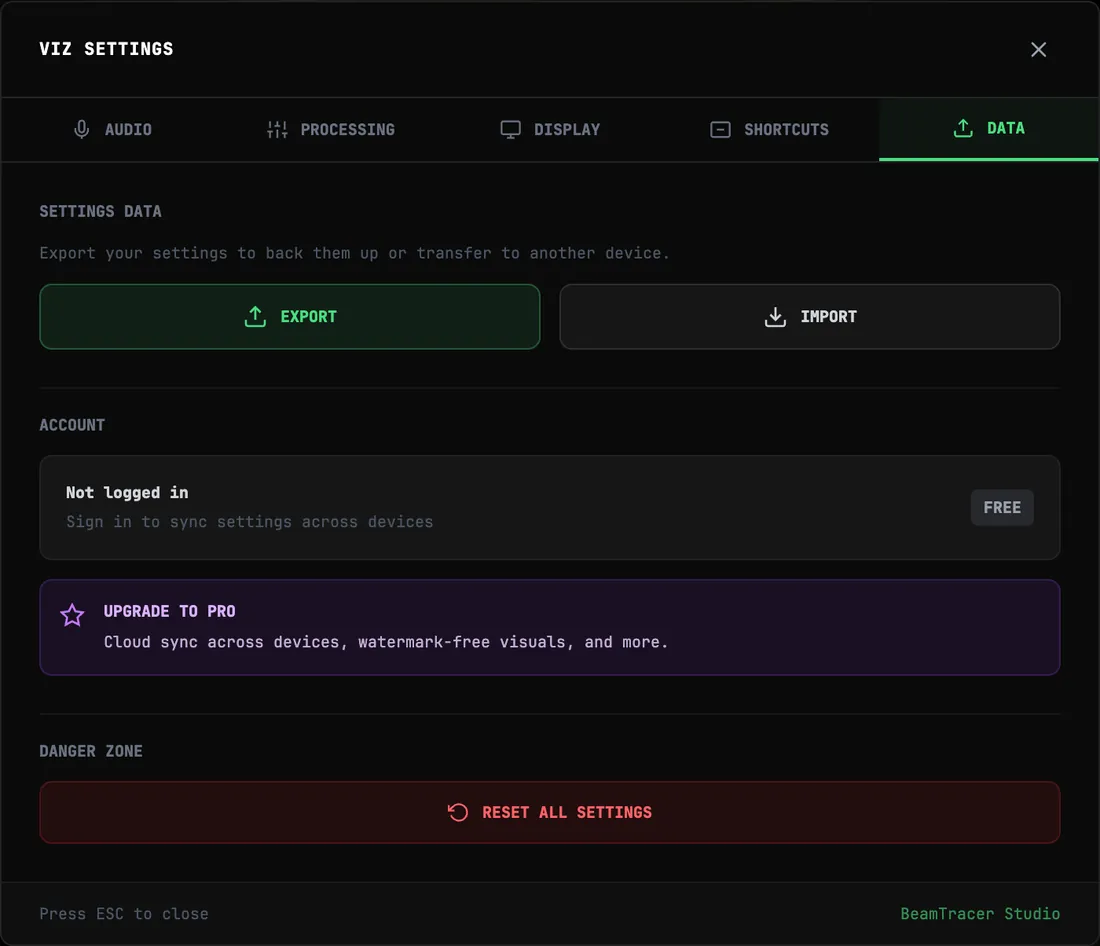
Whole-app settings (including your customizations) can be exported as a JSON file from Settings → Data:
- Export — downloads all your visualizer settings as a
.jsonfile - Import — restores from a previously exported file
- Reset All — returns every setting to factory defaults (with a confirmation)
Reordering Presets
You can customize the order that presets appear in the grid. This is especially useful for live performance, where you want your most-used presets positioned for quick access on the APC Mini MK2 pad grid. MIDI Program Change follows the same order: program 0 selects the first tile (Program Change).
Open the Presets panel (click PRESETS in the bottom control bar).
Click the pencil icon in the top-right header area. This enters Edit Mode and automatically switches the sort to CUSTOM.
Drag and drop any preset card to a new position in the grid. The grid updates in real-time as you rearrange.
Click the checkmark icon that appears next to the pencil to save your custom order. The order is persisted across sessions.
To revert to the factory preset order at any time, click the sort button (shows CUSTOM, A-Z, Z-A, or ORIGINAL) and cycle through until it reads ORIGINAL. Your saved custom order is preserved — you can switch back to CUSTOM at any time to restore it.
Preset Variants
Several visualizer types have multiple factory presets — variants of the same visual. On the APC Mini MK2, pressing the pad of the currently active visualizer type cycles through its variants. See MIDI Integration for details.