
Tempo & Tap Tempo
One session tempo for Audio Visualizers — where it appears, how tracks are read, and how to tap an override with T.
There is one tempo for the session. The settings-footer chip, the Audio Analysis Engine, Performer, and the detached controls window all show the same number. Change it in any of those places and the others follow.
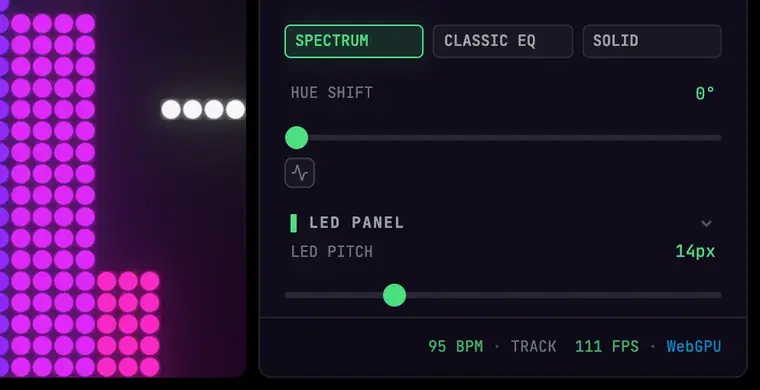
Where it appears
| Place | What you see |
|---|---|
| Visualizer — bottom of the right settings panel | Compact readout: number, BPM, and a source label |
Audio Analysis Engine (A) | The same readout on the Rhythm card, next to the beat ring |
| Performer | Circular BPM button in the control bar; optional BPM Meter HUD from Performer Settings → Display |
| Detached controls | The same session tempo in the audio summary |
Hide the Visualizer footer chip in Settings → Display → BPM display. Hiding it does not stop tempo — it only hides that chip. T still taps.
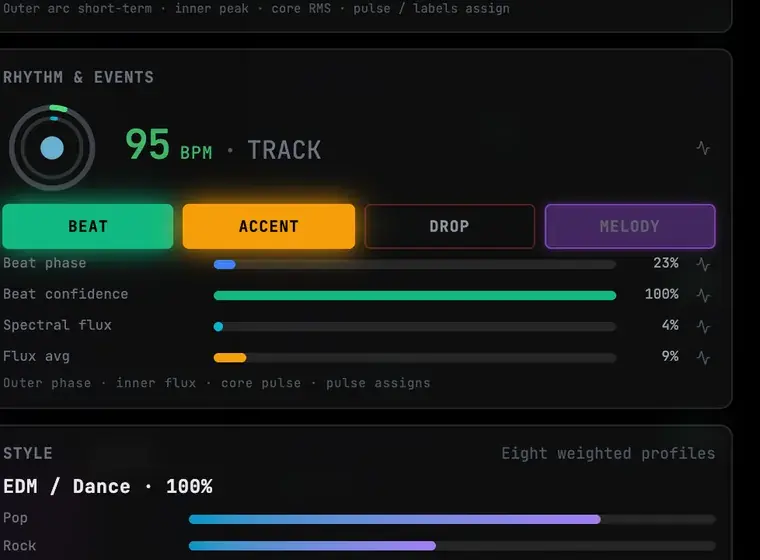
What the source label means
| Label | Meaning |
|---|---|
| TRACK | A file or demo track was read as a whole. This is the same tempo read Laser Animation Studio uses when it builds a beat grid. |
| AUTO | Live input (microphone, tab audio, or a radio stream) is being followed as it plays. |
| TAP | You overrode the measured tempo by tapping. |
| LINK | An external clock is driving the session (when a Bridge / Link source is connected). |
Priority is Link → Tap → Track → Auto. A tap always wins over a measured value until you clear it.
Tap an override
Use this when the measured number is a half- or double-time reading, or when the material has no steady beat.
Click the BPM readout (footer or Analysis Engine) or press T, once on each beat — usually the kick.
Keep tapping. After three taps the readout switches to TAP and locks.
Stop when the number is the tempo you want. Visuals and beat-synced tools follow immediately.
Details:
- Three taps are required to lock. One or two do nothing.
- The last eight tap gaps are averaged, so a few extra taps settle the number.
- Pause more than two seconds between taps and the sequence starts over.
- After about eight seconds without taps, a TAP lock yields back to Track or Auto if one of those is available.
- Click the small X next to the readout to clear TAP immediately.
Tap the strongest regular pulse in the track. Syncopation and off-beats make the lock wander.
B is not tap tempo. In Visualizer mode B toggles the Visualizer Bar. Tempo is always T.
How tempo is measured
- Files and demo tracks — the whole file is read once when it loads. That is the DJ-library style reading (the number you would expect from a crate tool), not a running guess from a few kicks.
- Microphone, tab audio, and live streams — there is no complete file to read, so the app follows kick-style hits as they arrive and reports a club-range tempo (roughly 70–180). A missed hit should not flip the reading to half time.
- No steady beat (ambient, speech, free time) — tap a tempo you want, or ignore the readout. Those looks still react to loudness and texture.
Laser Animation Studio uses the same file reading when you upload audio for a beat grid. If a file locks at half or double time there, use that panel’s ÷2 / ×2 controls; in Visualizers, tap T instead.
What tempo drives
Tempo times rhythmic motion: pulses, scene holds in beats, LFO sync when a generator is set to follow BPM, and auto-camera advances that are beat-timed. That is separate from frequency-band reactivity — bands decide how much a control moves; tempo decides when the rhythmic motion happens.
See also Audio Analysis Engine, Scene Sequencer, and Keyboard Shortcuts.
Loudness Meter
Broadcast-accurate LUFS metering — momentary, short-term, integrated, true peak, LRA, PLR/PSR, offline file analysis, measurement pause, platform targets with audition preview, overs counters, and BT Loudness Analysis. All of it free.
MIDI & OSC Integration
MIDI Learn for every visualizer control, Program Change preset switching, APC Mini MK2 LED feedback, MIDI clock, the OSC bridge, and controlling the Performer and its camera from TouchDesigner over OSC.