
Analysis, Playhead and Timer Layers
Put live analysis graphs, a progress playhead, or a running clock on the Studio canvas — the readouts that make a video feel like an instrument.
Four layer types put measurements on the canvas rather than art: the analysis graphs, UI STATS widgets, a playhead, and a timer. All three follow the heard file, and all three can be added more than once.
Audio analysis graphs
ADD LAYER → AUDIO ANALYSIS opens a picker of every graph the Audio Analysis Engine draws.
Choose a graph to add it to the canvas. Add more than one to compare different views of the same track.
The list runs in two halves. The first seventeen measure the audio:
SPECTRUM · SCOPE · X/Y · SPECTROGRAM · METRIC HISTORY · DYNAMICS · LOUDNESS · LOUDNESS RADAR · LOUDNESS DYNAMICS · LOUDNESS RANGE · LOUDNESS METER · RHYTHM · STYLE · BAND ENERGIES · SPECTRAL SHAPE · STEREO FIELD · MFCC
The last five draw the modulation sources as live traces, so the movement driving the rest of the canvas is visible on it:
LFO A · LFO B · NOISE · HOLD · RAMP
Graph settings
| Control | What it does |
|---|---|
| GRAPH ONLY | Removes titles and extra readouts; the background plate has its own control |
| BACKGROUND OPACITY | Fades the card plate behind the graph, independently of the graph itself |
| VISUAL GAIN | Stretches the drawing so a quiet passage still fills the widget |
| CUSTOM HUE | Off keeps the original Audio Analysis Engine colors; on recolors the graph |
| POSITION X / Y, SIZE, ROTATE, OPACITY, LOCK LAYER | Standard layer placement |
GRAPH ONLY starts on for Spectrum, Scope and X/Y. Other graphs start with their labels and readouts visible.
VISUAL GAIN is a display control only. It stretches the picture so a quiet spectrum can fill the widget. It does not change the file, the TRACK meter, the exported audio, or the analysis any other layer sees. If you want to change what you hear, use VOLUME on Track.
How do I check an analysis layer while playback is paused?
Start from TEMPLATES → BLANK, load the audio, and add the analysis graph you want to inspect. Spectrum can update at a paused position or a single frame step using the original track. Its Applied values retain the last completed preview when the position is held.
This paused inspection currently requires one unmuted audio track at its original playback gain, with no track fades. Other graphs and mixed or altered-gain analysis can report that paused inspection is unavailable. NORMALIZE affects the exported soundtrack separately from the original-source graph. Check the chosen range and layer placement before rendering.
How do I add UI STATS widgets to a Studio layout?
STOCK CANDLES, under PANELS & CHARTS, adds music-reactive candle bodies, wicks and volume bars. These decorative candles follow the beat and audio levels; they do not show market prices.
For diagrams with technical labels, try FIELD COIL, ORBIT SEAL, SIGNAL MANIFEST, BAND LEDGER, RELAY CIRCUIT or SEQUENCE TRACE under PANELS & CHARTS. VECTOR COMPASS and PHASE WHEEL are under DIALS & 3D. Each combines a moving diagram with compact readouts; TOPIC, REACT, SPEED and ACCENT work as they do for the other widgets.
The instrument widgets PLATTER, GRAVITY WELL, SPECTRAL TOPOLOGY and LIGHT CONE (under DIALS & 3D) and SEGMENT DECK, ELEMENT CARD, HARMONIC STRING and POCKET LCD (under PANELS & CHARTS) also answer HIT. Their settings show a HIT slider (so do the warning labels): raise it to fire the widget's hit, or assign it to a MIDI pad or another source like any layer slider. What each one does on HIT.
- Open ADD LAYER → UI STATS. The picker groups the widgets as DIALS & 3D, PANELS & CHARTS and STRIPS. Type part of a name in Search widgets... or press a family button to narrow the list; families with no match are hidden.
- Click a widget, for example RADAR or LABEL CARD, to place it on the canvas. Add as many as you like; each moves on its own.
- Drag the widget to place it, or drag a corner of its box to make it bigger or smaller, the same way you place an analysis graph.
- In its settings, choose another WIDGET, the TOPIC its words come from (or YOUR WORDS or YOUR DATA), its COLOR and HUE, and an optional ACCENT color. REACT sets how far it follows the bass, mids and highs, SPEED how fast it turns and ticks, and FLICKER how often its words change.
- CONNECT draws a line from this widget TO THE NEXT WIDGET (the next UI STATS layer in the layer list) or TO EVERY LATER WIDGET. LINE STYLE is FIELD LINES to start (lines that fan out from each end and curve into the widgets that pull on them, like a magnet's field, the ones off to the sides fainter), or straight, curve, snake, lightning, dashed or elbow; with FIELD LINES, FIELD COLORS paints the lines from a color ramp (Rainbow, Heat Map, Spectral and more), COLOR BY: FIELD STRENGTH colors each line along its length, hottest at the widgets, FIELD REACT lets each widget pull harder or softer with its own part of the music, and HUE SPREAD gives each widget's lines a color of its own; LINE HUE turns the lines' color; FLOW PULSE sends a thicker pulse along each line to show which way it runs.
- In ADVANCED, POSITION X, POSITION Y, SIZE, HUE and the motion sliders can each follow the music like any other routable slider.
UI STATS widgets draw the same way in the preview and in the rendered video. They are the same widgets as Performer's TRACK SPECIMEN look, so a layout made here can play under or over the FX Rack in a Performer scene.
Playhead
ADD LAYER → PLAYHEAD puts a progress indicator on the canvas. Progress runs 0–100% across the playback window — the whole track, or your export slice if you set one.
The picker shows each style before you place it. Change the selected layer’s style from its settings.
| Style | Reads as |
|---|---|
| BAR | A plain progress bar |
| WAVE | A timeline waveform that fills as it plays |
| VOICE | A three-band bar driven by the live signal |
| SPECTRUM | A live spectrum along the progress bar |
| RING | A circle that fills round as it plays |
| FILL | A solid bar filling with progress |
| PIE | A wedge sweeping around |
| DISK | A disk that responds to level |
Settings: HUE, THICKNESS, OPACITY, POSITION X / Y, X SCALE and Y SCALE (so a bar can be stretched wide and kept thin), ROTATE, and LOCK LAYER.
Add a second playhead if you want two styles at once — for example a full-width bar at the bottom and a ring around your cover art.
Timer
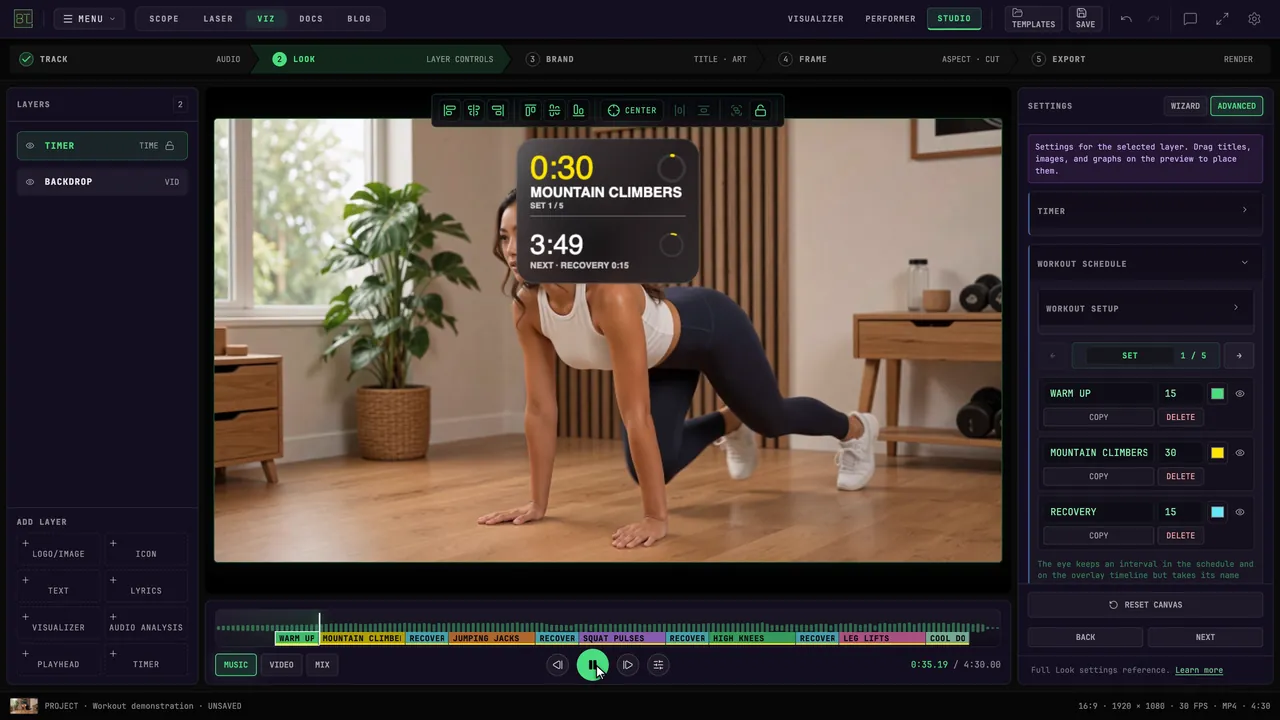
ADD LAYER → TIMER opens nine clock styles. Eight are single readouts that follow the playback window; WORKOUT is a complete interval card with its own section clock, whole-workout clock, progress indicator, and schedule.
| Style | Format | Example |
|---|---|---|
| UP | 0:00 → total | 0:45 |
| DOWN | Total → 0:00 | 1:39 |
| SPLIT | Now / total | 0:45 / 2:24 |
| LEFT | Remaining, negative | −1:39 |
| PERCENT | 0 → 100 | 31% |
| LEFT % | 100 → 0 | 69% |
| TIMECODE | Minutes, seconds, frames | 0:45.12 |
| FRAMES | Frame count | 1354 |
| WORKOUT | Interval + whole workout | 0:20 · 5:52 |
Each style shows a format sample in the picker, so you can see the exact format before you place it.
Prefer to watch? Trina adds a progress ring and a countdown to a workout clip and exports it, in about two minutes.
Standard timer settings
| Control | What it does |
|---|---|
| COLOR | A color picker. Sets the exact color of the digits |
| HUE | The same color as a number, so it can be driven from the modulation matrix. Moving it rotates the color you picked around the wheel and keeps how pale or saturated it was |
| TIMER FONT | The same font picker the title and artist lines use |
| POSITION X / Y, SCALE, ROTATE, OPACITY, LOCK LAYER | Standard layer placement |
Add another TIMER for a second format.
On choosing a font. A clock is the one piece of text on your canvas whose characters change while it plays. In a proportional font the whole number shifts sideways every time a 1 appears, which reads as jitter even though nothing is wrong. A monospaced face holds still, which is why the default is one. Decorative faces are there when you want them — check the result at full size before you export.
Workout timer card
Choose WORKOUT when one video contains several exercises, recoveries, poses, warm-ups, or cooldowns. One rounded card keeps two time scales together:
- the top clock counts the current section;
- the section name and optional set number change at each boundary;
- the lower clock counts the entire workout;
- an optional ring, line, card fill, or card-outline trace shows how far the workout has run;
- NEXT can name the following section before the change.
Open TEMPLATES → WORKOUT for a complete editable example, or add the timer to a Blank project. It works with video, audio, both, or neither. The dedicated guide covers duration sources, offsets, the set editor, clickable timeline, end behavior, clocks, progress styles, glass controls, transitions, reusable presets, playback, and saving.
Build a Workout Timer Overlay
Follow the complete workflow and see every Workout Timer control.
Related
- How to add a countdown timer to a workout video — the illustrated walkthrough for a single clip
- Stopwatch or timer overlay on a video, no screen-recording — why filming a clock app fails, and the UP timer instead
- Add a timer in CapCut and in Final Cut Pro — when Studio is one step in a longer edit
Next
The Visualizer Layer
Choose any BeamTracer visualizer for your Studio canvas, apply presets, save your own, and place it over a photo or video backdrop with a transparent background.
Workout Timer Overlays
Build a single exercise or a complete workout schedule with section clocks, whole-workout progress, glass styling, and a clickable timeline.