
Keyboard Shortcuts
Every Studio keyboard shortcut — transport, editing, visualizer stepping, lyric timing, and help.
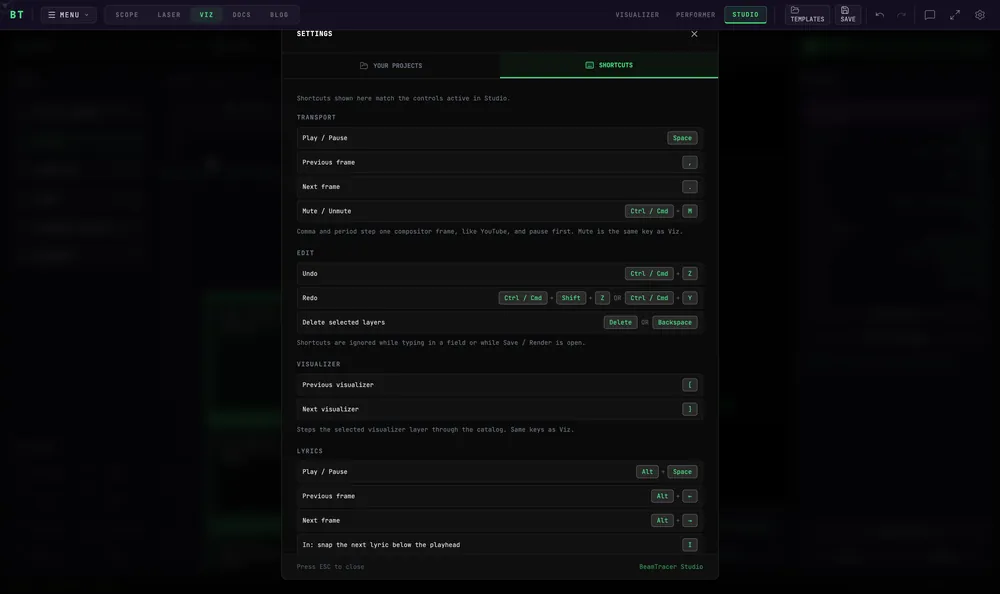
The same list is available in the app at any time: press Ctrl/Cmd + /, or open the gear icon → SHORTCUTS. The in-app list always matches the controls that are actually active.
Transport
| Action | Keys |
|---|---|
| Play / pause | Space |
| Previous frame | , |
| Next frame | . |
| Mute / unmute | Ctrl/Cmd + M |
Comma and period step one compositor frame — like YouTube — and pause first. Mute is the same key as in Visualizers.
Edit
| Action | Keys |
|---|---|
| Undo | Ctrl/Cmd + Z |
| Redo | Ctrl/Cmd + Shift + Z or Ctrl/Cmd + Y |
| Delete selected layers | Delete or Backspace |
Visualizer
| Action | Keys |
|---|---|
| Previous visualizer | [ |
| Next visualizer | ] |
Steps the selected visualizer layer through the catalog. Same keys as Visualizers.
Lyrics
| Action | Keys |
|---|---|
| Play / pause | Alt + Space |
| In — snap the next lyric below the playhead | I |
| Out — end the current line, or tap again to fix a short out | O |
| Shift all lyrics below to this point | Ctrl/Cmd + click a gap |
| Move this line and every line after it, keeping their spacing | Ctrl/Cmd + drag a lyric |
| Duplicate the selected lyric | Alt + D |
| Add a lyric at the playhead | Alt + Enter |
| Previous / next frame | Alt + ← / → |
| Nudge selected cues | Alt + ↑ / ↓ |
| Shorten / lengthen selected cues | Alt + Shift + ↑ / ↓ |
| Next / previous cue | Tab / Shift + Tab |
| Delete selected cues | Alt + Backspace |
I and O type as letters while a lyric box is focused. Click the timeline or the canvas first to use them as In / Out. The chip in the lyrics pane header tells you which they will do. The rest of these keys work whenever the lyrics pane is open.
Audio
| Action | Keys |
|---|---|
| Toggle the Audio Analysis Engine | A |
Same key as Visualizers. Ignored while you are typing in a field.
Help
| Action | Keys |
|---|---|
| Keyboard shortcuts | Ctrl/Cmd + / |
| Settings | Ctrl/Cmd + K |
Open Settings → SHORTCUTS to see the Studio reference.
When shortcuts are ignored
Shortcuts do nothing while you are typing in a field, or while the Save or Render dialog is open. Delete and Backspace also leave selected layers untouched while any other dialog is open, including Settings and Templates. Text fields keep their normal browser undo while focused.
See also: Shared keyboard shortcuts across all BeamTracer apps.