
Lyrics
Add timed lyrics to a Studio video — tap-time them by ear with the I and O keys, import an LRC or SRT, auto-detect from the audio, and style every line.
The lyrics layer puts timed lines on the canvas and gives you a timeline to place them against the waveform. It is the part of Studio that turns a visualizer into a lyric video.
Prefer to watch? Trina builds a lyric video from a real released MP3 in about two minutes — no timestamps typed.
Add it from ADD LAYER → LYRICS, or select the existing LYRICS layer. A timeline pane opens beside the canvas.
Getting the words in
Open the chevron beside + ADD LYRICS for every way in:
| Option | What it does |
|---|---|
| PASTE LYRICS | Paste a whole block of text — each line becomes a cue |
| PASTE SELECTION | Paste over the lines you have selected |
| DUPLICATE SELECTED | Copy the selected line |
| AUTO DETECT | Transcribe the lyrics out of the audio itself, already timed |
| UPLOAD SRT / UPLOAD LRC | Import an existing timed file |
| DOWNLOAD SRT / DOWNLOAD LRC | Export your timings for use elsewhere |
+ ADD LYRICS on its own adds one empty line at the playhead.
Upload another LRC or SRT file to add its lines to the timeline. Each line remains separately editable and selectable, so deleting one imported line keeps the others.
Lyrics embedded in your audio file's tags load automatically when you load the track — timed, if the tag carried timings.
If an LRC line lists several timestamps before its words, UPLOAD LRC adds the same lyric at each listed time. Each occurrence appears as its own cue on the timeline.
Pasted and unsynced lines wait in the second half of the track rather than piling up at zero, so you can see them and time them one by one.
AUTO DETECT needs a loaded track and takes a while — transcription runs on the whole file. It is a Pro feature with three free transcriptions so you can see what it gives you before deciding. When it cannot transcribe, the pane shows the reason rather than failing silently; tap-timing by ear is always available.
Its limits: tracks up to 20 minutes, files up to 60 MB, and a lyrics layer holds up to 500 lines. Treat the result as a first pass — stylized vocals, stacked harmonies, and dense mixes are where it drifts, so read every line before you export.
Scan imported lyrics before you time them
Publishers put copyright notices, contributor credits, and markers like [Chorus] in the same tag as the words. Nothing in the format tells them apart, so they arrive as cues like everything else. Delete the ones you do not want on screen, or place a credit over the outro on purpose.
Choosing AUTO DETECT sends the loaded audio for online transcription. Importing timed lyrics or timing them by ear keeps that task on your device. See the Privacy Policy for how submitted material is handled.
The timeline
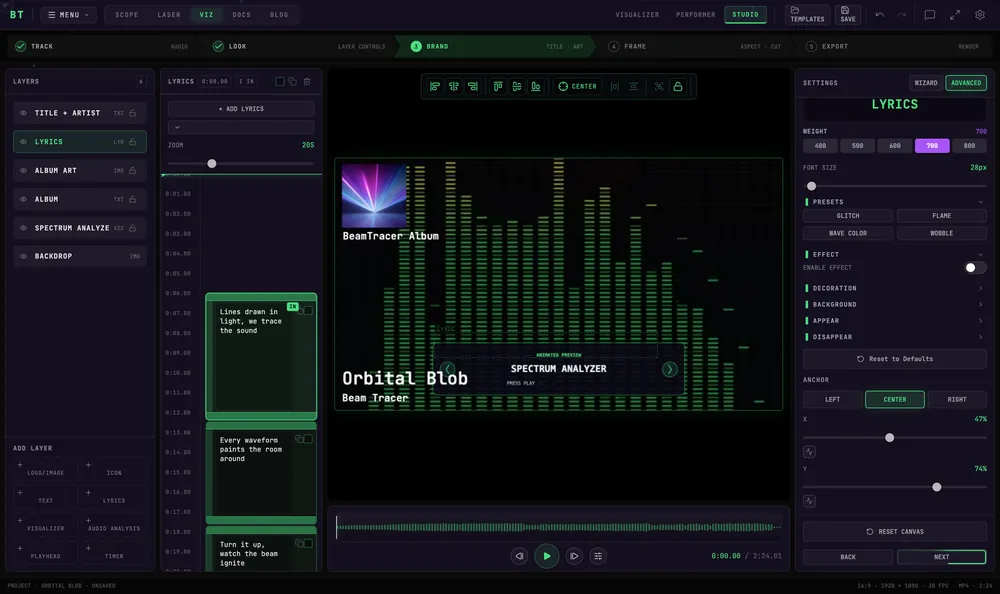
- The ruler runs down the pane in seconds; the playhead moves with playback.
- Each cue block is one line. Its height is how long it stays on screen.
- Drag a block to move it. Drag its edge to change how long it shows.
- ZOOM sets how many seconds of track fill the pane, so you can work loosely or frame-tight.
- The header carries the playhead clock, an I IN / O OUT / TIMED chip telling you what the timing keys will do next, a select-all checkbox, duplicate, and delete.
- CUSTOMIZE THIS LINE in the settings rail lets one line break away from the shared style.
Timing by ear
This is the fastest way to time a song you know. Play from the start and tap:
Click the timeline or the canvas first
The timing keys type as letters while a lyric text box is focused. Click the timeline or the canvas once so they act as timing keys instead. The chip in the pane header tells you which mode you are in.
Press Alt + Space to play
The lyrics pane has its own play/pause so you can keep your hands in position.
Tap I when a line starts
I — "in" — snaps the next untimed lyric to the playhead.
Tap O when it ends
O — "out" — ends the current line. Tap it again to extend an out you clipped too early.
Work down the song in order. If you drift, you do not have to start again:
- Ctrl/Cmd + click a gap shifts every remaining line to that point, keeping their spacing.
- Ctrl/Cmd + drag a lyric moves that line and everything after it as a chain.
Fixing individual lines
| Action | Keys |
|---|---|
| Previous / next frame | Alt + ← / → |
| Nudge selected cues | Alt + ↑ / ↓ |
| Shorten / lengthen selected cues | Alt + Shift + ↑ / ↓ |
| Next / previous cue | Tab / Shift + Tab |
| Add a lyric at the playhead | Alt + Enter |
| Duplicate the selected lyric | Alt + D |
| Delete selected cues | Alt + Backspace |
Styling the lines
Select the lyrics layer and the settings rail becomes LYRICS · TEXT EFFECTS. Font, size and position apply to every lyric; tick the boxes on individual cues to edit several at once.
Text
FONT (mono or a Google Font), WEIGHT (400–800), FONT SIZE, ANCHOR (left / center / right), and X / Y position.
Presets
GLITCH · FLAME · WAVE COLOR · WOBBLE — complete looks in one click, and a sensible starting point before you dig into the individual sections.
Effect
Turn ENABLE EFFECT on to animate the letters, then choose a preset and adjust STRENGTH and SPEED.
Decoration
Applies a pattern to the letterforms themselves: NONE · GRADIENT · GRAD LINES · LINES · ZIGZAG · OBLIQUE · NOISE · HARD NOISE · STROKED · DOTS · CIRCLES · STROKE · FILLED.
Background
A patterned fill inside the letters: NONE · LINEAR · RADIAL · LINES · GRAD LINES · DISTORTED · DOTS.
Appear and disappear
How each line enters and leaves: FADE · POP · COLOR · A-NOISE · C-NOISE · NOISE · WOBBLE · ROLL · NOISE TOP · WAVES · GLITCH · C-GLITCH.
| Control | What it does |
|---|---|
| SPEED | How long the transition takes |
| DELAY | The gap before it starts |
| WORD BY WORD | Reveals the line one word at a time instead of all at once |
| LOOP | Repeats the appear animation while the line is on screen |
| LINGER | How long the line holds before it disappears |
Reset to Defaults at the bottom of the effects returns the styling without touching your timings.
Exporting your timings
DOWNLOAD SRT and DOWNLOAD LRC save what you have timed. SRT is the subtitle format most video platforms and editors accept; LRC is the format music players use for scrolling lyrics. Both are useful beyond Studio — you can upload the same timings with your release.
Related
- How to make a lyric video without typing a single timestamp — the illustrated walkthrough on a real song, tag quirks included
- Your MP3 already has the album art — the tags the lyrics arrive in