
Projects and Templates
Save a Studio canvas, reopen it later, and start new videos from a template layout.
Studio keeps two separate things: projects are your saved canvases, and templates are reusable layouts.
Saving a project
Studio does not save as you work — the status bar reads UNSAVED until you do. Choose MENU → SAVE.
The save dialog shows a preview of the canvas and the same render summary you get on EXPORT, so you can confirm you are saving what you think you are. Give it a name and click SAVE.
The next save asks whether to overwrite this copy or make another, which is how you keep versions: save "Single — v1", change the look, save again as "Single — v2".
A successful named save keeps its media even if saving the current session fails.
Projects are stored in this browser. They do not sync between machines or browser profiles, and clearing site data removes them — so if a canvas matters, get it out of the browser (below).
Reopening a project
Click the gear icon in the header → YOUR PROJECTS.
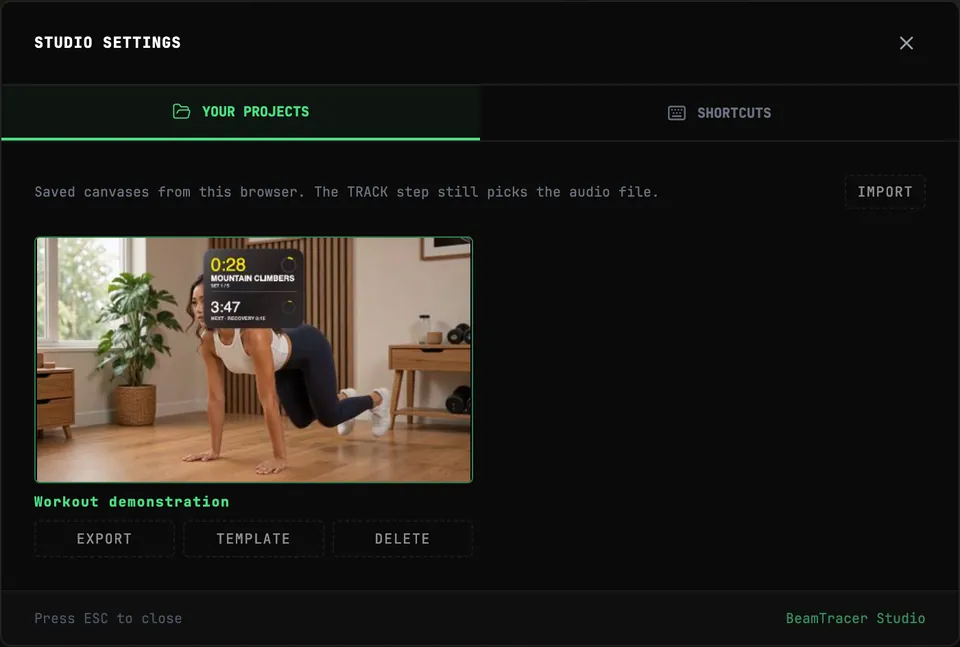
Each saved canvas appears as a card with its preview. Open one and it becomes the current canvas.
Saved projects also keep the Random seed and Beat pattern from Audio Analysis Engine → Modulation, including Step weights. Reopening the project restores them. Use the header’s Undo and Redo controls to restore generator edits or undo reopening a project. Undo and Redo bring back the canvas with its images, audio and saved-project identity; an unsaved canvas stays unsaved. You can then keep undoing earlier image replacements. If required media is unavailable, the current canvas stays open.
The TRACK step picks or replaces audio. Saved canvases reopen the audio available in this browser. After importing a project file, pick its audio again on the TRACK step.
Deleting a saved canvas
Use DELETE on a saved project or template card. If the browser cannot save the change, an error appears on that card and the saved canvas stays available. Try DELETE again when browser storage is available.
Moving a project out of this browser
Every saved project card has an EXPORT button. It downloads the canvas as a single .beamtracer-studio file: the layers, text, styling, lyric timings, frame, and every setting.
IMPORT, at the top of YOUR PROJECTS, reads one back in. Use it to:
- move a canvas to another machine — or another browser, or a fresh profile;
- keep a backup that clearing site data cannot touch;
- hand a layout to someone else so they can drop their own track into it.
An import always arrives as a new project. If the name is already taken it gets a numbered copy, so importing can never overwrite something you already had.
Importing adds the project to your library without opening it. Your current canvas keeps its name and unsaved changes when you reload. Choose the imported project's card when you are ready to switch.
When an older project needs its draft length repaired, saving or exporting it keeps that repaired length. An existing valid draft length is preserved.
What the file does and does not carry
It carries the canvas. It does not carry your media — the audio, and any images you uploaded.
In practice that means an imported project opens with:
- everything laid out and styled exactly as it was saved, including lyric timings;
- stock backdrops intact, since those exist in every browser;
- the TRACK step waiting for audio, which the import message reminds you about;
- uploaded images absent — re-add them on the layer that used them.
Keep the original media alongside your project backup. To share the finished result, export the video.
Templates
Click TEMPLATES in the header.
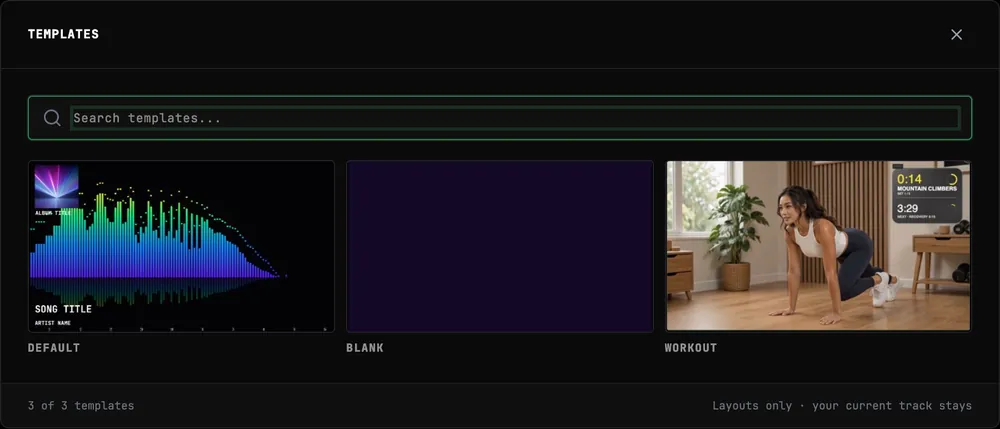
A template is a layout and frame — applying one keeps your current track. That is the point: get the arrangement you like once, then reuse it for every release without reloading audio.
- DEFAULT is the layout a new canvas starts from.
- BLANK is an empty frame to build up from scratch.
- REEL LOGO ORBIT starts a 9:16 video with a rotating 3D logo, title and artist.
- REEL LOGO PARTICLES starts a 9:16 video with particles forming the logo, title and artist.
The logo starters keep your current track and chosen cut. Add your own artwork in the logo layer and edit TITLE + ARTIST for the release. Use FRAME to adjust the video size or duration.
Choose a logo starter. Starter links open the template picker; your canvas changes only when you choose a template.
Hover a card to flip it and read its spec — platform, frame size, visualizer, backdrop, title, artist, and whether lyrics are on.
To reuse a layout of your own, save it as a project and open it when you start the next video. Opening a saved project gives you the same arrangement to work from; the TRACK step then points at the new audio.
Resetting
RESET CANVAS at the bottom of the settings rail clears the current composition back to the default layout. It does not touch anything you have saved.