
How to Make a Lyric Video Without Typing a Single Timestamp
To get lyrics on a video, open BeamTracer Studio in your browser, load the MP3, add a lyrics layer, and choose AUTO DETECT. BeamTracer Studio transcribes the vocal and places timed, editable lines on the timeline. Style those lines, render the lyric video as MP4, and save the timing as an LRC or SRT file for platforms and captions.
Hi, I'm Trina with BeamTracer.com — today I'm building a lyric video from a real MP3 without typing a single timestamp.
Making a lyric video by hand is its own special kind of tedious. You paste in the words, scrub through the track, enter a timecode, realize you came in a beat early, scrub back, and do it all again. Somehow, a three-minute song turns into an afternoon.
Most of that work is avoidable. Here is the full process using an actual released song.
Two minutes from start to finished file. If you would rather read through it, here is the written version.
How to sync lyrics to an MP3 automatically in BeamTracer Studio
AUTO DETECT is the fastest route to a lyric video. It sends the loaded track for transcription and places editable timed lyric lines on the lyrics timeline — the file does not need to contain lyrics at all, because BeamTracer Studio is listening to the audio itself. You read the result, correct what it misheard, and you have a timed song in a few minutes instead of an afternoon.
- Open BeamTracer Studio and load your MP3 on the TRACK step.
- Add the words with ADD LAYER → LYRICS. The lyrics timeline opens beside the canvas.
- Open the chevron beside + ADD LYRICS on that timeline.
- Choose AUTO DETECT and let BeamTracer Studio transcribe the whole file.
- Read every line it wrote, then fix a misheard word or drag a cue that lands early.
- Style the lines in the LYRICS · TEXT EFFECTS rail.
- Save the finished file with EXPORT → RENDER VIDEO for MP4, and the timing itself with DOWNLOAD LRC or DOWNLOAD SRT.
Even though "Living in Analogy" had nineteen lines of lyrics, none of them had timings, so this really helped out. In fact, it picked up a few that I missed. It goes both ways.
Treat it like a bandmate, not an authority
It will miss things. Stylized vocals, stacked harmonies, ad-libs and dense guitars are exactly where transcription gets shaky — so read it before you build on it.
Every cue is editable, though. Fix a misheard word, nudge a line that comes in early, and keep moving. That cleanup usually takes a few minutes instead of the better part of a day.
Limits, and the one thing that leaves your browser
Tracks up to 20 minutes, files up to 60 MB, and a lyrics layer holds up to 500 lines. Free accounts get a small number of transcriptions to try it; Pricing has the current allowance, and paid plans start at $12/mo. AUTO DETECT sends the track to BeamTracer for transcription. The rest of the editing workflow stays in your browser.
What does BeamTracer Studio read from your MP3 on its own?
Loading an MP3 fills the canvas from the file's own tags: title, artist, album, the embedded cover art, and whatever lyrics the file is carrying. If those lyrics already have timestamps attached, BeamTracer Studio turns them into placed cues when the song loads and there is nothing else to click. Plain text arrives as an untimed stack instead, waiting to be placed.
Everything below uses "Living in Analogy" by Craig Abaya, from the 2022 album Fashion Statement. It is a real released song, used with permission, not a spotless demo file built to make the software look perfect.
Many songs may have odd tags, credits mixed in with lyrics, and other little surprises. Those are the useful parts of this walkthrough.
The song runs three minutes and one second. Before touching a single control, dropping it into BeamTracer Studio puts this on the canvas:
| From the file | On screen |
|---|---|
| Title | Living in Analogy |
| Artist | Craig Abaya |
| Album | Fashion Statement |
| Cover art | The 500×500 image embedded in the MP3 |
| Lyrics | All nineteen lines |
I did not type any of that. BeamTracer Studio pulled it from the file's tags.
Timed lyrics inside a tag are rarer than you would hope. You may find them in files from lyric services, karaoke libraries, or certain distributors. Always check, but most files do not include them — and even when they are there, you will probably want to tweak them, depending on the type of text animation you have on the canvas.
If your own files are missing tags, or you want to fix what is in them before you start, a tag editor is the tool for the job. Craig uses Mp3tag — it edits titles, artists, album art and lyrics across MP3, FLAC, WAV and most other formats, in batches, and can pull missing details from Discogs and MusicBrainz. It is a paid app for Mac with a free trial.
How to import an LRC file of synced lyrics
LRC is the karaoke and synced-lyrics format, and if someone has already timed the
song there is no reason to do it twice. BeamTracer Studio reads LRC timing two
ways: it parses timestamped text found in the file's own lyrics tag when the song
loads, and it takes an uploaded .lrc through UPLOAD LRC on the lyrics
timeline. Either way the lines arrive already placed.
An LRC file is just text with a timestamp written beside each line. Using the opening couplet from this track, with made-up times to show the format:
[00:12.40]I love how I feel when I'm behind the wheel
[00:16.10]Cause it makes me feel so tough- Open BeamTracer Studio and load the song on the TRACK step.
- Add the lyrics layer with ADD LAYER → LYRICS.
- Open the chevron beside + ADD LYRICS.
- Choose UPLOAD LRC and pick the
.lrcfile. - Play the song and drag any cue that drifted — an LRC made for a different master can be a second or more out.
- Render the video with EXPORT → RENDER VIDEO for MP4, or write the corrected timing back out with DOWNLOAD LRC or DOWNLOAD SRT.
Before timing a whole song yourself, look for an LRC. If the track has already been prepared for karaoke, captions, or a distributor's synced-lyrics system, someone may have done the timing work for you.
How to time lyrics by hand with the I and O keys
"Living in Analogy" contains nineteen lines of plain-text lyrics and no timestamps, which is how most tagged music files arrive. BeamTracer Studio imports them as an untimed stack: every line is there, in the right order, waiting to be placed. You place them by ear with two keys — I for the moment a line comes in, O for the moment it should leave — which is one keypress per line instead of one typed timecode per line.
- Click the lyrics timeline or the canvas once so I and O act as timing keys rather than typing letters into a lyric.
- Press Alt + Space to play from the start.
- Tap I as each line comes in. That snaps the next untimed line to the playhead.
- Tap O when a line should leave the screen.
- Nudge selected cues with Alt + ↑ / ↓, or drag a block's edge to change how long it holds.
- Export with EXPORT → RENDER VIDEO for the MP4, plus DOWNLOAD LRC or DOWNLOAD SRT for the timing.
The file cannot tell BeamTracer Studio when line four begins, and BeamTracer Studio does not try to guess from the text. Without hearing the song, a guess that is half a second late is not much use.
For this song, all nineteen lines can be placed during a single listen, then nudged into position afterward if needed.
I would use this method when the exact written lyric matters: specific punctuation, deliberate line breaks, or a phrase the transcription model keeps getting wrong. It is also the fallback when AUTO DETECT is not available.
Which of the four ways should you use?
| What you have | Work involved |
|---|---|
| Nothing but the song | Press AUTO DETECT. BeamTracer Studio listens and writes timed lines |
| A file with timed lyrics embedded | None — the cues are already placed |
| An LRC file | Upload it. Also none |
| Just the words, untimed | Place them yourself, once per line |
If you're a control freak and want to place the lyrics line by line and have all day, use the last option. I like the easy button, so I typically go for AUTO DETECT, which gets it pretty close.
Why do credits and [Chorus] markers show up in the lyrics?
Because they live in the same tag as the words, and the format has no way to mark them as anything else. The nineteenth line in this file is:
© ARTifice music/ASCAPThat line is stored in the lyrics tag because publishers often put credits and copyright information there. It is not actually part of the lyric.
If you do not check the imported text, it becomes a cue like everything else and appears at the end of the video. You can delete the cue, or place it intentionally over the outro if you want the credit to appear in the video.
Scan the imported lyrics before you time them
Copyright notices, contributor credits, and stray markers like [Chorus] all
live in the same tag as the words. Nothing in the format distinguishes them, so
they arrive as cues like everything else — and the first time you find out is
usually watching your own outro.
How to export the lyric timing as an LRC or SRT file
Once your cues are placed, the timing is useful for more than this one video. BeamTracer Studio writes it out in two formats: LRC, which goes back into the audio file, into a distributor's synced-lyrics submission, or into a karaoke player, and SRT, the standard subtitle format you upload beside a YouTube video so the lyrics become proper captions instead of words baked into the picture.
- Finish timing every line first — the download writes what is on the timeline at that moment.
- Open the chevron beside + ADD LYRICS on the lyrics timeline.
- Choose DOWNLOAD LRC to save an
.lrcfor players, distributors, and lyric displays on platforms such as Spotify and Apple Music. - Choose DOWNLOAD SRT to save an
.srt, and upload it alongside your video on YouTube as real captions. - Keep the
.lrcsomewhere safe — it is the only part of this job you never want to do twice.
The SRT export is easy to overlook. Real captions make the video searchable, accessible, and easier to translate. Words baked into the video frame cannot do any of that.
One corrected timing pass gives you three things:
- The lyric video.
- Synced lyrics for the platforms.
- Captions for YouTube.
How to style the lyrics so they stay readable
Timing is the work. Styling is where it starts to feel like your song. The lyrics layer has the same type controls as the other text layers — font, weight, size, color, stroke, and background treatment — plus control over how each line enters and exits, so the lines do not simply blink on and off.
Choose a typeface, set the size, and try a preset such as GLITCH, FLAME, WAVE COLOR or WOBBLE if you want some movement when a line arrives.
Your styling applies to every lyric by default. Turn on CUSTOMIZE THIS LINE when one particular line needs its own treatment without changing the other eighteen.
A few things I would keep in mind:
Contrast matters more than effects. Your words are competing with a moving image. A simple stroke or subtle backing plate usually helps more than another layer of animation.
Keep it to one or two lines at a time. Put a whole verse on screen and most people will not read any of it. In other words, K.I.S.S.
Give the lyrics some room. A slower, quieter visual usually works better than something fighting for attention behind every word. The shot above uses a busy visual on purpose: it shows that strong contrast can still keep the line readable, but I usually wouldn't make the background that active for every song.
Check the video on your phone. Type that feels huge on a 27-inch monitor can become tiny once the video is viewed vertically on a small screen.
How to export the finished lyric video
The same composition exports for different platforms without being rebuilt: 16:9 for YouTube, 9:16 for Shorts, Reels, and TikTok, or 1:1 for Instagram. The EXPORT step shows a summary of the finished file first, and RENDER VIDEO writes it to your machine.
- Go to the FRAME step and pick the platform and aspect you are publishing to.
- Open the EXPORT step and read the summary: platform, frame size, frame rate, file type, duration, loudness target, and every layer currently enabled.
- Choose RENDER VIDEO and set RESOLUTION, FRAME RATE and FORMAT.
- Save the file, then play it back and check that the lyric lines arrive with the vocals, especially around edits and transitions.
- Scrub to a good frame and use YOUTUBE THUMBNAIL to save it at 1280×720.
- Render as MP4 · H.264 for YouTube and every editor, or WebM · VP9 — and take the SPOTIFY CANVAS preset from the same composition when you need the silent 3-to-8-second loop.
Before rendering, BeamTracer Studio shows a summary of the finished file: platform, frame size, frame rate, file type, duration, loudness target, and every layer currently enabled.
People notice immediately when the words are late, so play the saved file back before you publish it.
Can you make a lyric video for free?
Yes, with two caps worth knowing before you start. Free accounts get a small number of AUTO DETECT transcriptions to try it, and free exports are capped per month at 1080p with a BeamTracer watermark. Building the project, previewing it, and watching it back never count — only saving the finished video uses an export. The editing itself happens in a browser tab. Pricing has the current allowances, and paid plans start at $12/mo.
What are the limits, and what should you check before you export?
- A lyrics layer can hold up to 500 cues, which is plenty for a normal song.
- AUTO DETECT gives you a first pass, not a finished transcript. It is most likely to struggle with stylized vocals and dense mixes, so read every line before exporting.
- Plain-text lyrics are not assigned timings based on the text alone. They wait for you to place them, or for AUTO DETECT to listen to the song.
- AUTO DETECT has caps — the track-length, file-size, and line-count limits in the callout above, plus a per-plan transcription allowance listed on Pricing.
- Imported timings may still need adjustment. An LRC made for a different master of the song can drift by a second or more, but every cue can be edited.
Is a lyric video the same as a visualizer or a music video?
No. These are three different jobs:
| What it is | When to make one | |
|---|---|---|
| Visualizer | Motion reacting to the audio | Always. The default upload for any release |
| Lyric video | The words, timed | When the writing is the selling point |
| Music video | Filmed or directed footage | When you have a budget and an idea |
A lyric video is not a cheaper version of a music video. It gives the song something different.
Put one on a TV at a party, in a bar, on a shop display, or in the corner of a livestream and you have something moving that people can actually follow. If the words connect, people start singing along.
That is why "Living in Analogy" works well here. The lyrics carry the song. If the vocal in your track works more like texture than storytelling, a straight visualizer may serve it better.
Where to go next
- How to make a music visualizer from an MP3 — the same track, the whole workflow
- Your MP3 already has the album art — the tags behind the lyrics
- How to make a Spotify Canvas — 3 to 8 seconds, silent, and weirdly easy to get rejected
- Best audio visualizers, compared — including the desktop tools
- Add a countdown timer to a video — the same layer model, a different job
Bring your lyrics. Leave the stopwatch.
OPEN BEAMTRACER STUDIO →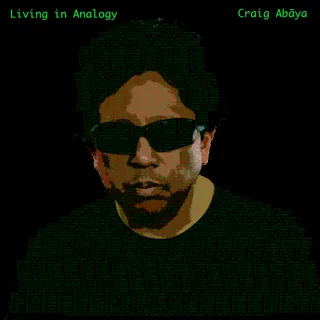
Special thanks to Craig Abaya for letting us use his music in this walkthrough and the accompanying video. Every screenshot on this page uses his song, his artwork, and his words. That is why the real-world quirks are visible instead of being cleaned away for a demo.
Go listen to it properly: "Living in Analogy", from Fashion Statement (2022), featuring the additional performers credited on the release. Used with permission.