
Getting Started with BT Laser Studio
A beginner's guide to BeamTracer's laser graphics tool — upload files, analyze content, and understand the interface.
Welcome to BeamTracer's BT Laser Studio — the most beginner-friendly laser file analyzer and creator on the web. This guide will help you understand what you're looking at and how to use the tool effectively.
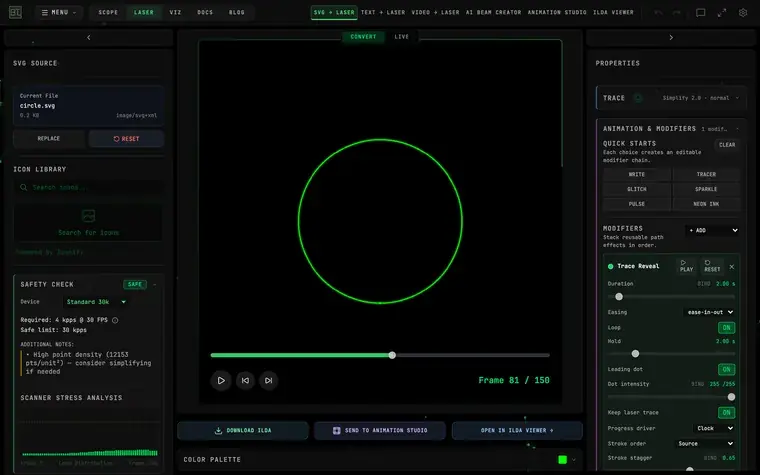
Prefer to watch? This walkthrough goes from a one-click SVG conversion and its safety check to the free ILDA viewer's 3D beam preview.
What Is ILDA?
ILDA (International Laser Display Association) is the standard file format for laser graphics. Think of it as "SVG for lasers" — instead of pixels, ILDA files contain coordinates that tell galvanometer mirrors where to point the laser beam.
The mirrors physically move to "draw" each point, creating graphics through persistence of vision. Your eyes see a continuous image because the laser moves fast enough that all points appear simultaneously.
Unlike video, where complexity is "free," laser graphics require physical movement for every point. More points = more work for your hardware. This is why understanding your file's requirements matters.
Your First File
- Go to the ILDA Viewer
- Click the PATTERN button in the TEST SUITE section of the left sidebar
- You should see the classic ILDA test pattern: a circle inside a square
If the circle touches all four sides of the square, your viewer is working correctly. This standardized pattern is used across the industry to verify scanner calibration.
Understanding the Interface
Left Panel: Source & Analysis
- File Upload — Load
.ildfiles in ILDA Viewer, or upload PNG, JPEG, WebP, other supported bitmaps, and SVG artwork in Image to Laser - Quick Load / Test Suite — Pre-built shapes in Image → Laser (circle, square, triangle, BEAM word); bundled test files in the ILDA Viewer (PATTERN, ORIENT, BLANKING, GRID, MOON, DOLPHIN)
- Icon Library — Search Iconify for vector icons to convert
- Safety Report — Scanner load percentage and warnings (in the ILDA Viewer's left sidebar)
- Validation — Format correctness and potential issues (also left sidebar)
Center: Canvas
The main preview area. What you see here approximates how the laser would draw your file. Use the playback controls below the canvas for animations.
Right Panel: Properties
- Playback controls — FPS, beat sync, and BPM
- Visualization toggles — Heat maps, scanner paths, and more
Quick Analysis Workflow
- Load your file — Drag and drop or use the file picker
- Check the Safety Report — is the scanner-load badge green? Green means under 70%. Yellow (70–100%) is a warning, not a failure, but it is the app telling you the content is working the scanners hard.
- Enable Stress Heat Map — See where stress problems occur
- Check Validation — Any format issues or warnings?
Related
- Beginner laser projector guide — ILDA vs DMX, DACs, and what to check before you buy
- Laser show safety guide — the US rules and the safety checks, illustrated