
Export to ILDA
How ILDA export works across BT Laser Studio — direct downloads in every creation tool, the Export ILDA dialog in the ILDA Viewer, and how tier gating applies.
When your content is ready, BT Laser Studio exports it as a standard .ild (ILDA) file for playback on laser hardware and in third-party laser software. There are two export paths, and it matters which one you're using:
- Direct download — Image → Laser, Text → Laser, Beam Creator, Video → Laser, and Animation Studio each have a Download ILDA button that saves a Format 5 (2D True Color) file immediately. No dialog, no options.
- The Export ILDA dialog — exists only in the ILDA Viewer (the EXPORT ILDA button in the left sidebar). It handles format conversion, hardware presets, and point reduction in one place.
Tier Gating
Every ILDA export path in BT Laser Studio follows the same model:
ILDA export is a Studio feature. Studio subscribers get clean, unlimited exports everywhere. Below Studio — including Pro and Bundle — you get 3 clean exports per calendar month, resetting on the 1st. It is a single pool shared across every ILDA download button in BT Laser Studio, OSC-1 and the ILDA Viewer dialog.
Every export is clean: what you test on your projector is exactly what you would get on Studio. Once the month's three are used, the buttons prompt you to upgrade until the 1st.
Each tool shows a status line next to its Download ILDA button with how many you have left. You can also see it any time in Account → Billing → Your Allowances. The allowance is tracked against your account rather than your browser, so it needs a free sign-in — and it follows you between machines.
The ILDA Viewer itself is free for everyone with no account.
Direct Downloads (all creation tools)
Download ILDA in Image → Laser, Text → Laser, Beam Creator, Video → Laser, and Animation Studio writes your converted content as Format 5 (2D True Color) — full RGB per point, the modern default — named after your source. There are no format options on this path. Animation Studio's files follow its POINTS choice: SCANNER-SAFE (the default) fits each frame to your scanner, and KEEP ORIGINAL keeps every point as composed. See Animation Studio. The other tools write the content as converted. If you need Format 0/1 output or point reduction for legacy hardware, open the file in the ILDA Viewer and use the Export ILDA dialog there.
Direct downloads do not refuse a file merely because the whole animation contains many points. Where a tool exposes a safety panel, it checks the heaviest frame at the chosen FPS against your selected device profile and warns when the artwork exceeds that rate. You can still download the file and decide whether to lower FPS, simplify the artwork, or use a faster scanner.
Choose the Playback Rate
An ILDA file does not store a playback point rate. Before downloading, choose the rate you will use in your ILDA player: use the device selector in a tool's Safety Check, or Export Rate in Text → Laser and AI Beam Creator. BeamTracer sizes blanked settling for that choice. Play the finished file at the same rate; changing it later also changes the physical settling time.
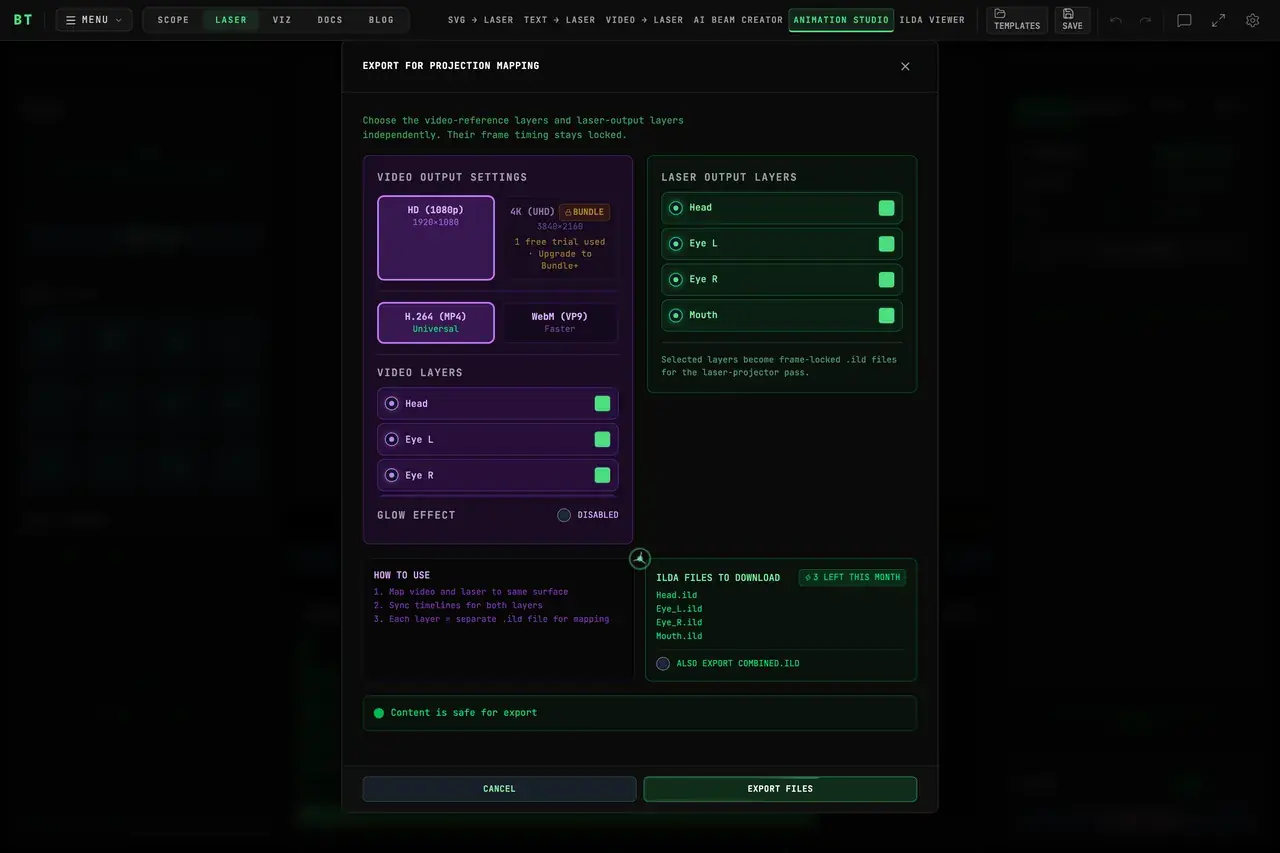
Animation Studio additionally has an Export for Projection Mapping modal. It independently selects video and laser layers, renders 1080p/4K H.264 or WebM, can add a configurable video-only glow, previews every per-layer ILDA filename, optionally adds combined.ild, checks scanner safety, and keeps every video and ILDA frame synchronized. See Animation Studio for the complete dialog guide.
The Export ILDA Dialog (ILDA Viewer)
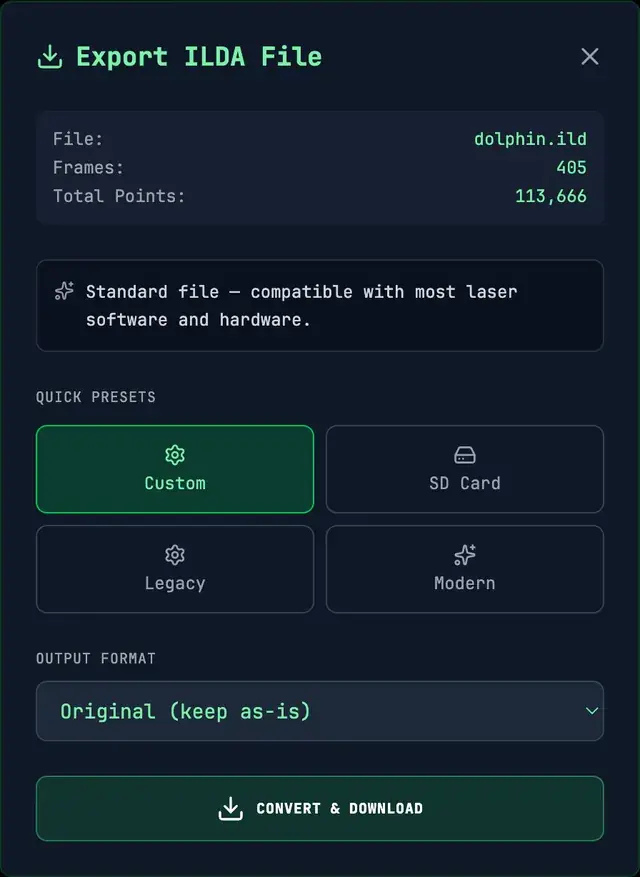
Click EXPORT ILDA under the ILDA Viewer's preview to open the Export ILDA File dialog. The dialog summarizes the file at the top — the source filename, the number of frames, and the total point count — so you know what you are about to save.
Smart Recommendation
The dialog inspects your content — its current format, average points per frame, and whether it uses true color or indexed color — and suggests the best export path. If a preset is recommended, you can apply it in one click. The recommendation flags high-density files that may overwhelm cheaper hardware.
Quick Presets
Four presets cover the common targets:
| Preset | Output | Use When |
|---|---|---|
| Custom | Your manual choices | You want full control over format and point limits |
| SD Card | Format 0 (indexed), max 750 points/frame | Targeting cheap SD-card projectors with limited capacity |
| Legacy | Format 0 (indexed) | Older laser software that needs maximum compatibility |
| Modern | Format 5 (true color) | Modern software where full color fidelity matters |
Format Options
If you choose Custom, set the output format directly:
- Original (keep as-is) — download the file unchanged, no conversion
- Format 0 (3D Indexed Color) — widest hardware compatibility
- Format 1 (2D Indexed Color) — smaller files for 2D-only content
- Format 4 (3D True Color) — full RGB per point with the Z axis kept
- Format 5 (2D True Color) — full RGB per point, the modern default
Indexed exports (Format 0 and 1) embed the color palette they were matched against, so the colors you see are the colors every player shows. Converting between the 3D formats (0 and 4) keeps the Z coordinate; converting to a 2D format drops it.
For a full comparison of what each format supports and how conversion behaves, see ILDA Format Versions.
Limiting Points per Frame
When converting, you can set an optional Max Points per Frame. SD-card projectors typically need this capped around 500–750 points. If your content exceeds the limit, choose how it is trimmed:
| Strategy | Behavior |
|---|---|
| Optimize & Truncate (recommended) | Removes redundant points first, then trims complete shapes only if still over |
| Shape-Aware Only | Removes whole shapes only — may drop more content but never cuts mid-shape |
| Force Truncate (not recommended) | Cuts hard at the point limit regardless of shape boundaries, which can cause artifacts |
For the reasoning behind point budgets and clean hardware playback, see the Optimization Guide.
Convert and Download
Click Convert & Download. If the conversion is clean the .ild file downloads immediately, named after your source file with the format appended. If the conversion produces warnings — for example, colors mapped to the nearest palette entry or points truncated — the dialog shows a results summary (input/output format, frame and point counts, colors mapped, points truncated, file size) and any warnings so you can review before choosing Download anyway.
When distributing content publicly, export both a Format 0 version (for legacy and SD-card users) and a Format 5 version (for modern software). See ILDA Format Versions for details.
AI-Powered Tools
BeamTracer's AI features — Beam Creator for prompt-to-laser generation, Video Analysis for auto-tuned tracing, and File Diagnostics for corrupt ILDA repair.
3D Beam Viewer
Preview ILDA files in a 3D venue environment with camera presets, beam modes, human figure for scale, and Cinema mode.