
Lottie to Laser: Turn a Lottie Animation into an ILDA Show
To turn a Lottie animation into a laser show, open BeamTracer's Animation Studio in Chrome or
Edge and drop the .json or .lottie file on SOURCE. Its shape layers are traced into
laser lines frame by frame, in the file's own colors, and DOWNLOAD ILDA saves them as an
ILDA file that any laser player can run.
Hi, I'm Trina with BeamTracer.com — in this one we'll take a Lottie animation, the same kind of file you'd put on a website, and put it on a laser. Along the way we'll look at what comes across, what doesn't, and how to prepare a file so it draws cleanly.
General guidance, not legal or safety advice. Laser rules are specific to where and how you project. Verify current requirements with the FDA CDRH and your state laser agency before any public use, and read the laser show safety guide before the first beam leaves the lens.
A Lottie file made for this post, playing in Animation Studio: four fireworks built from trim paths and repeaters over a skyline, all 90 frames. Each burst keeps its color from the file.
What is a Lottie file, and can a laser play one?
A Lottie is a vector animation saved as data: shapes, colors and keyframes, usually exported from After Effects. Because it describes lines and curves rather than pixels, a laser can draw it directly. BeamTracer reads both kinds of Lottie file and turns each frame's shapes into laser points.
.json (Lottie JSON) | .lottie (dotLottie) | |
|---|---|---|
| What it is | One animation as a JSON text file | A zip archive with a manifest and one or more animations |
| Made by | The Bodymovin or LottieFiles plugin for After Effects, and most Lottie editors | The LottieFiles plugin and tools, or a conversion from JSON |
| In BeamTracer | Plays as it is | Plays the first animation in the archive |
Both run the same way once they're open. Files up to 10 MB are accepted, and up to 1,800 frames play: 30 seconds at 60 fps. A longer file plays its first 1,800 frames.
How do I turn a Lottie into an ILDA file?
Drop the file on SOURCE in Animation Studio. It becomes a Lottie layer that plays on the timeline at the file's own frame rate. Size it, play it, check the POINT BUDGET, then click DOWNLOAD ILDA. The file holds laser frames only, so any ILDA player can run it.
- Open Animation Studio in Chrome or Edge.
- Drop your
.jsonor.lottiefile on DROP SVG OR LOTTIE HERE OR CLICK TO CHOOSE under SOURCE, or click LOTTIE STAR or LOTTIE BALL to try a built-in example. - Open LOTTIE in the PROPERTIES tab to read the frame count, the frame rate and anything the file uses that is not drawn.
- Under TRANSFORMS, set Scale to the size you want in the scan field.
- Press play in the TIMELINE and watch the POINT BUDGET under the layer.
- On the SAFETY tab, leave POINTS under ILDA FILES on SCANNER-SAFE.
- Click DOWNLOAD ILDA to save the animation as an ILDA Format 5 file, or OPEN IN ILDA VIEWER → to check it first.
Everything that works on other layers works on a Lottie layer too: position, size and rotation keyframes, motion paths, modifiers and audio reactions. A saved project keeps the animation, so you don't need the original file to open it again.
Does the laser keep my Lottie's colors?
Yes. A new Lottie layer draws each shape in the color the file paints it, whether that's a stroke, a fill or the first color of a gradient. Every color is drawn at full laser brightness. To draw the whole layer in one color instead, pick it under COLOR.
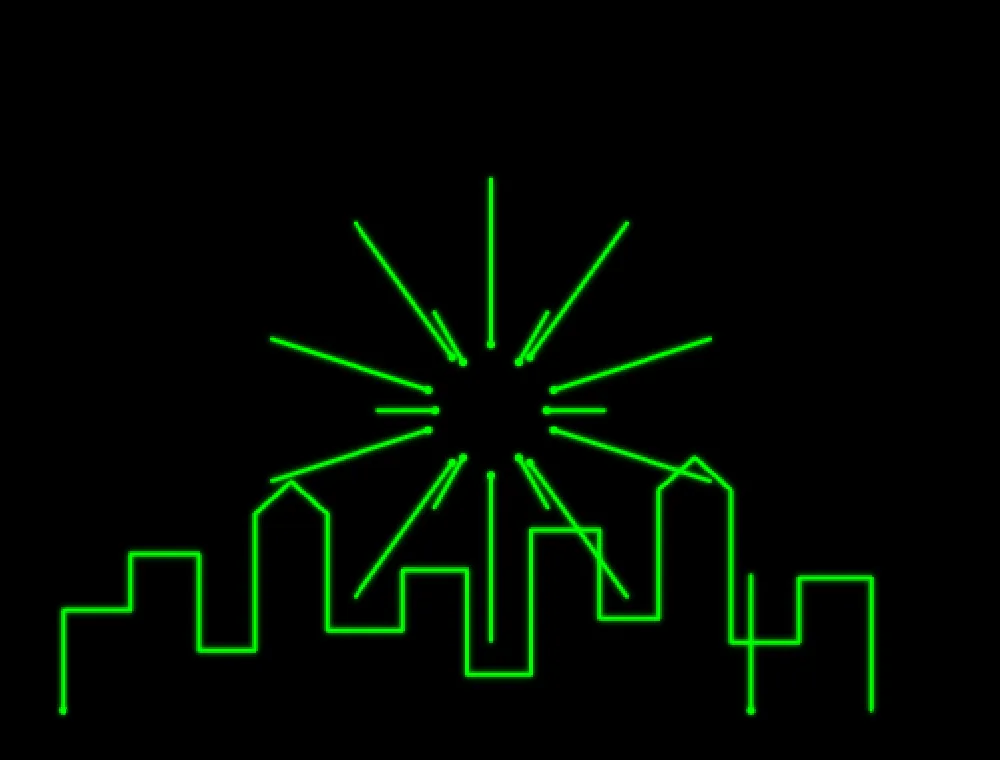
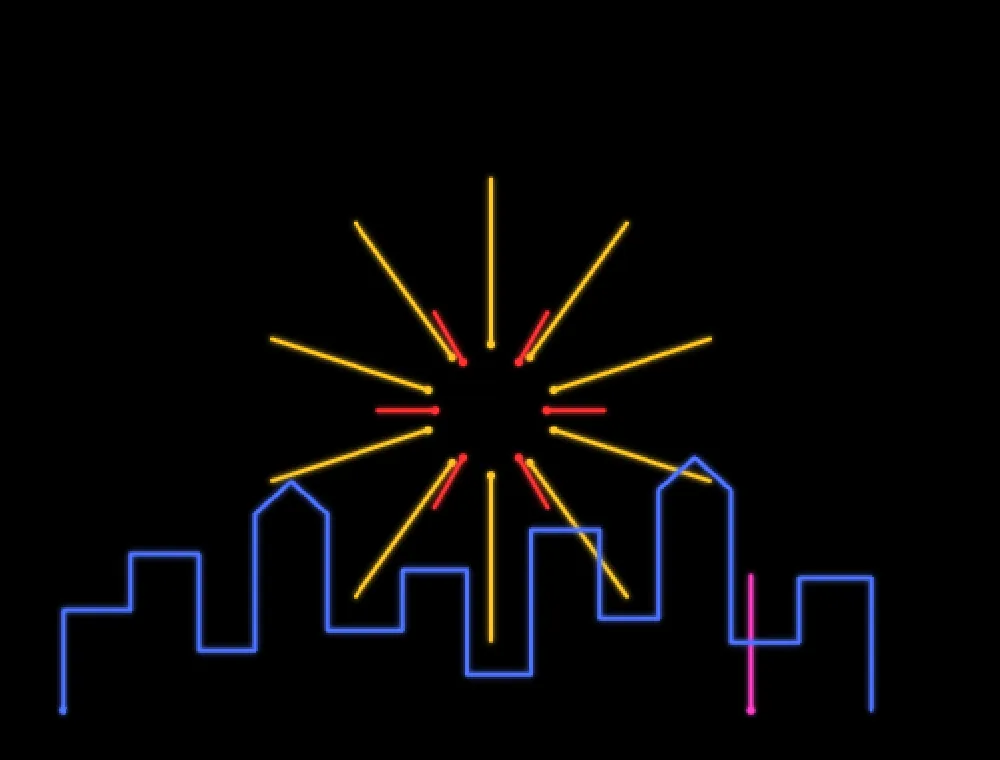 Source colorsOne color
Preserve source colors is on for every new Lottie layer. While it's on, the COLOR section lists the file's colors as swatches and its header reads Source colors.
Click any color in the palette and the switch turns OFF: the layer draws in that color. Switch Preserve source colors back ON to return to the file's colors.
The canvas, a connected laser, DOWNLOAD ILDA and the ILDA Viewer all get the same colors.
Two things change on the way. A laser has no black, so black and gray shapes draw white. And a dark color on screen would be a dim beam on a laser, hard to see against everything else, so each color keeps its hue at full brightness: a dark navy draws as a bright blue.
Which After Effects features come through, and which don't?
Shape layers come through: paths, rectangles, ellipses, stars and polygons, with their groups, precompositions, parenting, animated transforms, trim paths and repeaters. Images, text, solids, effects, masks, track mattes and expressions do not. The LOTTIE panel names anything in your file that isn't drawn.
| Not drawn | What to do instead |
|---|---|
| Image and solid layers | Rebuild the art as shape layers |
| Text layers | Convert text to shapes before export (Create Shapes from Text in After Effects) |
| Effects and layer styles | Animate the shape itself instead |
| Masks and track mattes | Cut the shape down to the part you want to see |
| Expressions | Bake them to keyframes first (Convert Expression to Keyframes); otherwise the keyframed value is used |
| Time remapping and skew | Animate the timing or the shape directly |
| Round corners, merge paths, offset paths, pucker and bloat, twist and zig zag | Apply the change to the path itself |
Fills and strokes both come through, and a gradient draws in its first color. Rectangles keep their rounded corners; it's the separate Round Corners effect that is skipped.
This test file has a text layer, an image layer, a drop shadow, a mask on a ring and an expression on a starburst. Open LOTTIE in PROPERTIES and it names all five under Not drawn.
On the canvas, only the two shape layers appear: the starburst, and the ring drawn whole, because its mask is skipped. The panel doesn't block anything. It tells you what to fix in After Effects if you want those parts back.
If masks give you trouble on the web too, you're in good company: questions about masks are among the most-read threads on the LottieFiles forum, and the official support tables from Airbnb and from LottieFiles don't agree with each other on every row. Every Lottie player draws its own subset. A laser is one more player, with the strictest subset of all, because it can only draw lines.
Why does my Lottie look different on a laser?
A screen fills shapes and stacks layers, so one shape can hide another. A laser draws lines and nothing else. Fills are traced around their edge, and every shape is drawn, including the parts that another shape covers on screen. A flat icon built from overlapping filled circles shows every circle.
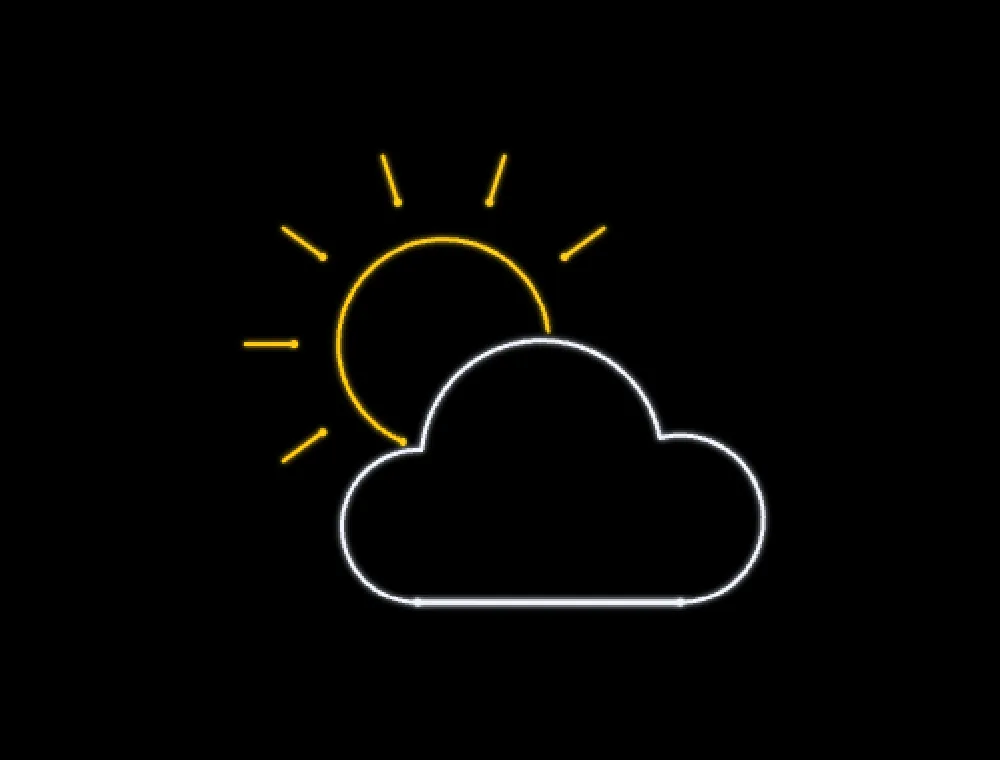
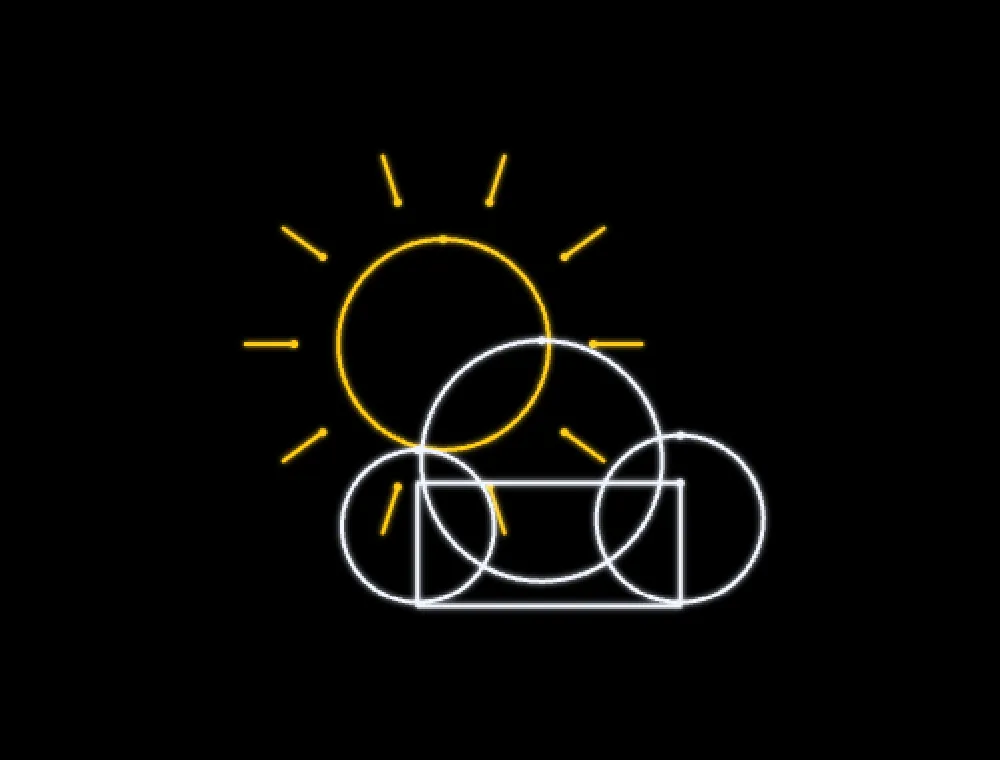 Filled iconPrepared for laser
That's the main thing to know. On screen, the filled icon reads as one white cloud in front of the sun. On a laser it's a tangle of circles, and it costs 200 more points a frame than the prepared version. Both files were made for this post and animate the same way.
Three other differences are worth knowing before you start:
- Color. Black and gray draw white, and dark colors draw at full brightness (see above).
- Corners. A real scanner can't turn instantly, so sharp corners round off. The PHYSICS preview shows how much, further down.
- Moves between shapes. Each separate shape needs a blanked jump from the end of the last one. A frame made of many small separate strokes spends a lot of its time jumping, and Animation Studio's SAFETY tab notes Short runs of stored lit points; inspect stroke ends and blanking when a frame is full of them.
How do I prepare a Lottie for a laser?
Build it from strokes, as few separate paths as the design allows, and cut away anything that would be hidden. Keep to shape layers, trim paths and repeaters, bake expressions to keyframes, and export at 30 fps. Then check the result in Animation Studio before it reaches a projector.
- Strokes over fills. A fill becomes its outline anyway, so draw the outline you want.
- One outline per shape. Unite overlapping shapes into one path before you animate, for example with Pathfinder → Unite in Illustrator, then bring the art into After Effects as a shape layer. A Merge Paths operator inside the Lottie is not drawn.
- Cut away what would be hidden. A laser has no layers, so trim the parts that sit behind other shapes, as the sun above does.
- Fewer separate paths. Every separate path costs a blanked jump, and the beam spends that time in the dark. In the fireworks file above, about three of every four points in the exported ILDA file are blanked moves between its short sparks. A few long strokes read better than many short ones.
- Shape layers only. No images, text layers, effects, masks or mattes. Convert text to shapes and bake expressions to keyframes before export.
- Draw-on with trim paths. Trim paths and repeaters come through exactly, and they're the natural laser moves: lines that draw themselves, and patterns that repeat.
- Bright, distinct colors. Pick colors that differ in hue. Shades of one color all draw at the same full brightness.
- 30 fps and a clean loop. Match the frame rate you'll export at, and make the last frame lead straight into the first.
Line icons are the easy win
If you're choosing a Lottie rather than making one, look for line or outline icon styles. They're already strokes, usually one path per shape, and they come across nearly as they look on screen.
How many points can a laser draw, and what does SCANNER-SAFE do?
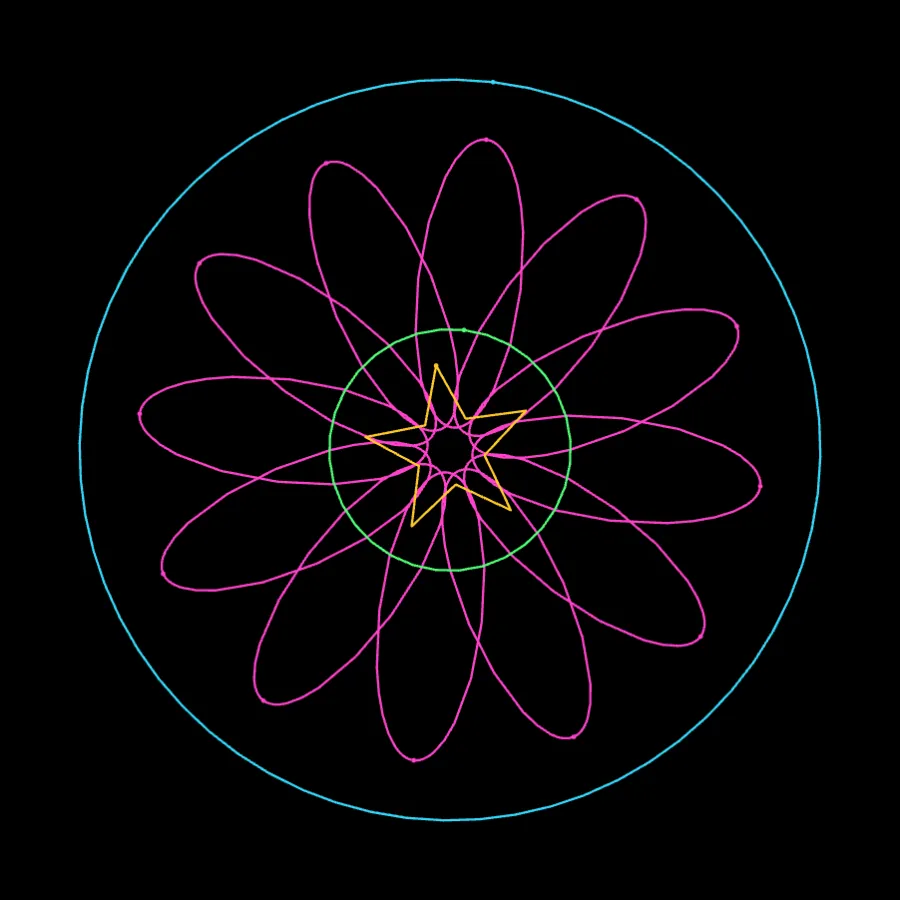
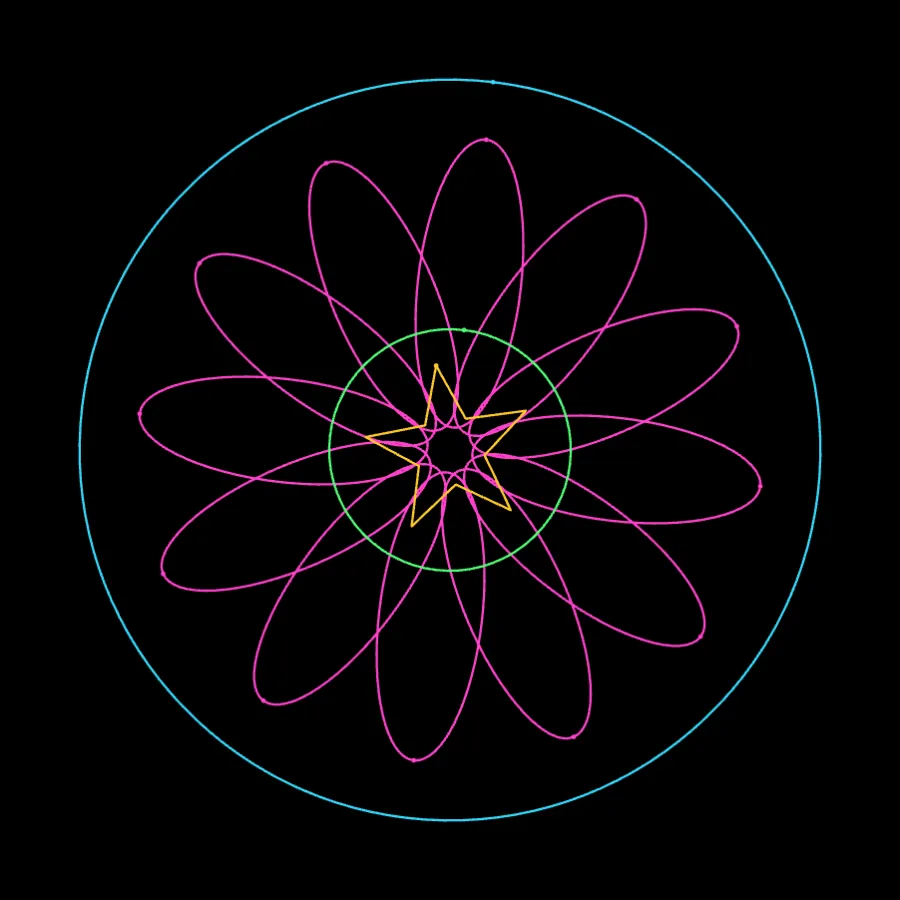
A laser draws a fixed number of points a second. A 30K scanner at 30 frames per second has about 1,000 points for each frame, and 699 is the most the ILDA Viewer rates WITHIN. A dense Lottie can need far more. SCANNER-SAFE, the default, fits each frame to your scanner and keeps its corners and blanking. KEEP ORIGINAL saves every point.
 KEEP ORIGINALSCANNER-SAFE
You'll find POINTS on the SAFETY tab under ILDA FILES. Each button shows how many points the busiest frame holds with that choice: SCANNER-SAFE (699) and KEEP ORIGINAL (1,209) for the flower above. The line under them reads SHAPE, CORNERS AND BLANKING KEPT when the fit keeps every corner. A frame that already fits is left exactly as drawn: the fireworks file reads 507 on both buttons.
The choice applies to DOWNLOAD ILDA, OPEN IN ILDA VIEWER → and PROJECTION MAPPING. Live output doesn't use it: it sends the frames exactly as composed.
What if my Lottie is too complex for the scanner?
Some art has more corners than a scanner can draw in one frame. Then the line under the POINTS buttons reads TOO COMPLEX TO KEEP EVERY CORNER, and a notice says how much was left out. The most prominent corners are kept. To keep them all, lower the frame rate, simplify the art, or choose KEEP ORIGINAL for a faster scanner.
This file draws twelve spiky stars, twelve triangles and twenty-four circles in every frame. It looks fine on screen. For a 30K scanner at 30 FPS it's too much in all 90 frames, and the notice says by how much: 11,790 corners and 540 paths left out across the file.
The note above it, Short runs of stored lit points; inspect stroke ends and blanking, describes the stored point runs. Inspect the preview before deciding which detail to simplify.
That notice is the most useful check in this whole workflow. If you see it on a Lottie you want to project, go back to the checklist above: fewer separate shapes, fewer corners, or a lower FPS under PROPERTIES → TIMELINE.
How do I check the ILDA file before the show?
Open it in the free ILDA Viewer, or click OPEN IN ILDA VIEWER → in Animation Studio. FILE HEALTH confirms the file is valid, counts its frames and points, and rates it against your scanner. The preview plays the frames with no audio, exactly as the file holds them.
- Click OPEN IN ILDA VIEWER → in Animation Studio, or open the ILDA Viewer and drop your
.ildfile on CLICK OR DRAG ILDA FILE HERE. - Read the badges next to FILE HEALTH: VALID means the file follows the ILDA standard, and WITHIN, NEAR LIMIT or OVER LIMIT compares its point demand with the rate picked under Device; these badges do not certify scanner or laser safety.
- Set Device to your projector's class, for example Standard 30k, and check Required against Selected rate.
- Watch the preview. It opens on each frame exactly as the file stores it.
- Open ANALYSIS TOOLS and switch on GALVO SIMULATION to watch the scanner draw each frame; TRAIL sets how much of the previous light stays on screen.
This is the flower file straight from OPEN IN ILDA VIEWER →. It's VALID and WITHIN on Standard 30k, with 90 frames of 699 points each: 62,910 points in total.
Required is the point rate the file needs at its frame rate: 21 kpps, under the 30 kpps Selected rate. The KEEP ORIGINAL export of the same Lottie needs 36 kpps and reads OVER LIMIT.
The preview plays in the colors of the original Lottie.
Can I see how the laser scanner will draw it?
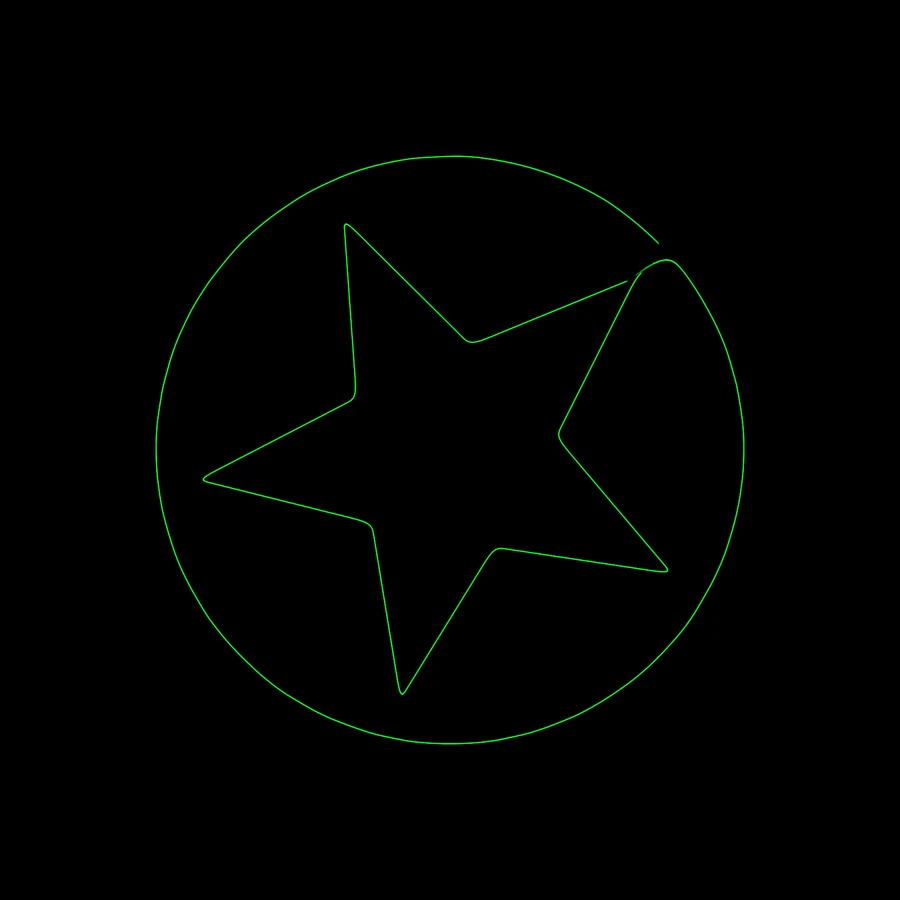
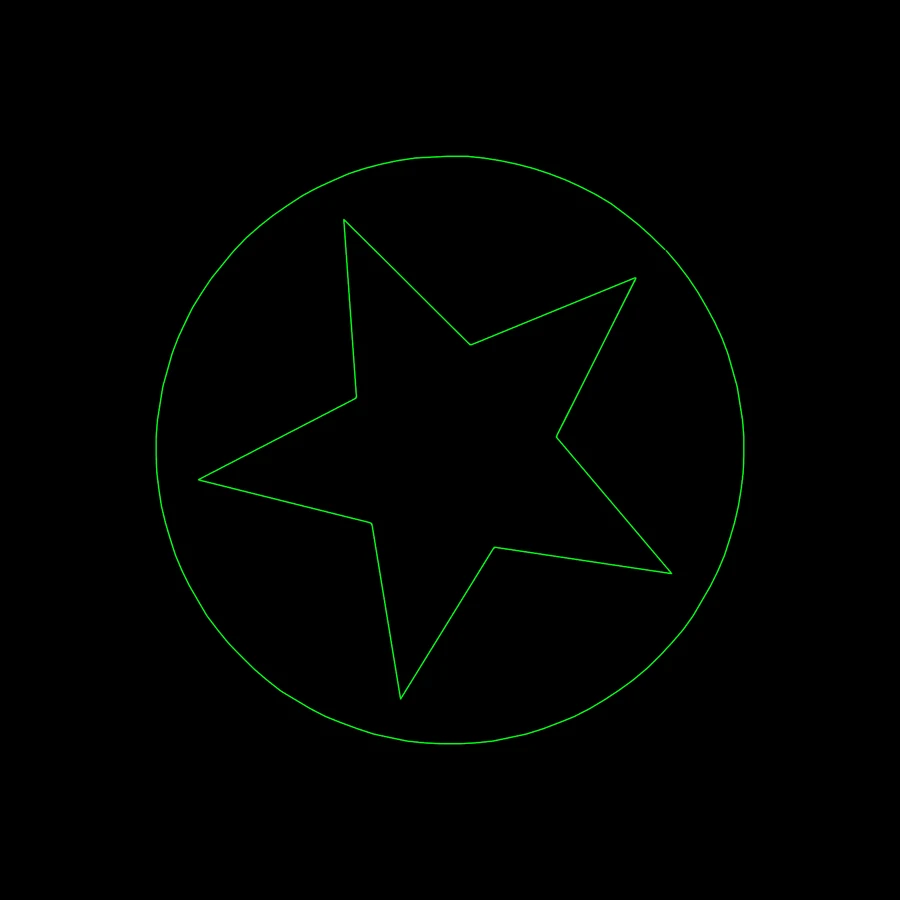
Yes. The output preview in OSC-1's LASER OUTPUT, and in Animation Studio's LIVE mode, has two views under Mirrors. IDEAL shows the figure as drawn, with no scanner limits. PHYSICS shows the path a real scanner's mirrors will take. Use it with the free DAC Simulator, which needs no projector.
 IDEALPHYSICS
IDEAL is the good-looking view, and it's the figure you designed. PHYSICS is the honest one. The star's points come out rounded, because the mirrors can't turn instantly, and the jumps between the ring and the star leave short stray marks where the mirrors are still settling as the beam comes back on. Two separate shapes means two of those jumps every frame, which is the checklist's point about fewer separate paths.
If the preview looks worse than your wall, your scanner is faster than the class you picked, so choose a faster one under SCANNER. The whole panel is described in Laser DAC Output.
How do I play a Lottie on an oscilloscope?
Use OSC-1. In CREATOR mode, open IMPORT SHAPES → LOTTIE and drop the file, or click STAR or BALL under EXAMPLES. The animation plays as the scope's beam at the file's own frame rate and loops. With LASER OUTPUT connected, it goes to a laser too.
The STAR example on OSC-1's scope. The panel on the left shows the file, 90 frames at 30 fps, with PAUSE and the FRAME readout.
- Open OSC-1 in Chrome or Edge and click CREATOR at the top.
- Under SOURCES, open IMPORT SHAPES and click LOTTIE.
- Drop your
.jsonor.lottiefile on Drop Lottie or click to browse, or click STAR or BALL under EXAMPLES. - Use PAUSE, FRAME and SPEED to stop, scrub or slow the animation.
- Set TRACE SPEED: FAST is the default and shows nearly every frame of a 30 fps file; SMOOTH draws smoother lines but shows fewer frames.
- To send it to a laser, open LASER OUTPUT in the right-hand column, connect a DAC or the free SIMULATOR, then press ARM, CONFIRM ARM and START.
A scope has no blanking, so the jumps between separate shapes show as faint lines on the screen. On a laser, those jumps are blanked. That's one more reason a Lottie built from one or two continuous strokes, like the STAR example, looks best on both. Starting another source in OSC-1 takes over the scope and pauses the Lottie. All the controls are in the Shape Tools docs.
What frame rate should a Lottie be for a laser?
Match it to the frame rate you'll export at, and 30 fps is the usual choice for laser shows. A Lottie always plays at its own frame rate. Animation Studio samples it at the timeline's FPS (24, 25, 30, 48 or 60), so matching the two gives exactly one laser frame for each frame of the file.
- Where to set it. PROPERTIES → TIMELINE → FPS in Animation Studio. The LOTTIE panel shows the file's own rate, for example 90 frames · 30 fps.
- A mismatch doesn't change the speed. A 60 fps Lottie on a 30 FPS timeline plays at the right speed and skips every other frame. A 24 fps file on 30 FPS repeats some frames.
- Higher isn't free. At 60 FPS each frame gets half as many points on the same scanner, so dense art suffers first.
- The ILDA file stores no frame rate. Your ILDA player decides how fast to play the frames, so set it to the same rate you exported at.
How do I make a Lottie loop cleanly on a laser?
Make the file's last frame lead straight into its first, then export a whole number of loops. In Animation Studio a Lottie layer loops for as long as the layer lasts, so set the timeline to exactly one loop, or two, and let your ILDA player repeat the file.
When you add a Lottie that's longer than the timeline, Animation Studio lengthens the timeline to fit one full loop. If you change it later, type the length into Duration under PROPERTIES → TIMELINE, or click TRIM TO LAYERS to end the timeline with the last layer. A timeline that stops partway through a loop makes the file jump back to the start on the next pass.
In OSC-1 the animation loops by itself for as long as it plays.
Where can I get Lottie files I'm allowed to project?
The safest files are ones you made. Free animations on LottieFiles are released under the Lottie Simple License, which allows commercial use and doesn't require credit. Animations bought on the LottieFiles Marketplace, and files from other sites, carry their own terms, so check the license before you project someone else's work at a paid show.
What the Lottie Simple License says, from its page on LottieFiles as of September 2026:
- Commercial use is allowed. You may download, reproduce, modify, publish, distribute, publicly display and publicly perform the public files, including for commercial purposes.
- Credit is optional. Using a file without crediting its creator is permitted, though credit is strongly encouraged. If you do credit, the credit should be visible to your audience.
- The same license travels with it. A file you modify is a derivative work, and anything you publish or distribute carries the same license.
- One restriction. You may not collect files from LottieFiles to build a similar or competing service.
Marketplace animations are different: under LottieFiles' own terms you may not transfer, redistribute or resell the file you bought. A free license for a file is also not permission to use a brand's logo or a character that happens to be drawn in it. The two built-in examples in BeamTracer, and every file in this post, are made by BeamTracer.
Not legal advice
Licenses change and each site sets its own. Read the terms on the page you download from, keep a note of where each file came from, and ask the creator when in doubt.
Is it free, and do I need to install anything?
Animation Studio, OSC-1 and the ILDA Viewer run in Chrome or Edge with nothing to install, and opening a Lottie, previewing it and checking it are free. Clean ILDA downloads are 3 a month with a free account below Studio, and unlimited on Studio. Output to a real projector is a Studio feature, with trial sessions on a free account.
| Free | Studio | |
|---|---|---|
| Open, play and edit a Lottie in Animation Studio or OSC-1 | Yes | Yes |
| IDEAL / PHYSICS preview with the DAC Simulator | Yes | Yes |
| ILDA Viewer and FILE HEALTH | Yes, no account needed | Yes |
| Clean ILDA downloads | 3 a month with a free account | Unlimited |
| Live output to a real laser DAC | Trial sessions with a free account | Unlimited |
Current plans are on Pricing.
| Way to get a Lottie onto a laser | What you get | Best for |
|---|---|---|
| Animation Studio → DOWNLOAD ILDA | Every frame as vector laser frames, in the file's colors | A show file for any ILDA player |
| OSC-1 → IMPORT SHAPES → LOTTIE → LASER OUTPUT | The animation streamed live, as a scope beam and to a DAC | Playing it live next to other scope sources |
| Export one frame as SVG, then convert the SVG | One still frame | A logo or a single pose, not an animation |
| Render the Lottie to video, then trace the video | Outlines traced from pixels | Only when you don't have the Lottie file itself |
Check the whole field before full power
A Lottie that fills its canvas fills the scan field on the wall. Watch the whole loop with Mirrors on PHYSICS, start at a low Power limit, and keep people out of the beam path. The laser show safety guide covers the checks.
Drop a Lottie in and watch it draw as a laser — free, in the browser
OPEN ANIMATION STUDIO →Next: the Animation Studio docs for every Lottie control, SVG to ILDA for still vector art, laser blanking for the jumps between shapes, audio-reactive laser shows to make a Lottie layer move with the music, and oscilloscope music on a laser for more of OSC-1 on a projector.
That's Lottie to laser. beamtracer.com — I'll see you in the next one.