
Audio-Reactive Laser Show: Export a Beat-Synced ILDA File
To make an audio-reactive laser show that plays from an ILDA file, build the reaction in
BeamTracer Animation Studio: load your track, add a reaction such as Bass → Scale, and
click DOWNLOAD ILDA. The movement is stored in the .ild frames, so any ILDA player
repeats it without listening to audio. Start the file and the track together.
Hi, I'm Trina with BeamTracer.com — in this one we'll make a circle pulse with the bass, export it, and prove the pulse is really inside the file before any beam leaves the lens.
General guidance, not legal or safety advice. Laser rules are specific to where and how you project. Verify current requirements with the FDA CDRH and your state laser agency before any public use, and read the laser show safety guide before the first beam leaves the lens.
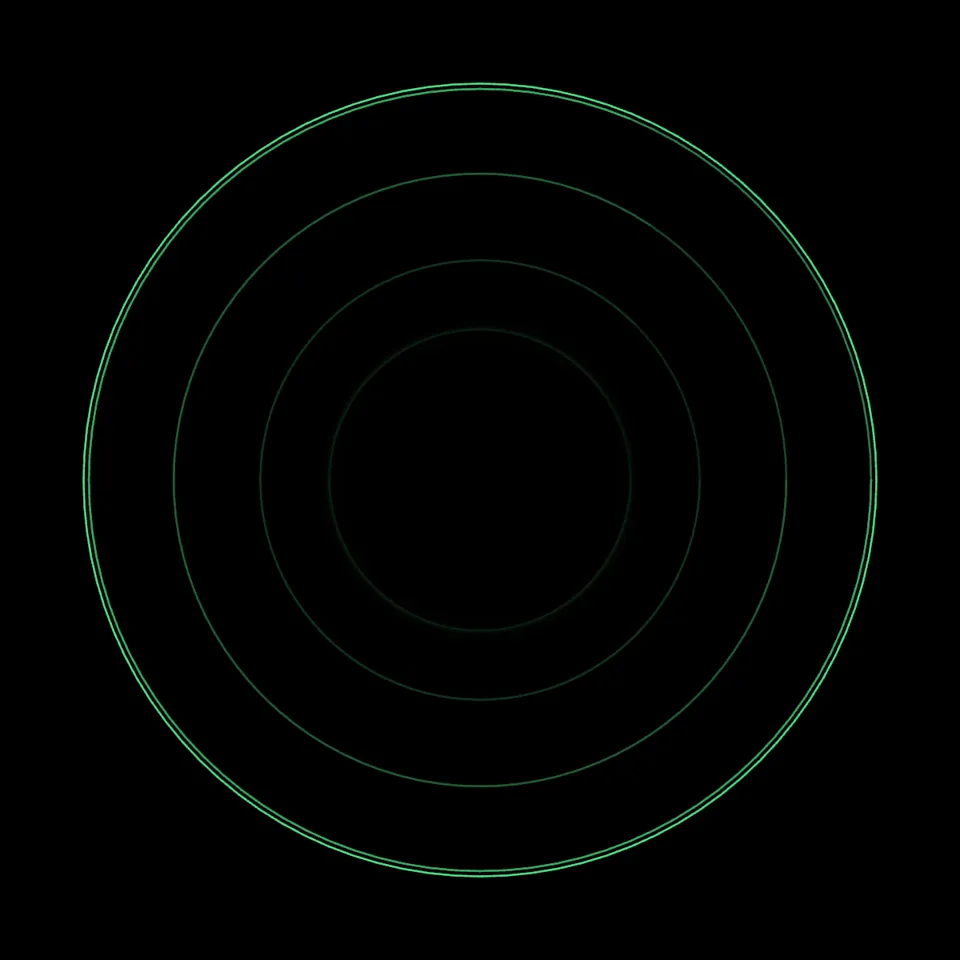
The exported file in the ILDA Viewer with GALVO SIMULATION on and TRAIL at 75%: all 497 frames, one full loop. No audio is playing here — every swell is stored in the file.
What is an audio-reactive ILDA file?
An audio-reactive ILDA file is a laser animation whose movement was worked out from a piece of music before the show. The file holds only frames of points — no sound and no analysis. Each frame was drawn from the track at that moment, so when you play the file alongside the same track, the laser appears to react to it.
That is the opposite of live analysis, where software listens to the room and moves the laser as the show happens. Both have a place, and the comparison is further down. What a baked file gives you is certainty: the frame the laser draws on the drop is the frame you approved at your desk.
 No reactionBass → Scale
How do I make a laser animation react to music?
In Animation Studio, open the AUDIO tab, load a track, and add a reaction that connects part of the sound to a property of your shape. Bass → Scale on a circle is the clearest place to start: the circle grows on every kick and bass note and settles back between them. The last step exports the result.
- Open Animation Studio in Chrome or Edge, click the circle under QUICK TOOLS, then click the canvas to place it.
- Open the AUDIO tab in the right-hand panel and expand AUDIO CHAIN.
- Drop your track on 1 SOURCE — MP3, WAV, OGG or M4A, up to 50 MB — or click the Bass demo to follow along.
- Click EXTEND TIMELINE TO 16.57S and MATCH LAYER TO TRACK · 16.57S so the animation and the circle last exactly as long as the track, to the nearest frame. The numbers follow your track's length.
- Under 3 MODULATION, click + ADD REACTION, set the row to Bass → Scale, and drag Smoothing down to 20%. Leave Min at 0.5 and Max at 1.5.
- Choose VIEW under EDITOR and press play in the TIMELINE to watch the circle swell on the bass.
- Click DOWNLOAD ILDA under the canvas to save
animation.ildas ILDA Format 5 (2D true color).
The whole setup on one screen. 2 ANALYSIS found 68 BPM in the Bass demo; the one reaction row under 3 MODULATION is doing all the work. The playhead is on the biggest bass hit in the track, which is why the circle is at its largest.
Min and Max are the scale at silence and at full level, so 0.5 to 1.5 means half size to one and a half times the size you drew. Smoothing averages the sound over a short window before it moves the shape: low values snap to each hit, high values turn hits into slow swells. Drives picks which layer the reaction moves; All layers is the default.
The full 16.57-second track playing in Animation Studio. Watch the playhead: every time it crosses a peak in the waveform on the circle's timeline bar, the circle swells.
Check the tempo before you use Beat
The Beat source fires on each beat of the grid shown under 2 ANALYSIS. If that number is half or double the real tempo, fix it with ÷2 or ×2 — or type the tempo in — before you add a Beat reaction, because the hits land wherever the grid says the beats are.
How do I check the exported ILDA file?
Open the file in the free ILDA Viewer. FILE HEALTH confirms the file is valid and counts its frames — this 16.57-second timeline at 30 frames per second is 497 frames — and the preview plays those frames so you can watch the reaction without the track. If the circle still swells with no music playing, the reaction is in the file.
- Open the ILDA Viewer in Chrome or Edge — or click OPEN IN ILDA VIEWER → in Animation Studio to send the same frames without downloading.
- Drop
animation.ildon CLICK OR DRAG ILDA FILE HERE. - Read FILE HEALTH: VALID and SAFE badges, FRAMES: 497, and no issues in the notes.
- Watch the preview, which shows each frame as designed. Switch on GALVO SIMULATION under ANALYSIS TOOLS to watch the scanner draw it: with TRAIL at 75%, every swell leaves a trail of rings as the circle shrinks back.
- Open PLAYBACK CONTROLS and keep FPS at 30 fps with Beat Sync on Off - Loop Freely.
- Click EXPORT ILDA to save a converted copy as ILDA Format 0, 1, 4 or 5 if your player needs a different format.
The exported file, paused at frame 389 on the biggest bass hit in the track. FILE HEALTH reads 497 frames and 55,167 points; the fainter ring inside the circle is a frame leading up to this one.
Beat Sync re-times the loop
Beat Sync stretches or squeezes a loop to fit a beat or a bar at the Music BPM you set. That is right for a short loop with no track behind it, and wrong for this file: its movement is already timed to the song, so keep Beat Sync off and play it at the frame rate it was built at.
How do I keep the laser in sync with the music?
Start the ILDA file and the track at the same moment, from the same starting point, at the frame rate the animation was built at. The file carries no audio and no clock of its own, so your ILDA player decides when each frame plays. Rehearse the cue with the real player before the show.
- Frame rate. Animation Studio builds at 30 frames per second unless you change FPS under PROPERTIES → TIMELINE. Play the file at the same rate; a faster or slower rate moves every hit off the music.
- Starting point. If you used AUDIO TRIM to keep only part of the song, the file's first frame matches the trim's start, not the start of the song. Cue the track from the same place.
- A reference video. PROJECTION MAPPING exports a video with the track's audio
alongside a per-layer
.ildfile, frame for frame — handy for rehearsing the cue without a projector. See Animation Studio → Exporting.
Rehearsal means a live beam
When you run the file on a projector, the circle's largest frame is the one that decides where light goes. Aim at a wall or screen, keep people out of the beam path, keep the interlock within reach, and follow the procedure set for your projector and venue. The laser show safety guide covers the checks.
Which audio reactions can I bake into an ILDA file?
Everything that moves a shape in Animation Studio ends up in the exported frames. A reaction row connects one of five sources to one of seven targets, and a layer can also host a geometry visualizer that redraws the line itself from the sound.
| Source | What it follows | Works well on |
|---|---|---|
| RMS | The overall level of the track | Scale, Position X / Y |
| Bass | Low-frequency energy — kicks and bass lines | Scale |
| Mid | Vocals, synths and guitars | Rotation |
| High | Hi-hats and cymbals | Opacity |
| Beat | A hit on each beat of the detected grid | Scale |
The targets are Scale, Scale X, Scale Y, Rotation, Position X, Position Y and Opacity. Opacity dims the beam rather than making it see-through, because a laser line has no transparency. Under 4 GEOMETRY, Edge Deform, Radial Bars, Waveform, Loop Wire and Lip Sync reshape the line from the sound, and the Lissajous, Spirograph and Sine Wave tools have audio modes of their own. The full list, with every control, is in Audio-Reactive Features.
Should I bake the reaction into the file or analyze audio live?
Bake it when you know the track: the show is identical every time and needs nothing but the file, a player and the song. Analyze live when you do not know what will play, such as a DJ set where the next drop is a surprise. BeamTracer does both, from different tools.
| Baked into the ILDA file | Live audio analysis | |
|---|---|---|
| What the show needs | The .ild file, an ILDA player and the track | An audio input, the analysis software and the laser output running together |
| Same result every time | Yes — frame for frame | Depends on the level and the mix in the room |
| Plays in players that only read files | Yes | No |
| Follows music you did not plan for | No | Yes |
| In BeamTracer | Animation Studio → DOWNLOAD ILDA | Video to Laser LIVE, tracing a BeamTracer visualizer or with modifiers bound to the music |
For choreographed cues — a logo that lands on the downbeat, a shape that changes every bar — combine both kinds of timing inside Animation Studio: reactions for the pulse, and keyframes snapped to the beat grid for the structure. The Beat-Synced Animation recipe walks through the second half.
Is it free, and do I need to install anything?
Animation Studio and the ILDA Viewer run free in Chrome or Edge with nothing to install, and the ILDA Viewer needs no account. DOWNLOAD ILDA needs a free account: signed in, every plan below Studio gets 3 clean ILDA exports per calendar month, shared across BT Laser Studio's tools, OSC-1 and the ILDA Viewer's EXPORT ILDA. Studio exports are unlimited. Current plans are on Pricing.
OPEN IN ILDA VIEWER → sends your animation to the viewer without downloading anything, so you can build and check a reaction before you spend an export on it.
Make a shape move with your track — free, in the browser
OPEN ANIMATION STUDIO →Next: Audio-Reactive Laser Logo to give each part of a logo its own reaction, Laser Blanking Explained if lines appear between your shapes, How to Convert SVG to ILDA to bring in a logo, and the Laser Show Safety Guide before any beam leaves the lens.
That's audio-reactive ILDA. beamtracer.com — I'll see you in the next one.