
Oscilloscope Music on a Laser Projector: How to Play It
To play oscilloscope music on a laser projector, open OSC-1 in BeamTracer, play the stereo track, and send the same left-is-X, right-is-Y signal to a laser DAC: a Helios over USB in Chrome or Edge, or an Ether Dream, LaserCube or IDN receiver through BeamTracer Bridge. Rehearse it first on the free DAC Simulator with the preview's Mirrors set to PHYSICS.
Hi, I'm Trina with BeamTracer.com — in this one we'll take a track that draws on a scope, put it through a laser's mirrors, and look at exactly what changes on the way.
General guidance, not legal or safety advice. Laser rules are specific to where and how you project. Verify current requirements with the FDA CDRH and your state laser agency before any public use, and read the laser show safety guide before the first beam leaves the lens.
OSC-1 playing a spirograph track while streaming to the free DAC Simulator. Left: the scope. Right: the output preview labeled PHYSICS · STANDARD 30K, the same signal as a 30K scanner would draw it, with Actual PPS reading 30,000.
Can you play oscilloscope music on a laser?
Yes. A laser projector steers its beam with two mirrors, one for X and one for Y, and a stereo oscilloscope track is already an X and a Y signal. Send the left channel to the X mirror and the right channel to the Y mirror and the laser draws the picture you hear, the same way the scope does.
What you need between the music and the mirrors is a laser DAC, the box that turns points into the projector's ILDA signal. OSC-1 sends the track straight to one while it plays. The full list of routes, including exporting a file instead, is on the oscilloscope to laser page, and the Oscilloscope Music docs cover turning a recording into laser frames.
What changes when oscilloscope music moves from a scope to a laser?
A laser draws the same path as a scope, but with real mirrors instead of an electron beam. The mirrors have weight, so sharp corners come out rounded and the fastest detail gets smoothed. The beam is real light, so it has to be switched off between shapes, it must never sit still on one spot, and it has to be aimed and powered safely.
One signal, two displays, recorded at the same moment. Left, the scope. Right, the output preview with Mirrors on PHYSICS and Scanner on STANDARD 30K, with OSC-1's laser output at its default 80% Output scale.
| Oscilloscope (CRT) | Laser projector | |
|---|---|---|
| What moves the beam | Voltage on deflection plates, with almost no inertia | Two mirrors on galvanometer motors |
| Speed limit | Far above audio rates | A points-per-second rating: 30,000 on a 30K scanner |
| Sharp corners | Stay sharp | Round off, and can overshoot |
| Moves between shapes | Faint, because the beam moves fast | Drawn at full brightness unless the laser is blanked |
| A signal that stops moving | A harmless dot | All the power on one spot, which is a hazard |
| Safety | A screen you look at | A real beam: eyewear, masks, interlock, and local rules |
The point rate is the part that surprises people. An oscilloscope track carries one XY point per audio sample. The tracks in OSC-1's library are 96 kHz files, so the scope draws 96,000 points every second. A STANDARD 30K scanner is rated for 30,000. OSC-1 sends the laser the signal at the Point rate you set, 30,000 pps by default, rather than at the audio's sample rate. How that plays out on real scanners is the subject of the LaserCube point-rate post.
How do I play oscilloscope music on a laser from OSC-1?
Load the track in OSC-1, open LASER OUTPUT in the right-hand column, and rehearse on the DAC Simulator with the preview's Mirrors set to PHYSICS. When the preview looks right, connect the real DAC and press ARM, then START. The laser receives the scope's own signal in real time, so anything you do to the sound shows up on the wall.
- Open OSC-1 in Chrome or Edge and play a stereo track: drop in a file, click SHARE TAB AUDIO, or play the built-in synth. Check the figure on the scope.
- In the right-hand SYSTEM CONFIG column, scroll to LASER OUTPUT, select SIMULATOR, and click CONNECT SIMULATOR.
- Under MODULE · SCOPE, set Mirrors to PHYSICS and set Scanner to your projector's class: PREMIUM 60K, STANDARD 40K, STANDARD 30K or BUDGET 40K.
- Leave Output scale at 80% for a first run and set Power limit low.
- Click ARM, then CONFIRM ARM, then START. The panel reads Streaming, with the live Actual PPS.
- For a Helios, select HELIOS, click CONNECT HELIOS and choose it in the browser's USB picker. For an ETHER DREAM, LASERCUBE or IDN device, run BeamTracer Bridge on the same Mac first.
- Press ARM and START in the safety dock at the bottom of the app to send the track to the projector, and STOP to end it.
The DEVICE row is where you pick the target. SIMULATOR needs no hardware and no account, so it is the place to rehearse. HELIOS connects straight from the browser. ETHER DREAM, LASERCUBE and IDN go through BeamTracer Bridge, which the note under the buttons points out.
OUTPUT holds the two controls you reach for most. Power limit is the ceiling on laser power, shared by every BeamTracer laser tool. Output scale sets how much of the scan field the figure fills.
ADVANCED holds Point rate, 30,000 pps by default, along with color delay and the blanking controls: Auto-blanking is on, with a 15% Jump threshold. Every control is described in Laser DAC Output.
Which laser DACs work with oscilloscope music in BeamTracer?
OSC-1 streams to five targets. A Helios plugs into the computer and needs nothing else. Network DACs need the free macOS BeamTracer Bridge on the same computer, because a browser tab cannot reach network devices by itself. The DAC Simulator is free on every plan and never uses a trial session.
| Target | How it connects | Extra software |
|---|---|---|
| HELIOS | USB, Chrome or Edge | None |
| ETHER DREAM | Local network | BeamTracer Bridge (macOS) |
| LASERCUBE | Local network, Ethernet verified | BeamTracer Bridge (macOS). Cube setup: LaserCube setup post |
| IDN | Local network, any ILDA Digital Network receiver | BeamTracer Bridge (macOS) |
| SIMULATOR | Nothing to connect | None, and free on every plan |
Why do corners look rounded on a laser?
The mirrors have mass, so they cannot change direction instantly. At a sharp corner they are still traveling when the signal has already turned, and the corner comes out rounded. The output preview on PHYSICS models that for the scanner class you pick. IDEAL shows the figure with no scanner limits at all.
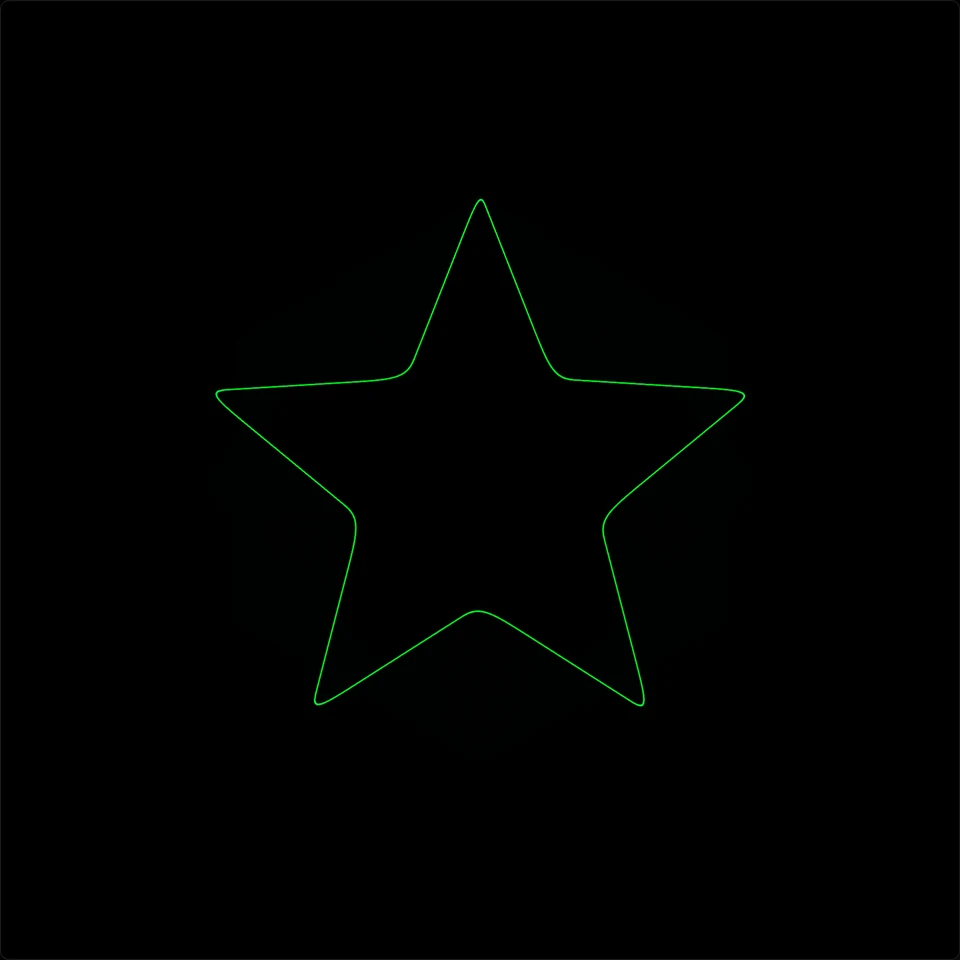
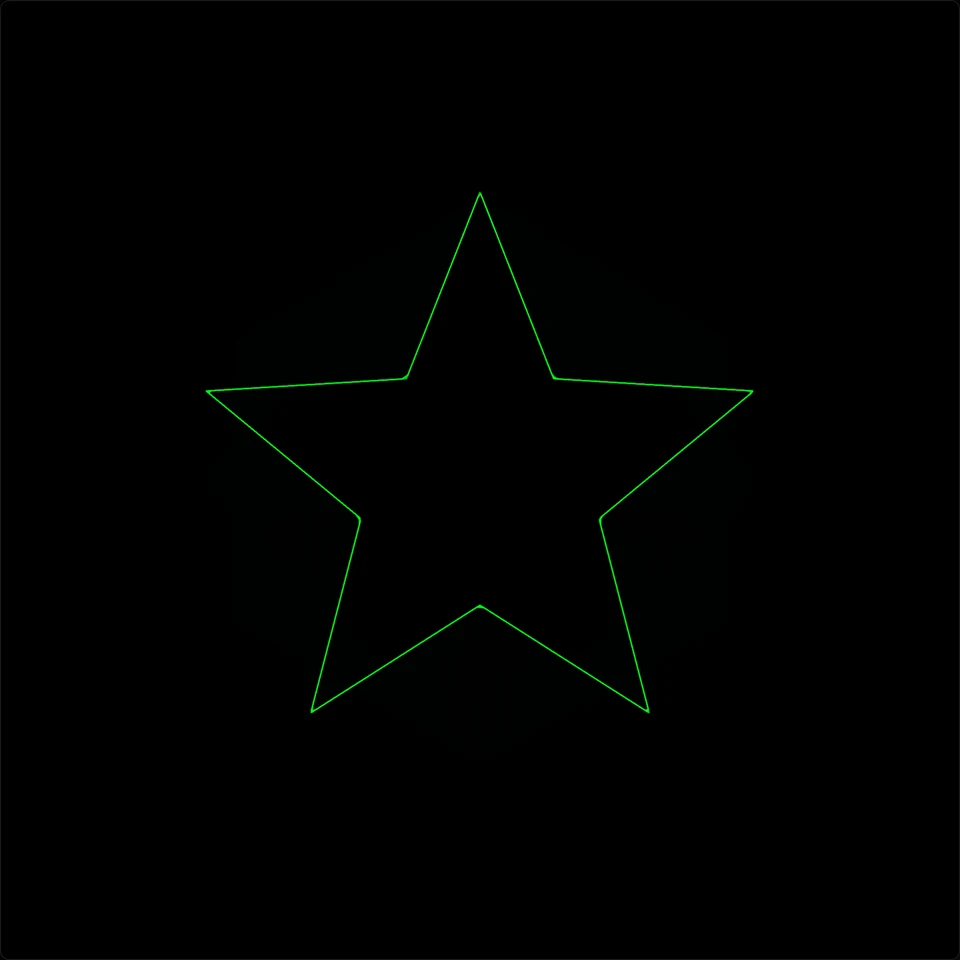 IDEALPHYSICS
Rounded corners are the normal behavior of a real scanner, not a fault in the track. If the preview looks worse than your wall, your scanner is faster than the class you picked, so step up a class. If the wall looks worse than the preview, step down. Click the expand icon in the preview's corner to see it full screen, and switch on SHOW TRAVEL to draw the moves the scanner makes between strokes.
Simpler figures survive best
Tracks built from a few large, smooth shapes read best on a laser. Dense line art and fast, tiny detail are what a scanner rounds off first, and the PHYSICS preview shows you which parts of a track that means before any beam is on.
Why does OSC-1 start the laser at 80% output scale?
A figure that fills the scope screen would fill the whole scan field on the laser, and points pushed past the edge of the field are blanked, which cuts notches out of the drawing. OSC-1 starts the laser at 80% Output scale so a full-size figure keeps room at the edges. Every other BeamTracer laser tool starts at 100%.
Output scale runs from 25% to 100% and is one setting shared by every BeamTracer laser tool. Once you move it in any tool, every tool uses that value, so switching tools never changes the size on the wall.
The laser also follows the scope's orientation. SWAP, INV X and INV Y in the BEAM TRANSFORMER section (Creator and Performance mode) turn and mirror the projection along with the screen, and the output preview shows the same orientation. If the projection is mirrored or sideways with all three off, run the ILDA Viewer's ORIENT test first to set your projector's own axes.
What happens to the laser when the music stops?
It goes dark. A laser that holds still puts all of its power on one spot, so OSC-1 turns the beam off instead of leaving a dot on the wall. Beam blanked: signal idle appears in amber while it is held dark, and the laser relights by itself as soon as the signal moves again.
The same session in three states. Left: streaming. Middle: the track paused, so the laser is
blanked and says why. Right: BLACKOUT from the Esc key. The preview keeps showing the
figure, labeled PREVIEW · NO OUTPUT, while nothing is sent.
- You pause or stop the source. The laser goes dark right away, and the notice appears within about half a second.
- The signal keeps running but stops moving, such as silence inside a track. The dot starts to fade after about 1.5 seconds and is dark by about 2 seconds.
- A very quiet signal counts as idle too. If the whole trace stays within about 1% of the scan width, the laser treats it as a dot and blanks it. The scope still shows the dot, because that is what the signal is doing.
A software safeguard, not an interlock
Idle blanking protects against one failure: a parked beam. It is not a substitute for your projector's physical interlock, scan-fail protection and emergency stop. Keep the interlock within reach whenever the laser is armed.
How do I black out the laser quickly?
Press Esc. While a laser or the DAC Simulator is connected, Esc does exactly what
BLACKOUT does, even while you are typing in a field, and Ctrl+B (⌘B on Mac) does the
same. Output stays off until you click RELEASE BLACKOUT, and then you press START
again.
- From a MIDI controller. In OSC-1, open Settings → MIDI and click START MIDI LEARN. Click LASER BLACKOUT in the MIDI LEARN bar, then press a pad. That pad now blacks out the laser and does nothing else.
- Over OSC. Send
/beamtracer/laser/blackoutfrom QLab or TouchOSC to an OSC bridge that OSC-1 is connected to under Settings → OSC. There is nothing to learn; the address is fixed. - Only off. No key, pad or OSC message can arm the laser, start it or raise its power. Those stay on-screen actions.
The full reference, with the other shortcuts, is in Laser DAC Output.
Not an emergency stop
Keys, MIDI and OSC all depend on the browser tab, a cable or the network. Test your blackout before every show and keep the projector's physical interlock within reach.
How do I turn oscilloscope music into an ILDA file?
For a single frame, use OSC-1: EXPORT → ILDA → EXPORT ILDA FRAME saves the current frame as one ILDA Format 5 still. For a whole passage, use BeamTracer's Animation Studio, which turns a stereo WAV into an ILDA animation, one laser frame per slice of the recording. Neither file contains the audio.
- Open Animation Studio in Chrome or Edge and click Oscilloscope under QUICK TOOLS to open OSCILLOSCOPE → LAYER.
- Load your stereo WAV in the dialog, or pick one under Demo Files. The left channel becomes X and the right becomes Y.
- Read XY Point Rate, the number of points a second the file will hold, and choose 30 FPS or 60 FPS.
- Drag the AUDIO TRIM handles around the passage you want.
- Click Add to Canvas.
- Click OPEN IN ILDA VIEWER → to check the frames, or DOWNLOAD ILDA to save them as ILDA Format 5.
FILE HEALTH is the point-rate lesson in one panel. This is a 4.2-second passage of the Geometry track, sent from Animation Studio with OPEN IN ILDA VIEWER → after setting POINTS to KEEP ORIGINAL under SAFETY → ILDA FILES, so the file holds every sample of the recording. It is VALID ILDA, and it is also marked OVER LIMIT.
The recording holds 48,000 points a second, so at 30 frames per second it needs 48 kpps, and a Standard 30k profile is set to 30 kpps. The red FRAME POINT LOAD bars say the same for every frame.
Switch DEVICE to High-Speed 60k and the same file drops to NEAR LIMIT. For a 30K projector, use a shorter, simpler passage, or a faster scanner. Or leave POINTS on SCANNER-SAFE, the default: the same passage then opens as WITHIN at 21 kpps, each frame fitted to the 30K profile.
Three more things to know before you rely on a file. It holds frames, not sound, so starting it with the track does not guarantee they stay in sync; rehearse with your own player. A frame saved with EXPORT ILDA FRAME is fitted to your scanner by default: POINTS starts on SCANNER-SAFE, which FILE HEALTH reads as SAFE at the LASER OUTPUT point rate. KEEP ORIGINAL saves everything the scope is showing, far more points than a scanner draws smoothly, and the export tab warns you before you save it. And Animation Studio does not stream converted XY layers to a DAC live. For live output, use OSC-1. The step-by-step for this path is the Oscilloscope Music to ILDA recipe.
Is it free, and do I need to install anything?
OSC-1, the scope, the output preview, the DAC Simulator and the ILDA Viewer run free in Chrome or Edge with nothing to install. Output to a real projector is a Studio feature, and every signed-in account gets 3 free output sessions to try it. A Helios needs no extra software; the other DACs need the free BeamTracer Bridge for macOS.
| Free | Needs Studio (or a trial) | |
|---|---|---|
| Play and preview in OSC-1 | Yes | — |
| DAC Simulator and the output preview | Yes, every plan | — |
| Live output to a real laser DAC | 3 output sessions with a free account | Unlimited on Studio |
| Clean ILDA exports | 3 a month with a free account, shared across OSC-1 and BT Laser Studio | Unlimited on Studio |
| ILDA Viewer | Yes, no account needed | — |
Current plans and prices are on Pricing. Use Chrome or Edge: direct Helios output needs WebUSB, which other browsers do not implement.
Is oscilloscope music on a laser safe?
It can be done safely, but the software cannot make it safe on its own. A laser projects real beams, and oscilloscope music moves fast and fills the frame. Aim at a wall or screen, keep people out of the beam path, start with a low Power limit, keep the interlock within reach, and follow your projector's limits and your venue's procedures.
Never scan an audience by accident
A figure that fills the field on screen fills the scan field on the wall. Check where every part of the figure lands, with the preview on PHYSICS and at low power, before the first full-power run. The laser show safety guide covers the checks, and laser blanking explains the lines that appear between shapes.
| Way to get oscilloscope music on a laser | Best for | What it takes |
|---|---|---|
| Live from OSC-1 | Playing a track, a synth or tab audio to the projector as it happens | A laser DAC, Chrome or Edge, Studio or a trial session |
| EXPORT ILDA FRAME in OSC-1 | One still figure for any ILDA player | A free account |
| Animation Studio's Oscilloscope tool | A passage as an ILDA animation | A free account, a stereo WAV |
| An analog audio-to-ILDA adaptor | Driving scanners straight from an audio interface | A DC-coupled interface and care with levels; outside BeamTracer |
Rehearse your track on a simulated laser — free, in the browser
OPEN OSC-1 →Next: how to make oscilloscope music if you are starting from scratch, the audio-reactive laser show post for music-driven ILDA files, an audio-reactive LaserCube without loopback for tab audio from OSC-1, and the laser show safety guide before any beam leaves the lens.
That's oscilloscope music on a laser. beamtracer.com — I'll see you in the next one.