
Halloween Laser Ideas: Turn Free Lottie and SVG Art into ILDA Files
Make Halloween laser artwork from free Lottie animations, SVG drawings, and clip art in BeamTracer. Import animated vector shapes into Animation Studio, or trace static art in Image to Laser, then preview and export ILDA. A free account includes three clean exports monthly; check the artwork license and your player's compatibility.
Hi, I'm Trina with BeamTracer.com. If you're searching for free Halloween ILDA files, you can also start with a pumpkin drawing or a floating ghost animation and make your own version. Here's how to choose artwork that translates into recognizable laser lines, then move from a static picture to an animation you can inspect.
An original ghost animation made for this guide, playing in Animation Studio. The screenshots below use an original pumpkin SVG. These are browser previews.
Where can I find free Halloween art to turn into ILDA files?
Look for Halloween vector artwork with a clear license, then convert the artwork rather than assuming a download is already a laser file. This guide teaches conversion; it does not provide a downloadable Halloween ILDA pack.
| Starting point | Useful Halloween idea | What to check |
|---|---|---|
| LottieFiles Halloween animations | A floating ghost, moving pumpkin, or drawing reveal | The specific animation's license and whether the visible subject uses vector shapes |
| SVG Repo pumpkin | A static jack-o'-lantern | This source page lists CC0; check the page for each additional drawing you choose |
| Your own SVG or clip art | A bat silhouette, spider, skull, or short Halloween greeting | Use artwork you own or have permission to adapt |
Begin with one recognizable subject. A pumpkin's outline, eyes, and mouth can carry the idea without a shaded background. A ghost with two eyes and a moving outline is easier to recognize than a whole haunted-house illustration filled with tiny windows.
Free artwork does not automatically mean you may publish a converted file pack. The Lottie Simple License permits modification and describes license conditions for derivatives, while LottieFiles' licensing guidance says standalone animation redistribution is prohibited. Check the exact asset's terms and clarify redistribution with the creator or provider before sharing converted files. Link readers to the original source and credit the creator.
What is a Lottie animation, and can a laser draw it?
A Lottie animation describes artwork and motion in a .json file. A .lottie file packages animation data and related assets together. BeamTracer reads supported vector shape layers and turns their changing outlines into laser points; a Lottie file itself is not an ILDA file.
Lottie can also contain images, text, and other features. The official format documentation explains both formats. In BeamTracer, inspect LOTTIE under PROPERTIES for features marked Not drawn. Image and text layers, masks, and expressions can make the laser result differ from the source animation. A simple outline ghost is a better starting point than an animation whose ghost is an embedded picture.
BeamTracer accepts files up to 10 MB and plays up to 1,800 frames; saved vector data also has a complexity limit. For a .lottie bundle, BeamTracer opens the first animation. See the full Lottie-to-laser guide for supported features, colors, and frame-rate behavior.
How do I convert a Halloween Lottie animation to ILDA?
Open the Halloween .json or .lottie file in Animation Studio, inspect the imported shape, and play the timeline before exporting. Keep the subject simple enough that the outline remains recognizable after the point-budget adjustment.
- Open Animation Studio in Chrome or Edge.
- Choose your Halloween animation through DROP SVG OR LOTTIE HERE OR CLICK TO CHOOSE under SOURCE.
- Open LOTTIE in PROPERTIES and check the frame count and Not drawn report.
- Adjust Scale under TRANSFORMS so the entire subject fits the preview.
- Press Play in the timeline and watch the ghost or pumpkin through its complete loop.
- Open SAFETY and compare SCANNER-SAFE with KEEP ORIGINAL under POINTS, watching for lost detail.
- Choose DOWNLOAD ILDA to save the laser frames, or OPEN IN ILDA VIEWER → to inspect the result first.
Use the preview to spot missing eyes, clipped edges, or a mouth that turns into an unreadable cluster. A lower point count is useful only if the drawing still communicates the idea. A scanner-load result does not certify an audience-safe show.
How do I turn Halloween SVG drawings or clip art into laser lines?
Use Image to Laser for static artwork. SVG starts with vector paths; PNG, JPEG, and WebP need tracing first. Start with clean shapes and strong contrast, then compare the preview with the original artwork before downloading.
- Open Image to Laser.
- Choose your SVG or bitmap through Image file under IMAGE SOURCE.
- Inspect the pumpkin's outer contour, eyes, and mouth in the preview.
- Use TRACE to simplify redundant detail, or refine the bitmap tracing controls when the source is a picture.
- Compare FIT 30 FPS and KEEP ORIGINAL under POINTS without losing the defining shapes; the fit label follows your target frame rate.
- Choose Download ILDA for laser frames or Download SVG for the vector artwork.
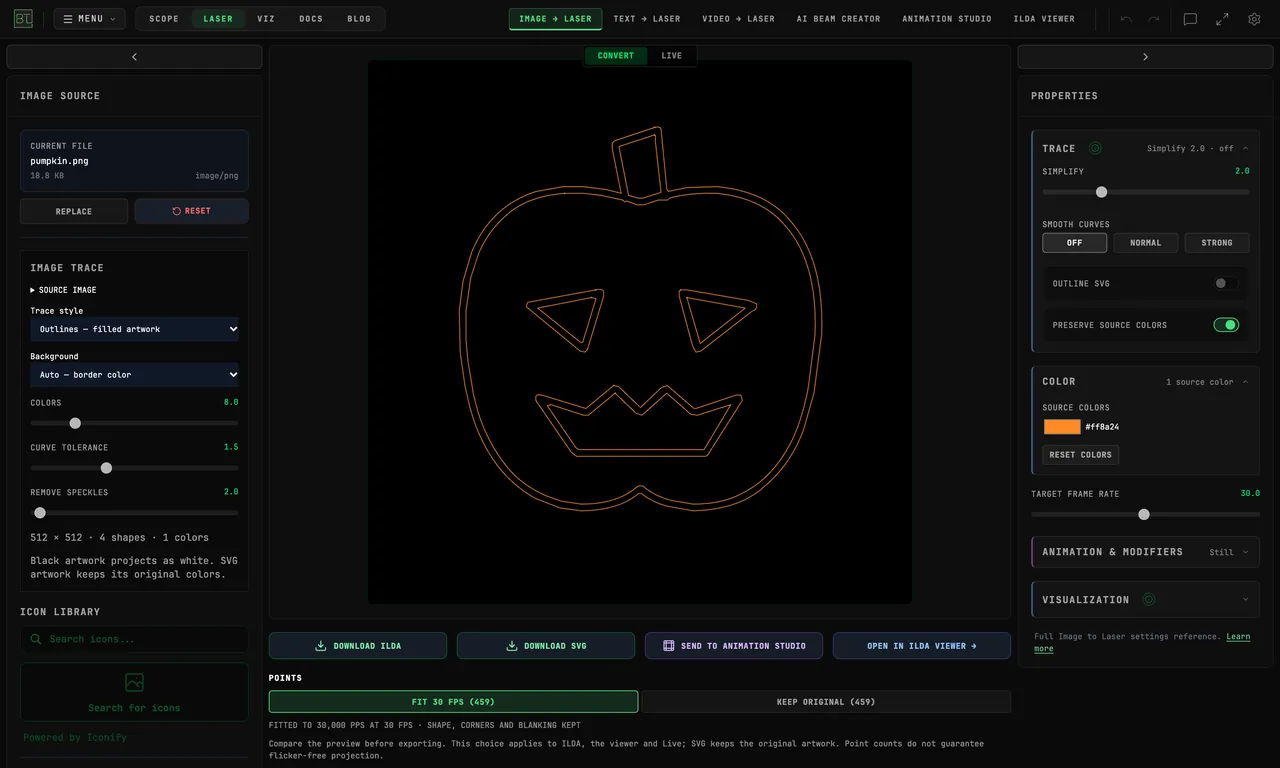
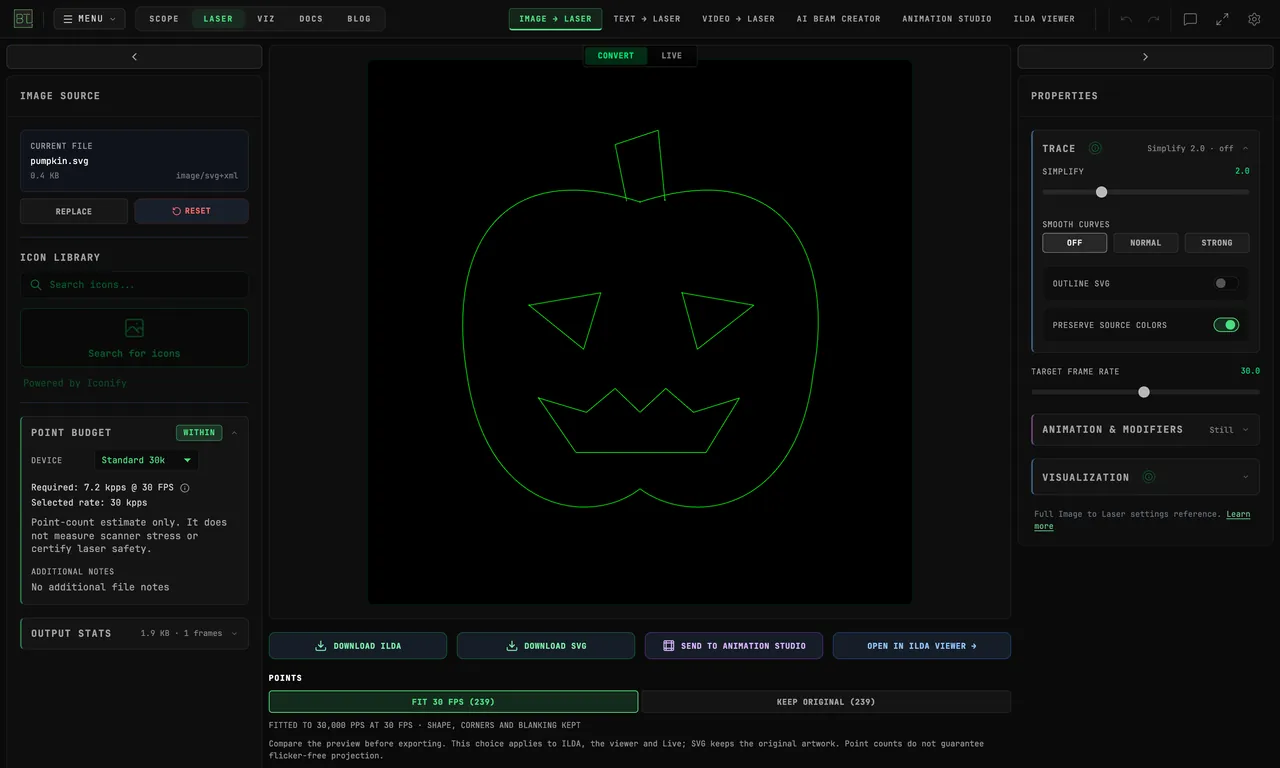 SVG pathsPNG outlines
A small, compressed JPG can produce many little contours around what should be one clean edge. Prefer the SVG version when available, or choose a larger, high-contrast bitmap. The PNG/JPG conversion guide demonstrates tracing cleanup; the SVG-to-ILDA guide covers vector conversion in more detail.
How can I animate a static Halloween pumpkin?
Choose Send to Animation Studio in Image to Laser to move the vector artwork into a timeline. This lets you convert a static source, add motion in another BeamTracer tool, and inspect the resulting laser frames in ILDA Viewer without starting the drawing again.
- Import and refine your pumpkin in Image to Laser.
- Choose Send to Animation Studio.
- Select the pumpkin layer under SOURCE.
- Open TRANSFORMS to position the pumpkin and prepare its motion.
- Preview the timeline and check the complete outline through the animation.
- Choose DOWNLOAD ILDA to save the animation, or OPEN IN ILDA VIEWER → to inspect the laser frames.
Try a slowly rotating pumpkin, a ghost floating beside it, or a short reveal of a bat outline. Build the scene one layer at a time. If you want the motion to follow music, the audio-reactive ILDA guide walks through that separate workflow. Adding a soundtrack to a preview does not put audio into an ILDA file.
Can I make Halloween ILDA files for free without installing software?
Yes. BeamTracer's import and browser previews are free, and a signed-in free account receives three clean ILDA exports per calendar month. Free, Pro, and Bundle share that allowance across Laser tools and OSC-1; the allowance resets on the first of the month. Studio includes unlimited ILDA exports. Signed-out ILDA downloads require sign-in.
The ILDA Viewer is free to use without an account. Preview and refine the artwork before spending an export. See pricing for current plan details. Chrome or Edge is the recommended browser for this walkthrough.
Will my laser player read the Halloween ILDA file?
Check your player's supported ILDA formats and playback settings before relying on the exported file. Animation Studio's direct download produces Format 5 laser frames. Compatibility with one player does not establish compatibility with every SD-card projector or show-control program.
The ILDA image-data standard is a frame-exchange format. It does not carry your soundtrack or define a show playback frame rate. Set playback timing in your external player, and consult the ILDA formats guide if your player needs another format.
Use ILDA Viewer to inspect frame count, blanked travel, and scanner-load estimates. That helps you understand the file; it cannot verify your physical equipment or certify the finished installation.
Can I use Halloween laser ideas with a video projector?
A video projector plays a video such as MP4; a laser player uses laser frames such as ILDA. Choose the output that matches the equipment. BeamTracer can also make a laser-look preview as MP4, which is useful for sharing the visual idea without a laser projector.
For physical laser use, keep beams away from people, trick-or-treaters, roads, and aircraft. A browser preview is not a safety certification. Follow ILDA's safety principles and the laser show safety guide, and have a qualified operator assess the actual setup. This walkthrough uses browser previews only.
Start with one Halloween shape and see how the laser lines look.
Open Animation Studio →