
Send Your Laser Look as an MP4
To send a laser look as an MP4, build it in BeamTracer Animation Studio, click PROJECTION
MAPPING under the canvas, and in EXPORT FOR PROJECTION MAPPING choose HD (1080p) or
4K (UHD) and H.264 (MP4). Untick the LASER OUTPUT LAYERS and click EXPORT FILES.
You get video-composition.mp4 with your track, ready to send, and no projector is needed.
Hi, I'm Trina with BeamTracer.com — in this one we'll take a laser logo that moves to music and turn it into a video file you can drop into an email, a group chat or a social post, before anyone has hired a projector.
Frames from the exported video-composition.mp4 itself: 1920×1080, H.264, 30 frames per
second, 10.13 seconds, with Glow Effect on Subtle Glow. The file carries the music as an
AAC track; this loop on the page is muted.
What is a laser show preview video?
A laser show preview video is a normal video file of a laser look: the lines the laser would draw, as bright light on black, moving in time with the music. In BeamTracer it is rendered straight from your Animation Studio project, frame by frame, so nobody has to film a projector in a dark room.
It is the file you send when someone needs to see the idea before the show: a client approving a logo sting, a venue asking what the laser will do, or a post that shows your work to people who will never stand in front of your rig.
How do I export a laser look as an MP4?
Open your look in Animation Studio and use Export for Projection Mapping, the button under the canvas labeled PROJECTION MAPPING. Its video half renders the animation at 1920×1080 or 3840×2160 and includes your track. Untick the laser layers when you only want the video.
- Open Animation Studio in Chrome or Edge and build your look, or open a saved one. The logo here is the one from Audio-Reactive Laser Logo, with Edge Wave on.
- Load your track in the AUDIO tab, then click EXTEND TIMELINE TO and MATCH LAYER TO TRACK. The video lasts as long as the TIMELINE: 10.13 seconds here.
- Click PROJECTION MAPPING under the canvas. The EXPORT FOR PROJECTION MAPPING dialog opens.
- Under VIDEO OUTPUT SETTINGS, choose HD (1080p) or 4K (UHD), and H.264 (MP4).
- To make the lines glow, tick GLOW EFFECT and pick a Style Preset. This one uses Subtle Glow.
- Under LASER OUTPUT LAYERS, untick every layer so the export writes the video only.
- Click EXPORT FILES. When the progress bar finishes,
video-composition.mp4downloads and EXPORT COMPLETE lists it with a DOWNLOAD button.
The look in Animation Studio: the BT logo, the Music demo trimmed to 10 seconds, one Beat → Scale reaction and Edge Wave under 4 GEOMETRY. PROJECTION MAPPING is the middle button under the canvas.
The purple VIDEO OUTPUT SETTINGS panel is everything the video needs. VIDEO LAYERS chooses which layers appear in it, so you can leave a guide layer out of the client's copy.
SOUNDTRACK only appears when a track's left and right channels carry different material, as the Music demo's do. MIX TO MONO is selected by default and suits phones and headphones. Choose KEEP STEREO when the panning is part of the piece.
The frame rate comes from Settings → Playback, 30 fps by default. The full list of options is in Animation Studio → Export for Projection Mapping.
Untick the laser layers
Every layer starts ticked under LASER OUTPUT LAYERS, and a ticked layer also becomes an .ild
file for a laser. Below Studio, that uses one of your monthly clean ILDA exports and needs you to be signed in.
For a video to send or post, untick them all. ILDA FILES TO DOWNLOAD then lists nothing, and
the export writes only video-composition.mp4.
What exactly is in the exported MP4?
The file is a standard H.264 video in a 16:9 frame, with your track as its soundtrack, so it plays in any browser, on any phone and in any video editor. These are the numbers from the file shown above, read back after the export:
| HD (1080p) + H.264 (MP4) | 4K (UHD) + H.264 (MP4) | HD (1080p) + WebM (VP9) | |
|---|---|---|---|
| File | video-composition.mp4 | video-composition.mp4 | video-composition.webm |
| Picture | 1920×1080, H.264 | 3840×2160, H.264 | 1920×1080, VP9 |
| Sound | AAC, 48 kHz | AAC, 48 kHz | Opus, 48 kHz |
| Frame rate | 30 fps | 30 fps | 30 fps |
| Length | 10.13 s, 304 frames | 10.13 s, 304 frames | 10.13 s |
The length always matches the TIMELINE, and the sound starts at the first frame, so the video and the track cannot drift apart. The laser field sits in the middle of the frame, with black space either side.
Should I choose H.264 (MP4) or WebM (VP9)?
Choose H.264 (MP4) for anything you send or post. It is labeled Universal in the dialog for a reason: phones, email previews, messaging apps, social platforms and video editors all play it. WebM (VP9), labeled For the web, suits a web page or a player you control. The two formats take about the same time to export.
Should I turn on Glow Effect?
Turn on GLOW EFFECT when the video should feel like light rather than a diagram. It draws a soft halo around each line and a bright core, which reads as a laser beam on screen. Leave it off when you need the exact lines, or when your look uses several colors, because glow paints every line in its own Glow Color and Core Color.
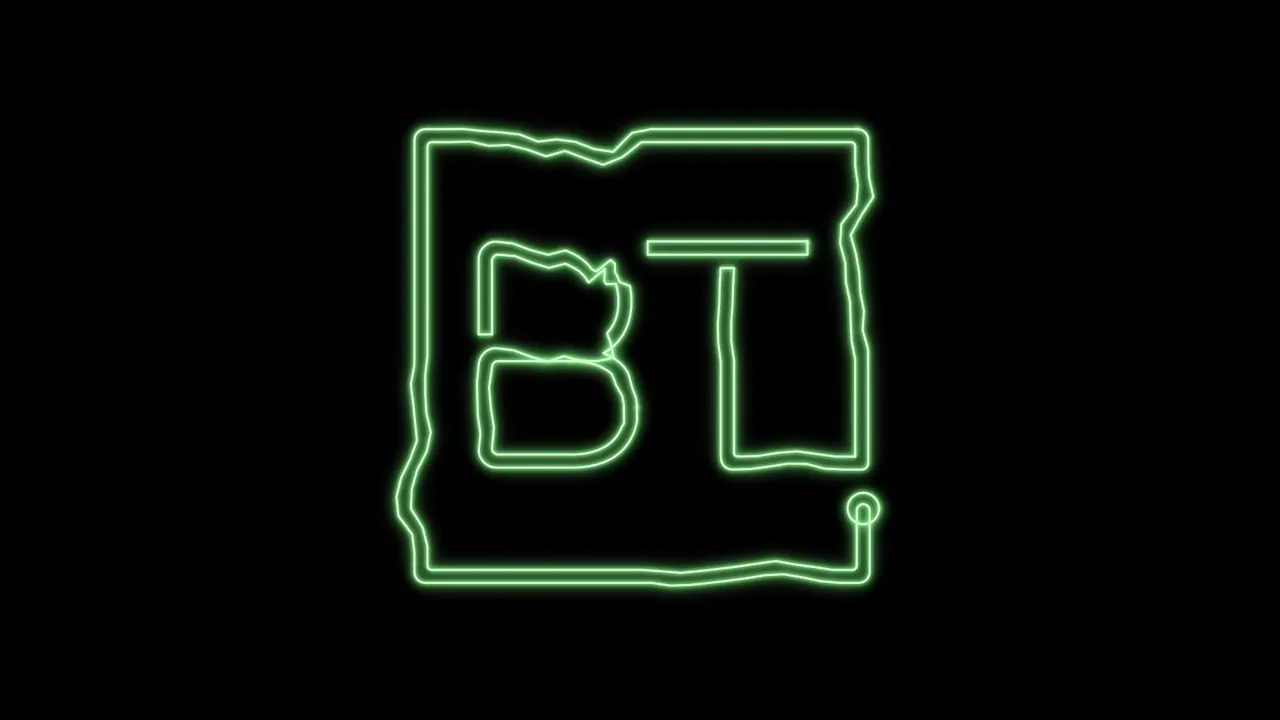
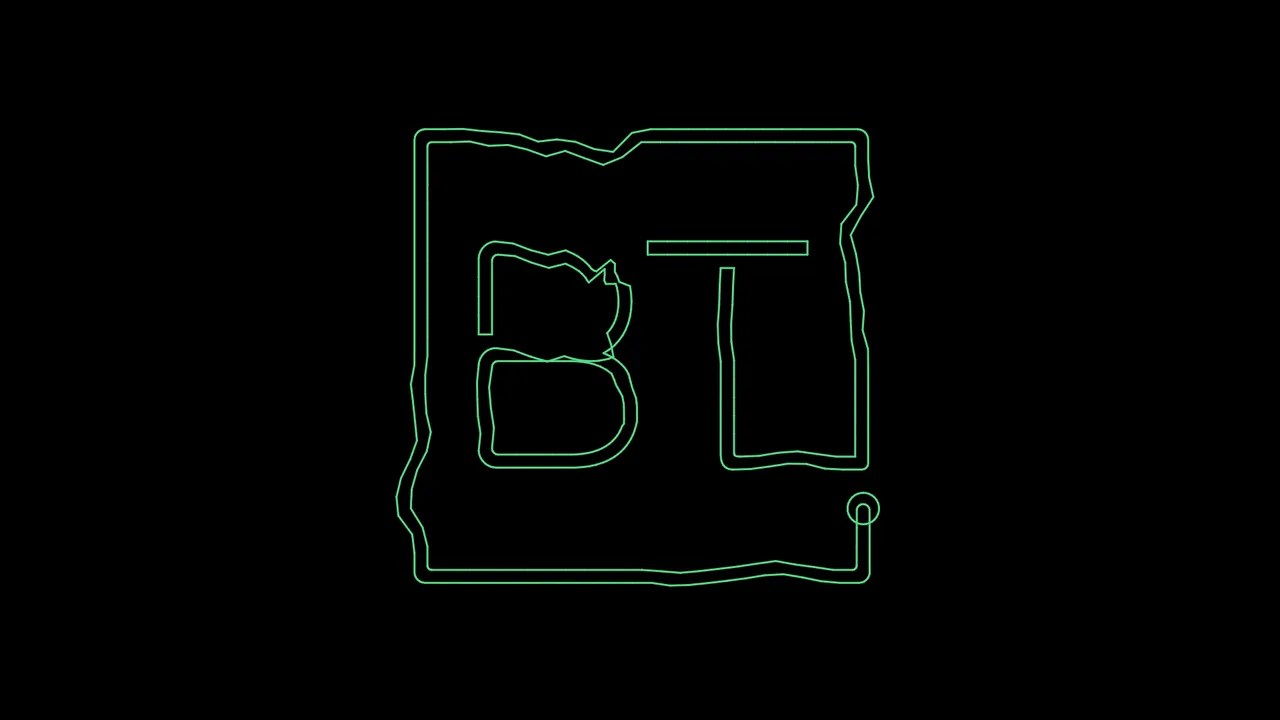 Glow offSubtle Glow
Style Preset offers Oscilloglow, Neon Intense, Subtle Glow and Laser Simulation, and Live Preview shows each one before you export. Advanced Settings adds Glow Radius, Intensity, Falloff, Glow Color, Core Color and Show Grid, so you can match the glow to your projector's color.
Glow adds render time
A glowing video takes longer to render than a plain one: this 10-second clip takes about 20 seconds at 1080p with Subtle Glow, against about 3 seconds with Glow Effect off, and 4K roughly doubles the glow time. Keep the dialog open while it works, since closing it stops the export.
Can I post the video to Instagram, TikTok or YouTube?
Yes. The MP4 is an ordinary video file, so it uploads anywhere that takes video. The frame is always 16:9 landscape, which suits YouTube and most feeds as it is. For a vertical Reel, TikTok or Short, crop to 9:16 in your editor: the laser field sits in the middle of the frame, so a center crop keeps the whole look.
Does the MP4 show exactly what my laser will draw?
The MP4 shows your look as designed, frame for frame in step with the .ild files this dialog
writes for the laser. A real projector draws each frame with moving mirrors, which round sharp
corners and soften fine detail, so the beam on the wall can look slightly softer than the video. To see how a scanner will trace the look, open it in the free
ILDA Viewer with GALVO SIMULATION on; the
laser blanking post shows what to look for.
For a show that pairs a video projector with a laser, keep the laser layers ticked. The same
export then writes one frame-locked .ild file per layer next to the video, and the
Animation Studio docs cover how to
line them up at the venue.
MP4 export, screen recording or filming the laser?
An MP4 from Animation Studio is the only one of the three that needs neither a projector nor a second app, and it is the only one whose picture and sound are locked to the same frames.
| MP4 from Animation Studio | Screen recording of the app | Phone video of a real laser | |
|---|---|---|---|
| Projector needed | No | No | Yes, plus a dark room and haze |
| Picture | Just the look, 1080p or 4K | The whole app window | Depends on camera and haze |
| Sound | Your track, locked to the frames | Whatever the recorder captured | Room sound |
| Frame drops | None: every frame is rendered | Possible on a busy machine | Scan lines and flicker on camera |
| Best for | Client approvals and social posts | Tutorials about the app | Showing a finished installation |
If you do film the real thing later, Laser Banding on Camera explains why a scanning beam looks wavy or broken on camera.
Is the laser show preview video free?
Animation Studio runs free in Chrome or Edge with nothing to install, and Export for Projection Mapping is on every plan. Free video exports are 1080p and carry a small, moving "made with BeamTracer.com" watermark, and the dialog says so before you export. 4K is a Bundle feature, with one trial 4K export on the Free plan. The monthly allowances and what each plan removes are on Pricing.
Turn your laser look into a video, free, in the browser
OPEN ANIMATION STUDIO →Next: Audio-Reactive Laser Logo to build a look like this one, Audio-Reactive Laser Show: Export a Beat-Synced ILDA File when the look is ready for a real laser, and the Laser Show Safety Guide before any beam leaves the lens.
That's a laser look as an MP4. beamtracer.com — I'll see you in the next one.