
BeamTracer Bridge
The desktop companion that connects BeamTracer to laser DACs, PONK receivers, and DMX consoles on your local network.
BeamTracer Bridge is the desktop companion app that connects your browser to laser and lighting hardware: Ether Dream and LaserCube laser DACs — the LaserCube over Wi-Fi/LAN or plugged in directly over USB (LaserDock included) — PONK receivers, and DMX input from lighting consoles over sACN (E1.31) and Art-Net. IDN (ILDA Digital Network) receivers on the network are listed under Devices in the Bridge panel and can be chosen as the IDN output in every BeamTracer laser tool.
You may not need the Bridge at all. A Helios DAC connects straight from the browser over USB — no Bridge, no drivers, nothing to install. If a Helios is your only laser hardware, skip this page and go to Laser DAC Output.
The Bridge exists for hardware a browser cannot reach on its own: anything on the network (Ether Dream, LaserCube over Wi-Fi/LAN, PONK, DMX consoles), plus LaserCube over USB.
The Bridge runs on the same computer as your browser. Each app's Setup Guide link walks you through starting it for your platform.
Does Bridge work with Safari?
Use Chrome or Edge for BeamTracer Bridge. Safari is not currently supported for connecting BeamTracer to Bridge. The Bridge must run on the same Mac as your browser.
How do I update Bridge?
Bridge checks for updates automatically and shows a notification when a new version is available. Choose UPDATE in the notification, Bridge menu, or Settings → About to review the update inside Bridge. Choose Install Update to download it, then Install and Relaunch to apply it. Bridge stops its output, replaces the app, and reopens without restarting laser output.
When no update is available, About shows CHECK FOR UPDATES instead. Updates do not install or restart Bridge without your action. macOS notification settings control whether alerts appear; the Bridge menu still shows an available update.
Older versions that open the website to update need one manual upgrade from the Download page. Stop output, quit Bridge, replace the app in Applications, and reopen it. Subsequent updates stay inside Bridge.
Install on macOS
BeamTracer Bridge requires macOS 15 or later on an Apple Silicon Mac. Get the disk image from the Download page, then follow these steps:
Step 1 — Open the disk image
In Finder, double-click the BeamTracer Bridge disk image. The window shows the BeamTracer Bridge app beside an Applications shortcut.
Step 2 — Copy the app
Drag BeamTracer Bridge onto Applications, then wait for the copy to finish.
Step 3 — Eject the disk image
In Finder, click the eject button next to BeamTracer Bridge. You no longer need the mounted disk image to run the app.
Step 4 — Open BeamTracer Bridge
Open your Applications folder and double-click BeamTracer Bridge. The app stays in the menu bar instead of opening a Dock window; look for the square BT icon.
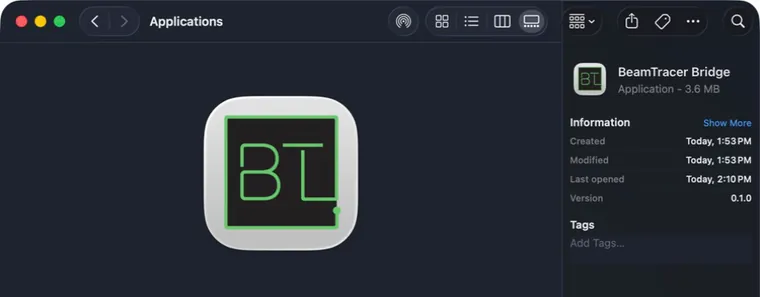
The installed app uses the square BT icon. Click the image to enlarge it.
Step 5 — Open the Bridge panel
Click the square BT icon in the menu bar. The panel shows your devices, laser-output status, and pairing controls. Continue with Pairing below to connect your browser.
A small dot on the BT icon means the Bridge has an error or an automatic blackout notice that needs your attention. Open the panel to read it. A red icon means BLACKOUT; see Troubleshooting below before releasing it.
For macOS alerts, open Settings → General → Notifications and enable Alert when output auto-disarms. Use Open Notification Settings to allow the alerts in macOS.
To start the Bridge automatically, choose START AT LOGIN in the first-run panel or enable Settings → General → Startup → Launch at login.
Pairing
Pairing is a one-time step per browser, and there is nothing to type:
- Start BeamTracer Bridge. Its menu-bar panel shows a PAIRING CODE and an OPEN BEAMTRACER button.
- Click OPEN BEAMTRACER. Your browser opens BeamTracer already paired with this Bridge.
If you would rather use a browser that is already open, type the four-digit PAIRING CODE where BeamTracer asks for it — the Laser Output panel for lasers, or PERFORMER SETTINGS → DMX in the Visualizers performer view. The field submits itself on the fourth digit. The code changes after every pairing, and the browser remembers the pairing until you unpair it or clear its saved site data.
The Bridge lists every paired browser under Settings → Pairing, where you can remove one — or Unpair All Browsers to start over. While a browser is not paired, BeamTracer shows the pairing field in place of the connect button; while the Bridge is not running, it says so and offers this page.
Laser output safety
You arm in the browser, not here. ARM, START and BLACKOUT live in the app's safety dock — see Laser DAC Output. The Bridge is the transport, not the arming control.
BLACKOUT in the Bridge stops only the outputs connected through the Bridge. Those outputs also go dark on disconnect, sleep, and quit. A DAC connected directly to the browser over USB is unaffected: stop it in BeamTracer or use the device's physical controls.
RELEASE permits Bridge output again; it does not start a show. Check why output stopped, then ARM and START in BeamTracer when you are ready. Keep the projector's physical interlock and key within reach.
The Bridge's software watchdog is glitch mitigation, not a scan-fail safeguard. Safe laser operation — audience separation, interlocks, variances — remains the operator's responsibility. Software cannot make audience scanning safe.
DMX input
With DMX enabled, the Bridge listens for sACN and Art-Net on your local network and forwards channel data to the browser:
- Multiple senders are arbitrated the way sACN defines it: the highest priority wins, and on a priority tie the most recent sender takes over — with a visible PRIORITY CONFLICT warning so you know two consoles are fighting.
- Lighting pollers (such as sACNView or DMX-Workshop) list the Bridge as a node.
- sACN and Art-Net universes stay separate; pick which one drives the show in the DMX Bridge panel.
See DMX Control for what the channels do in Audio Visualizers.
Which version is this?
Open the Bridge's Settings → About (or Settings → Help). The Version line includes the version, build number, short code, and build date, which together identify the exact Bridge build you are running. What changed shows the public release history, beginning with Initial release on September 5, 2026.
Troubleshooting
For help, open Settings → Help and choose Documentation or Contact Support. Copy Logs copies recent Bridge activity; Export Logs… saves it as a text file. Neither sends anything automatically. Review the file before sharing it with support.
- The browser can't reach the Bridge — make sure the Bridge is running on the same computer as the browser. Chrome may ask for local network access the first time; if it was declined, re-allow it in Chrome's site settings for beamtracer.com. The panel reconnects on its own once the Bridge is running.
- BeamTracer asks for the pairing code again — this browser was removed under Settings → Pairing in the Bridge (or every pairing was reset). Click OPEN BEAMTRACER in the Bridge or type the current code.
- A network DAC is listed as offline — the Bridge has not heard from it for a few seconds. Check its power and network cable; the row returns to online by itself. A unit shown with no DHCP lease came up on a self-assigned address — power-cycle it with the network connected.
- "Power-cycle the DAC" — an Ether Dream accepts one host at a time, and a unit that lost its network mid-show keeps that old session until it is power-cycled. Turn it off and on, then connect again.
- Output shows "Bridge BLACKOUT" — the Bridge forced output dark (BLACKOUT was pressed, or frames stopped reaching a DAC). Press RELEASE in the Bridge menu-bar panel, then ARM and START again in BeamTracer; no re-pairing is needed.
- Laser traffic is on Wi-Fi — a Mac on both Wi-Fi and Ethernet routes by its own rules. The Bridge prefers the wired port for DACs by default; Settings → General → Network → Laser traffic can pin it to a specific port.
- No DMX appears — confirm your console outputs sACN or Art-Net to this machine's network, and click FIND NETWORK DACS in the Bridge's menu-bar panel once (macOS asks once for local-network permission).
- A LaserCube is found but will not light — put the cube in Control Mode → LaserOS with LAN client, quit LaserOS on every device, and check the key and interlock. See LaserCube.
- macOS cannot verify the app — do not bypass the warning. Stop and obtain a fresh BeamTracer Bridge disk image.
Laser DAC Output
Connect a laser DAC and drive real hardware — device selection, arming, power, point rate and color delay, shared by every BeamTracer app that outputs to a laser.
LaserCube
Drive a Wicked Lasers LaserCube from BeamTracer over your local network — cube settings, first light, color thresholds, point rate, firmware, and what the cube does when the stream stops.