
LaserCube Audio-Reactive Without Loopback Software
To make a Wicked Lasers LaserCube react to music without loopback software, open OSC-1 in Chrome or Edge, click SHARE TAB AUDIO and pick the browser tab that is playing the music, then choose LASERCUBE under LASER OUTPUT and press ARM and START. An audio file or a microphone works the same way. No virtual audio cable is involved.
Hi, I'm Trina with BeamTracer.com — this is the music side of the cube: where the sound comes from, what the laser draws from it, and how to watch the result in a simulator before any beam leaves the lens.
The hardware side is the same one-time setup as every other BeamTracer tool: the cube on your network in LAN client mode, LaserOS closed, and the free BeamTracer Bridge running on your Mac. That is covered step by step in LaserCube Setup with BeamTracer. Everything below was checked on one unit, a LaserCube 7.5W Ultra Mk2 wired over Ethernet.
General guidance, not legal or safety advice. Laser rules are specific to where and how you project. Verify current requirements with the FDA CDRH and your state laser agency before any public use, and read the laser show safety guide before the first beam leaves the lens.
OSC-1's output preview, with Mirrors on PHYSICS, following the Lissajous Suite track from its Track Library: what a 30K-class scanner would trace as the music plays, with nothing connected.
How do I make a LaserCube react to music without loopback software?
Let the browser capture the music instead of the operating system. OSC-1 asks Chrome or Edge for the sound of one tab, draws that sound on its scope, and sends the same figure to the cube through LASER OUTPUT. You install nothing beyond the Bridge the cube already needs.
- Set up the cube once: LAN client mode, LaserOS quit on every device, and the BeamTracer Bridge running and paired — the setup guide has each step.
- Play your music in a Chrome or Edge tab, then open OSC-1 in another tab of the same browser.
- In the AUDIO SOURCE section of the Sources panel, click SHARE TAB AUDIO, choose the tab that is playing, keep Also share tab audio switched on, and click Share.
- In the right-hand SYSTEM CONFIG column, open LASER OUTPUT, choose LASERCUBE and click CONNECT LASERCUBE.
- Set Power limit low before you arm.
- Click ARM and confirm, then click START. The cube draws what the scope draws.
- Click STOP to end the stream, or BLACKOUT to cut the beam at once, then Disconnect before you close the tab.
Before and after the share: SHARE TAB AUDIO on the left; on the right the card reads TAB AUDIO · LIVE, with DISCONNECT to stop the capture.
The music keeps playing from its own tab while OSC-1 listens to it, and muting OSC-1's own speaker output does not stop the drawing. Stop the capture with DISCONNECT, or with the browser's own sharing bar.
Why does LaserOS use loopback audio on a Mac?
LaserOS listens to an audio input to make its music-reactive effects, and its FAQ recommends loopback over the microphone: "Loopback audio is superior to microphone in both latency and accuracy." On a Mac, the same FAQ asks you to install Sound Siphon and select it as the audio output in Sound Settings; on Windows and Android you choose a loopback source in settings; on an iPhone or iPad only the microphone is available, which the FAQ puts down to Apple's audio limits.
BeamTracer gets the same result another way. A browser can already capture the sound of one of its own tabs, so music playing in Chrome or Edge reaches OSC-1 with no extra driver.
The cube has an answer of its own as well: the LaserCube FAQ lists a stereo line input and a built-in microphone on the Ultra Mk2, for its stand-alone audio-reactive visualizers. That is a good fit when the cube runs by itself. The browser route is for when you want to shape the figure on a screen first and watch a preview of the scan.
Which audio sources work without installing anything?
Four of OSC-1's five sources need no extra software: a browser tab, a demo track, an audio file, and a microphone or audio interface. The fifth, VIRTUAL AUDIO DEVICE, is the one to use when the sound comes from a desktop app such as a DAW, and it does need a virtual device like BlackHole or Loopback.
OSC-1's source chooser: ALL SOURCES in the Sources panel, or CHANGE once something is playing, opens it on the AUDIO tab of SCOPE SETTINGS.
| Where the music is | Source to choose | Extra software |
|---|---|---|
| A browser tab: a streaming site, a video, a mix | TAB / SYSTEM AUDIO, then SHARE TAB AUDIO | None; Chrome or Edge |
| A file on your computer: MP3, WAV, FLAC, OGG, AAC or M4A | AUDIO FILE, or drop it on CLICK OR DRAG AUDIO FILE HERE | None |
| A room, a mixer output or an instrument | MICROPHONE, for a microphone or audio interface | None |
| A DAW or another desktop app | VIRTUAL AUDIO DEVICE | A virtual device such as BlackHole or Loopback |
In the browser's share dialog, pick a tab rather than a window or the whole screen: the Also share tab audio switch comes with a tab. Every source, the routing for a DAW included, is covered in Audio Input Setup.
What does a LaserCube draw from music?
OSC-1 draws sound as a picture: the left channel moves the beam left and right, and the right channel moves it up and down. Ordinary stereo music becomes a tangle that grows and shrinks with the mix. Oscilloscope music, written for exactly this, draws real shapes. The cube gets the same figure the scope shows.
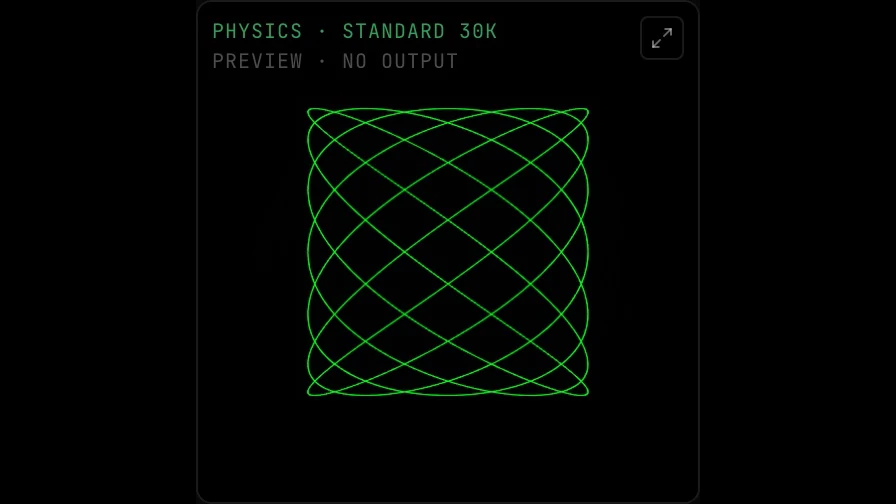
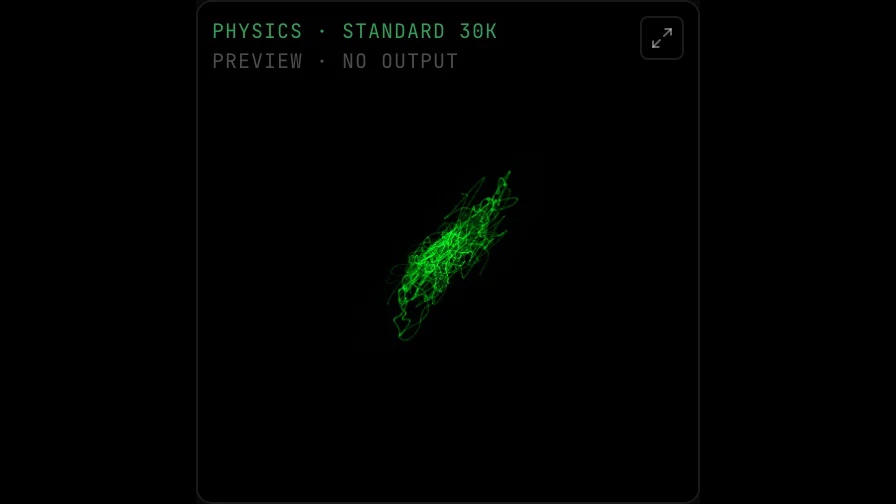 Ordinary stereo musicOscilloscope music
Ordinary music moving: the Orbital Blob demo with Mirrors on PHYSICS. The figure swells on loud passages and pulls in on quiet ones, because its size is the music's level.
Two controls shape the result on the wall. Output scale sets how large the figure is, and a smaller figure is an easier job for the scanners. Power limit sets how bright it is; on a LaserCube green shows from very low power while red needs about 30%, so read the color thresholds before you judge a figure as dim. For music composed as pictures, start with the Oscilloscope Music guide.
Does the LaserCube draw what the preview shows?
Yes, on our bench. We sent three OSC-1 test figures to a LaserCube Ultra Mk2 over Ethernet — a circle, a 3:2 Lissajous figure at 80% Output scale, and a third figure — and all three drew cleanly on the wall; the third looked just like its PHYSICS preview. The stream held a steady 30,000 points per second throughout.
That is the point of checking in the preview first. With Mirrors on PHYSICS, the preview draws what the scanner mirrors will trace, not the idealized line on the scope, so a figure that falls apart in the preview will fall apart on the wall too. Pick a scanner class under Scanner; for a LaserCube, STANDARD 30K is the right starting point.
Can I try it without a LaserCube?
Yes, for free. Choose SIMULATOR under LASER OUTPUT and click CONNECT SIMULATOR: the DAC Simulator receives exactly what a laser would, and the preview under MODULE · SCOPE shows it. Set Mirrors to PHYSICS to see it as a scanner would draw it.
The whole setup with no hardware: SIMULATOR connected, Power limit at 20%, and the output preview, labeled PHYSICS · STANDARD 30K, under MODULE · SCOPE at the bottom of the right-hand column.
What it costs
Sending frames to a real LaserCube is a Studio feature. Every account gets 3 free output sessions to try it with your own cube, and the DAC Simulator is free on every plan. Current plans are on Pricing.
When you move from the simulator to the cube, the only change is the device. Choose LASERCUBE in the DEVICE zone and click CONNECT LASERCUBE.
If the Bridge is not running, the panel says BeamTracer Bridge is not running on this Mac and links to it. Open the Bridge and the notice clears on its own. Setup Guide opens the laser output guide in the docs.
ARM, BLACKOUT and START sit at the bottom of the panel, and the same controls stay in reach on the safety dock along the bottom of the screen.
This is a live beam
From START onward the cube is emitting. Aim at a wall, keep people out of the beam path, keep the cube's key and interlock within reach, and never scan an audience.
What happens when the music stops?
The laser turns off. When the signal stops moving, OSC-1 blanks the beam rather than holding a bright dot in one place. Pause or stop the source and it goes dark right away; a silent stretch inside a playing track fades to dark within about two seconds. While it is dark, Beam blanked: signal idle shows under ARM, or in the safety dock when a projector is attached, and the beam relights by itself when the music moves again — no second START. The full timing is in When the signal stops.
What the LaserCube itself does when frames stop arriving, and what the Bridge does when a tab closes or the cable comes out, is on the LaserCube page.
Can I make a show that follows the song exactly?
Yes, by building it ahead of time instead of live. In Animation Studio an uploaded track drives a shape's scale, rotation, position or brightness, and the result exports as an ILDA file; play that file to the cube from the ILDA Viewer, the same way the setup guide sends its first frame. The walkthrough is Audio-Reactive Laser Show: Export a Beat-Synced ILDA File.
Live from OSC-1 is the right choice when the music is not fixed: a DJ set, a stream, whatever is playing in a tab. A pre-built file is the right choice when the song is.
Share a tab and watch the scan before you connect the cube
OPEN OSC-1 →Next: LaserCube Setup with BeamTracer if the cube is not connected yet, LaserCube Point Rate: What the 35K Limit Means, Laser DAC Output for every control in the output panel, the LaserCube reference page, and the Laser Show Safety Guide before any show.
That's the LaserCube and your music. beamtracer.com — I'll see you in the next one.