
OSC-1 on a Phone
OSC-1 on a phone — the scope on top, transport and modes under it, and SOURCES, BEAM and LASER as sheets.
OSC-1 works on a phone. On any screen 900 pixels wide or narrower — a phone, or a tablet held upright — the scope sits at the top as a round trace in a square face, with the transport and the mode row under it. The SOURCES, BEAM and LASER tabs along the bottom open each panel as a sheet, one at a time. Buttons, sliders and knobs are sized for a fingertip.
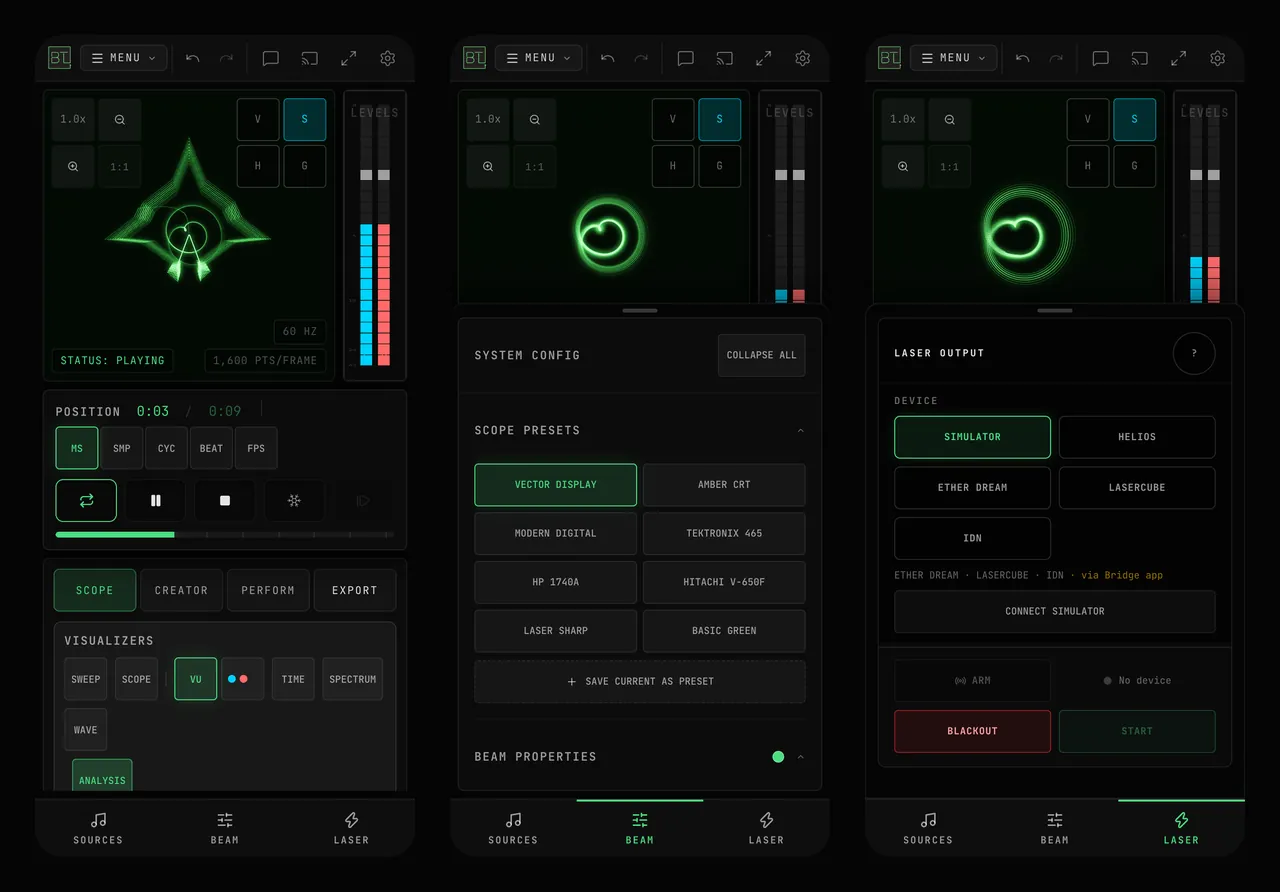
What is on screen on a phone?
From top to bottom:
- The scope. It stays square, so the trace keeps its shape. The zoom buttons (zoom out, zoom in, 1:1) sit in its top-left corner. The V and H measurement cursors and the S (axis scales) and G (graticule) toggles sit in its top-right corner. STATUS is at the bottom left, and the refresh rate (HZ) and points per frame (PTS/FRAME) are at the bottom right. Before anything plays, a hint and PLAY A DEMO sit under the idle dot; on a smaller phone the hint keeps only its first line, or leaves just PLAY A DEMO. With VU on, the level meter stands beside the scope.
- The transport. POSITION with the MS, SMP, CYC, BEAT and FPS time readouts, then loop, play, stop, freeze and step-one-frame across the full width.
- The mode row. SCOPE, CREATOR and PERFORM switch between the three UI modes, and EXPORT opens the Export dialog. On a phone these replace the mode tabs in the top bar.
- VISUALIZERS. The SWEEP, SCOPE, VU, TIME, SPECTRUM and WAVE toggles, and ANALYSIS.
- The tab bar. SOURCES, BEAM and LASER.
In CREATOR and PERFORM mode the synthesizer appears under the scope as well. Its modules stack in one column, and its knobs and faders follow a finger drag. Scroll the area above the tab bar to reach it.
The on-screen keyboard under the synthesizer has fingertip-sized keys and opens on middle C, about one octave wide. The arrow buttons either side of the octave name (C4 when it opens) move it one octave down or up. A touch on a key always plays that note, so the keys do not scroll the keyboard; each finger holds its own note, and sliding a finger along the keys plays each one it crosses.
How do I open the sources, beam and laser panels on a phone?
Tap SOURCES to load an audio file, share tab audio with SHARE TAB AUDIO, open ALL SOURCES, or use the shape and generator tools in Creator and Perform mode.
Tap BEAM for SCOPE PRESETS and BEAM PROPERTIES: color, gain, intensity, persistence and the rest of the beam settings.
Tap LASER for LASER OUTPUT: choose SIMULATOR, HELIOS, ETHER DREAM, LASERCUBE or IDN and connect.
Tap the open tab again to close its sheet. Tapping another tab swaps the sheets. The top of the scope stays visible while a sheet is open.
Where is BLACKOUT on a phone?
While a laser DAC is connected, the laser safety dock sits at the very bottom of the screen, under the tab bar, in two rows: POWER and the device status, then ARM, BLACKOUT and START as three wide buttons. No sheet, scroll or mode change covers it, and BLACKOUT is always immediately left of START, as on a desktop. See Laser DAC Output for what each control does.
A laser projects real beams. Read the Laser Safety guide before any output, from any device.
Which features change on a phone?
None are removed. The project name is not in the top bar, and on a screen 480 pixels wide or narrower MENU shows only its icon. Open PROJECTS from the bottom of the SOURCES sheet. Shortcut help is in Settings → SHORTCUTS; using the shortcuts requires a keyboard. MIDI and OSC learn buttons are full size next to the control they map, rather than tucked into its corner. BeamTracer runs in Chrome and Edge; see Browser support.