
How Do I Animate a Static SVG for a Laser?
Load your SVG in BeamTracer Image to Laser, then open ANIMATION & MODIFIERS in PROPERTIES. Choose WRITE for a drawing reveal or NEON INK for a reveal with changing color. Set the effect's duration and hold time, inspect the preview and point budget, then use DOWNLOAD ILDA to save the animated frames.
Hi, I'm Trina with BeamTracer.com. This walkthrough uses an original planet-and-star SVG. You can watch the same paths draw themselves in their source colors, then try a color treatment without redrawing the artwork.
NEON INK writes the planet, orbit and star in moving color. Trace Reveal Duration and Ink Settle Write duration are both 6 seconds; Hold After Effect is 1 second. This software preview is silent.
What kind of SVG should I start with?
Start with artwork whose paths remain recognizable as outlines. A few clear shapes make it easier to see what the animation changes. Upload your SVG, inspect the entire drawing in the preview, and check that separate paths and source colors arrived as expected before adding modifiers.
You can download the original Orbit Mark SVG to follow this example. It contains a cyan planet, magenta orbit and pale yellow star. The SVG starts as one still frame in Image to Laser.
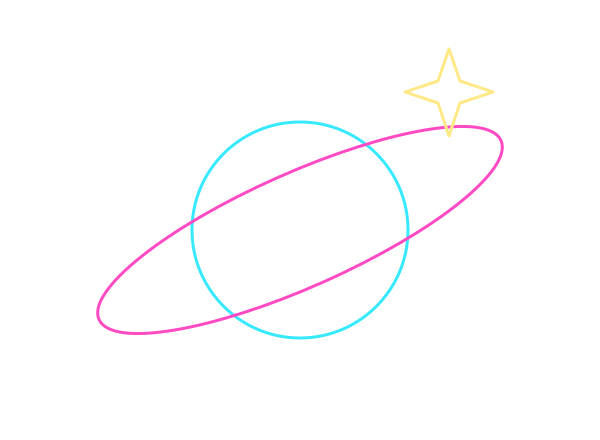
Press play to see the still SVG become a drawing reveal after WRITE is selected. Image to Laser adds the animation.
For artwork that begins as a PNG or JPEG, follow the image tracing guide first. Check the resulting contours before animating them.
How do I make the outline draw itself?
Choose WRITE under QUICK STARTS in ANIMATION & MODIFIERS. It creates an editable Trace Reveal modifier. Set its Duration to control how long the drawing takes, keep Keep laser trace on to retain the completed outline, and press that modifier's PLAY button to restart the animation.
- Open Image to Laser and upload your SVG.
- Expand ANIMATION & MODIFIERS under PROPERTIES.
- Choose WRITE under QUICK STARTS.
- Set Duration in Trace Reveal to 6.00s and keep Keep laser trace on.
- Set HOLD AFTER EFFECT to 1.0s and FRAME RATE to 30 FPS.
- Press PLAY on Trace Reveal and inspect the drawing and POINT BUDGET.
- Press DOWNLOAD ILDA to save the animation as an
.ildfile.
WRITE keeps the original cyan, magenta and yellow source colors as the outline appears. The leading dot follows the drawing; the completed trace remains behind it.
Each Quick Start replaces the chain
Try WRITE and NEON INK as separate starting points. Selecting another Quick Start replaces the current modifiers. Use SAVE PRESET first if you want to keep your edited chain.
How do I add changing color with NEON INK?
Choose NEON INK under QUICK STARTS. Its editable chain includes Trace Reveal, Color Flow, and Ink Settle. Trace Reveal reveals the paths, Color Flow moves color along them, and Ink Settle adds a fresh-color writing front that settles after the pen passes.
For the first demo, set Duration in Trace Reveal to 6.00s and Write duration in Ink Settle to 6.00. Leave the other modifier controls at their Quick Start values. Set HOLD AFTER EFFECT to 1.0s, choose 30 FPS, then press PLAY on a modifier to restart the whole chain.
| Timing control | What it changes in this example |
|---|---|
| Trace Reveal Duration | The reveal takes 6 seconds |
| Ink Settle Write duration | The fresh-color front uses the same 6-second writing window |
| HOLD AFTER EFFECT | Adds 1 second after the timed effect |
| FRAME RATE | 30 frames per second, for 210 frames over 7 seconds |
The hold inside a modifier belongs to that modifier. HOLD AFTER EFFECT is the extra time added by Image to Laser after the longest timed effect. Read the total beneath that slider before downloading, especially after changing more than one duration.
How do I check the exported animation in 3D?
Load the saved .ild file in ILDA Viewer, check FILE HEALTH, then choose 3D. Under SCENE, set BEAM MODE to Cinema — Premium fog and choose Orbit Mode from the camera selector. The camera moves around a software projection of the animation stored in that file.
Press play for the Cinema orbit. This is the same exported 210-frame NEON INK animation, shown with simulated beams and fog. It is a software view, not footage of physical projection.
The example ILDA file contains 210 frames in Format 5 (2D True Color). The viewer reports a valid file with the point estimate within the selected Standard 30k profile at 30 FPS. Read ADDITIONAL NOTES too: this example reports frequent stored color transitions, which is not a measurement of visible strobing.
A point estimate has limits
A valid file and a green point budget do not certify laser safety or guarantee a projector will reproduce the preview. ILDA does not set an external player's scan speed. Read Laser DAC Output and Laser Safety before moving from software inspection to hardware.
Cinema is available to preview on lower plans with a watermark. Studio removes the Cinema watermark. The examples here show the clean preview.
Can I keep editing the animation in Animation Studio?
Use SEND TO ANIMATION STUDIO in Image to Laser to continue with an editable SVG layer. The handoff keeps the source colors, modifier chain and timing. In this example, orbit-mark arrives on a seven-second timeline; press Play to inspect the reveal before adding other layers.
Press play to see the native handoff in Animation Studio. The SVG arrives as an editable layer with its modifiers and timing.
Check the framing and drawing order after the handoff. In this example, Animation Studio reveals the orbit and star before the circle. The source shapes and colors remain available for editing.
Continue with the Animation Studio guide for layers and audio-controlled modifiers. DOWNLOAD SVG saves the still vector artwork. Use DOWNLOAD ILDA for the animated frames, or SEND TO ANIMATION STUDIO to retain the editable layer and modifiers.