
How Do I Make Particles Bounce off Obstacles?
In BeamTracer Performer, add EMIT, choose FROM → CENTER and WHEN → ALWAYS, then open COLLISIONS. Change OBSTACLE from OFF to PLANE or CIRCLE. Aim particles at the boundary and adjust BOUNCE, FRICTION and CLEARANCE. Render the center-emitted result as MP4 or WebM without a camera.
Hi, I'm Trina with BeamTracer.com. A floor gives the particles something easy to see and react to. Start with a few sparks falling toward a horizontal plane, then tilt the surface or place a circle in their path.
Silent native demonstration. The line shows the plane; the sparks rebound above it. The clip visibly restarts.
How do I give falling particles a floor?
Choose OBSTACLE → PLANE, keep PLANE ANGLE at 0° and move PLANE OFFSET below the emitter. Aim EMIT downward and add GRAVITY so particles reach the floor. At this angle, the plane keeps particle centers above its surface.
- Open BeamTracer Performer and expand FX RACK.
- Open ADD AN EFFECT → PARTICLES and select EMIT.
- Choose FROM → CENTER, WHEN → ALWAYS and SHAPE → SPARKS.
- Aim DIRECTION downward at 90° and raise GRAVITY while watching the motion.
- Open COLLISIONS, choose OBSTACLE → PLANE and place the floor with PLANE OFFSET.
- Keep PLANE ANGLE at 0° and raise BOUNCE toward 0.85 for a visible rebound.
- Open RENDER, choose MP4 · H.264 or WEBM · VP9, then RENDER VIDEO and SAVE VIDEO.
How do I make particles travel around a circle?
Choose OBSTACLE → CIRCLE, place it with CIRCLE X and CIRCLE Y, then set RADIUS so the particle stream reaches it. The circle keeps particle centers outside. Leave the boundary visible while positioning it; BOUNDARY → HIDDEN removes the line while collisions continue.
 OBSTACLE OFFCIRCLE
What do Bounce, Friction and Clearance change?
BOUNCE changes the rebound, FRICTION slows travel along the surface and CLEARANCE adds space around the boundary. Collisions follow particle centers, so larger sprites or wings may need extra clearance to keep their edges away from the guide.
| Control | What to try |
|---|---|
| BOUNCE 0 | Stop motion into the surface. |
| BOUNCE 1 | Preserve the incoming speed in the rebound direction. |
| FRICTION | Raise it to reduce sliding along the boundary. |
| CLEARANCE | Raise it when a large particle overlaps the guide. |
How do I make particles avoid a person in a video?
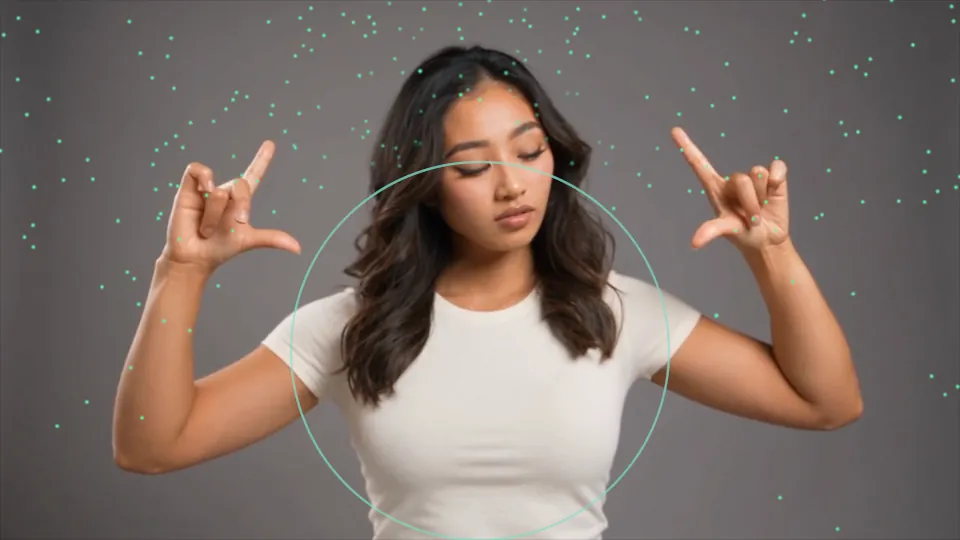
Load a video with a visible person in SOURCE, then choose COLLISIONS → OBSTACLE → PERSON. Tracking starts for that option, and the boundary follows the person's silhouette. Keep BOUNDARY → SHOWN while adjusting CLEARANCE so you can see where the particles are being kept out.
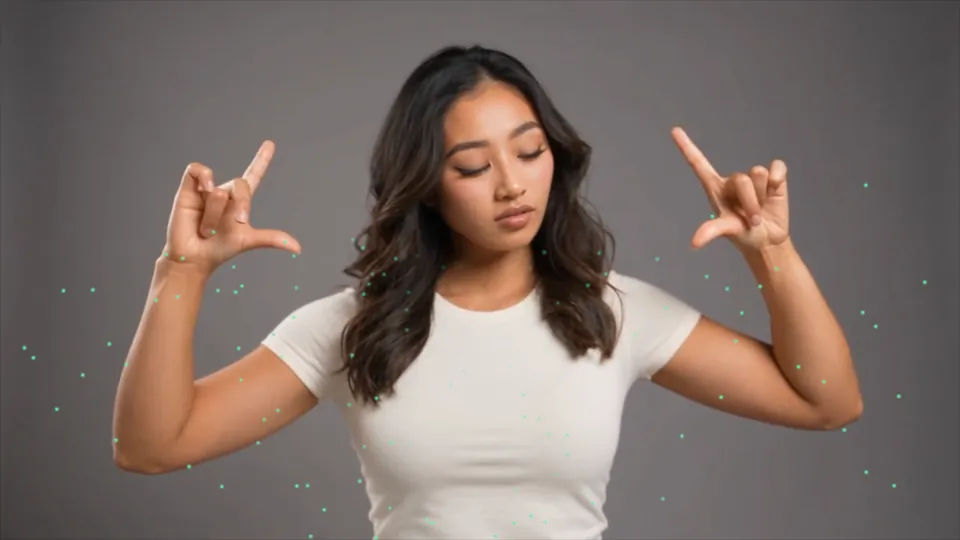
PERSON over the TRINA · HANDS example, with center-emitted sparks. This silent native render visibly restarts.
The silhouette is approximate around hair and fingers. If tracking loses the person, the boundary and its collisions turn off until a person is found again. BOUNDARY → HIDDEN hides the line while collisions continue. Render an uploaded person video with FROM → CENTER, or use RECORD for a live source.
Can I use collisions with ribbons or a picture stream?
EMIT's particle shapes, including RIBBONS, can use the boundary. THREADS keeps its separate behavior. In PARTICLES, choose MODE → STREAM to find the same COLLISIONS group; CLOUD, SNAP and TIGHT CONTOURS keep their existing motion.
These plane and circle boundaries lie in the picture. The separate PERSON option follows a tracked silhouette. These controls do not collide with an arbitrary 3D model. OBSTACLE starts OFF, so existing looks keep their motion until you enable a boundary. The collision control guide has the native example and settings.
For a TouchDesigner approach, Bileam Tschepe's Particle Collisions with Ray POP builds two particle-collision examples. This BeamTracer recipe uses the rack's flat plane and circle controls; it does not reproduce the tutorial's Ray POP setup.