
How Do I Turn a Video Into Animated Engraving Lines?
Load a video in BeamTracer Performer, add EDGES and choose FLOW ENGRAVING or TOPOGRAPHIC. Use IMAGE guidance for brightness-driven lines, or HYBRID with GENERATE DEPTH to combine brightness and estimated depth. The engraving studies add BLUR before Edges; the paper study keeps it off. Render an MP4 or WebM in the browser.
Topographic on paper, then Flow Engraving with Hybrid guidance. The same source clip continues through the setting changes. The engraving view uses Blur 0.20 before Edges. These silent native renders use a closely framed version of the Trina hands example.
Hi, I'm Trina with BeamTracer.com. A portrait made of lines needs more than an outline around the head. The eyes and mouth still need to read as the person moves. BeamTracer gives you two ways to guide that drawing: the picture's brightness and a depth estimate prepared from the media.
How do I make the flowing-line portrait?
Add BLUR before EDGES and set AMOUNT to 0.20. Select FLOW ENGRAVING in Edges and start with GUIDANCE → IMAGE. This gives you a brightness-based study before you prepare depth. Keep the face large in the source so its features have enough room to read between the lines.
- Open BeamTracer Performer and open FX Rack.
- Load a portrait video under VISUAL SOURCE → VIDEO · IMAGE.
- Add EDGES and choose STYLE → FLOW ENGRAVING.
- Add BLUR, set AMOUNT to 0.20 and place it before EDGES in the rack.
- Set GUIDANCE to IMAGE, CONTOUR LEVELS to 24 and LINE DETAIL to 0.55.
- Set LINE WIDTH to 1.10, FLOW SPEED to 0.18 and PICTURE to 0.08.
- Set INK to
#e9e2caand PAPER to#101c24for the dark study below. - Open RENDER, choose MP4 · H.264 or WEBM · VP9, render the clip and choose SAVE VIDEO.
Blur 0.20 before Edges. Flow Engraving, Image guidance, Contour Levels 24, Line Detail 0.55, Line Width 1.10 and Flow Speed 0.18. A small Picture amount, 0.08, keeps some original color beneath the print.
A little BLUR before EDGES softens picture grain before it becomes extra lines. Keep that prepass low enough for the eyes and mouth to read. CONTOUR LEVELS changes the contour structure. LINE DETAIL adds finer variation. LINE WIDTH changes the stroke weight. If the face starts to look like noise, lower Line Detail before making every line thicker. Inspect the result at the size you intend to share it; fine marks that separate at full resolution can merge on a phone.
Crop a wide shot before loading it if the face occupies only a small part of the picture. A face framed closely gives the lines more room around the eyes and mouth. The example here uses a close crop of the original footage.
How does hybrid depth change the engraving?
Choose GUIDANCE → HYBRID, set DEPTH CONTRIBUTION to 0.65, and press GENERATE DEPTH. Wait for DEPTH READY before comparing the result. Hybrid combines the prepared surface estimate with brightness detail from the picture.
The same Flow Engraving recipe, with Hybrid guidance and Depth Contribution 0.65. Depth was prepared for the moving video before rendering.
Drag the divider to compare the same pose. The Blur prepass, line settings and source framing stay the same; the guidance changes.
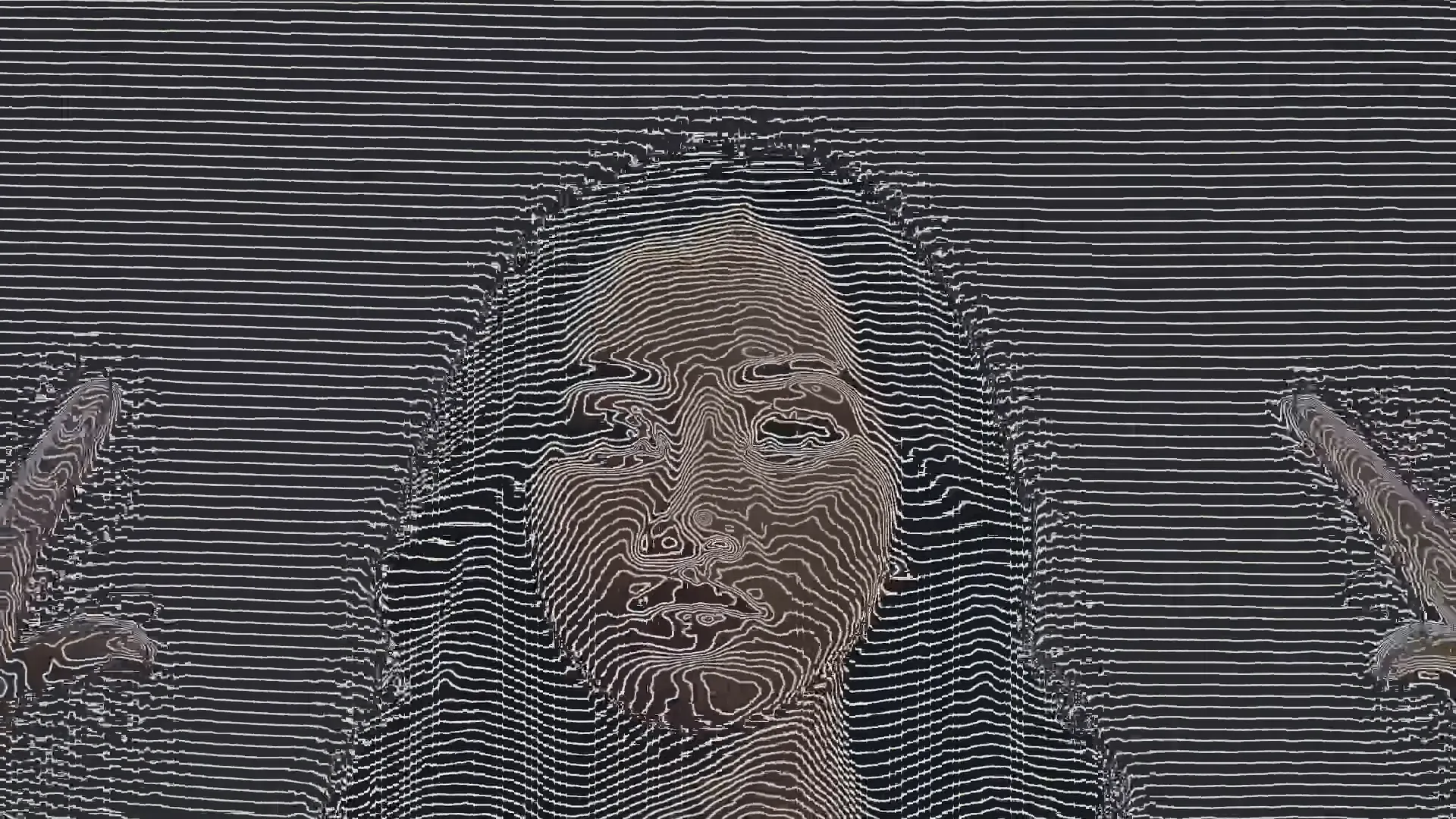
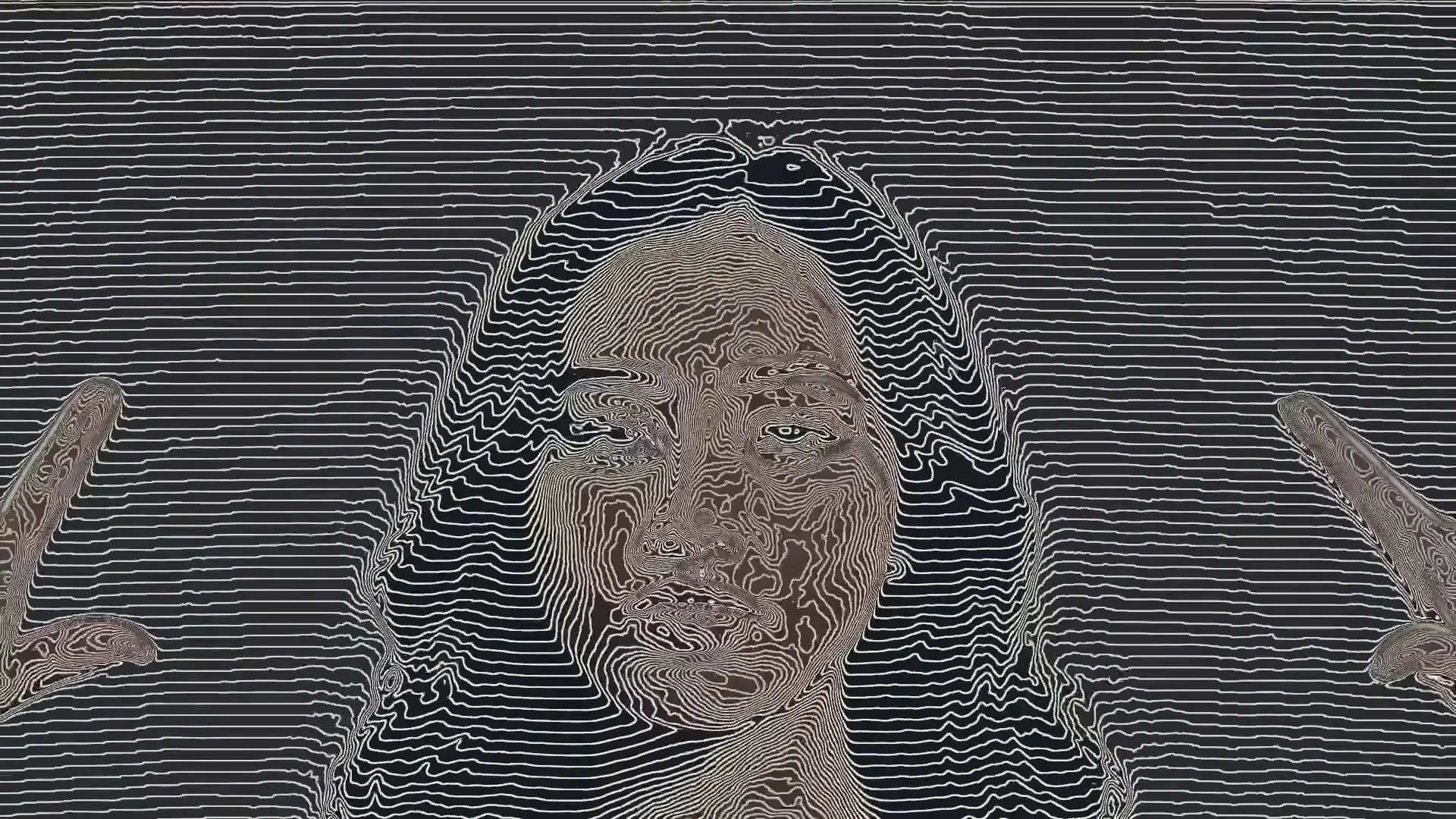 IMAGEHYBRID DEPTH
MEDIA DEPTH uses the estimated surface as guidance. HYBRID lets you balance that surface with the picture using DEPTH CONTRIBUTION. Until a depth map is ready, the contours use image guidance, so selecting Hybrid alone does not prove that depth is contributing.
Depth is an estimate
BeamTracer prepares depth on your device. Video depth is sampled less often than the picture, and fast movement can outrun those updates. Hair and fingers can show unstable detail. Use a slower shot when you want a steadier print.
For a live camera, use START LIVE DEPTH and capture the live result with RECORD. For an uploaded video, prepare its depth and use RENDER. Reconnect the source and prepare depth again after reloading a saved look.
How do I make the paper-and-ink contour version?
For the paper study below, turn BLUR off, switch STYLE to TOPOGRAPHIC and use a light PAPER color with dark INK. This draws contour bands through the picture instead of the flowing rows of Flow Engraving. Keep the original picture low for a more graphic print.
Blur off. Topographic, Hybrid guidance, Depth Contribution 0.65, Contour Levels 18, Line Detail 0.45, Line Width 1.40 and Flow Speed 0.18. Ink #112d3d, Paper #e5dbbd, Picture 0.03.
Start with the same clip when comparing the two styles. Keep the camera framing, prepared depth and playback section fixed, then change one setting. The different line structure is easier to judge when the face is making the same movement.
FLOW SPEED 0 stops the added flow of the lines. It does not freeze the video: the drawing still follows the moving source. Raise PICTURE to bring back more of the original footage, or lower it to emphasize the printed treatment.
What should I check before exporting?
Render a short moving passage at your delivery resolution. Check the eyes and mouth throughout the passage, then examine the fine lines at phone size. The examples here use 1080P, 16:9 and 30 FPS in RENDER.
Keep depth with its picture
FIT and MIRROR also apply to prepared depth. An effect that warps the picture before EDGES does not regenerate that depth. Check the combination in motion; keep the same source and Blur prepass when comparing guidance modes.
Can I make this without a TouchDesigner patch?
Yes. The BeamTracer route here uses the EDGES controls and the media-depth workflow in the browser. The result is a 2D video print treatment. It does not require you to assemble instancing, a material and a render network.
For the geometry-based approach that inspires many engraved-line experiments, see threedashes' Engraved Lines tutorial. That lesson uses geometry instancing and GLSL materials. BeamTracer's examples above use its own flowing-line and contour styles; they are not a reconstruction of that patch or a freely rotatable 3D scene.
The FX Rack image-effects guide covers the remaining guidance controls. Open Performer and draw a moving portrait →